Android Auto Not Working: Setup, Requirements and Fixes
Android Auto not working usually means a bad cable, a wrong setting, or a version mismatch. Here's how wired and wireless setup work, and how to fix the most common problems.
Android Auto not working almost always comes down to one of four things: an outdated cable or Bluetooth pairing, a phone or car setting that's quietly blocking the connection, a background app eating battery and killing the session, or software on either end that needs an update. This guide covers what Android Auto actually requires to work, how wired and wireless setup differ, and the official fixes for the connection problems people run into most — not connecting at all, dropping out mid-drive, a wireless adapter that won't pair, and apps that vanish from the car screen.
- Wired Android Auto needs Android 9.0 (Pie) or higher; wireless needs Android 11.0 or higher, plus 5 GHz Wi-Fi support on the phone.
- Android Auto is built into the phone's software — there is nothing to download from the Play Store on a supported device.
- You need an active mobile data plan on the phone and a compatible car display or aftermarket stereo; Google lists more than 500 compatible vehicle models.
- A worn or uncertified USB cable is the single most common cause of "not connecting" and random disconnects.
- Disappearing apps on Samsung phones are usually a battery-saving feature putting unused apps to sleep, not a bug.
What Is Android Auto?
Android Auto is Google's system for projecting a simplified, driving-friendly version of your phone's apps onto your car's built-in display. Instead of looking down at your phone, you get large on-screen controls and voice commands for navigation, calls, messaging, and media, run through the car's screen and speakers. Google describes it as integrated directly into the phone: on a supported device there is no separate app to install from the Play Store, because the capability is part of the Android software itself.
It works with either a compatible factory infotainment system or an aftermarket head unit from brands like JVC, Kenwood, and Pioneer. Google maintains a list of compatible vehicles at android.com/auto/compatibility, and the fastest way to confirm your specific car or stereo supports it is to check that list or ask the manufacturer directly, since support varies by trim and model year.
Wired vs. Wireless Android Auto: What's the Difference
Both versions put the same interface on your car's screen; the difference is only in how the phone talks to the car.
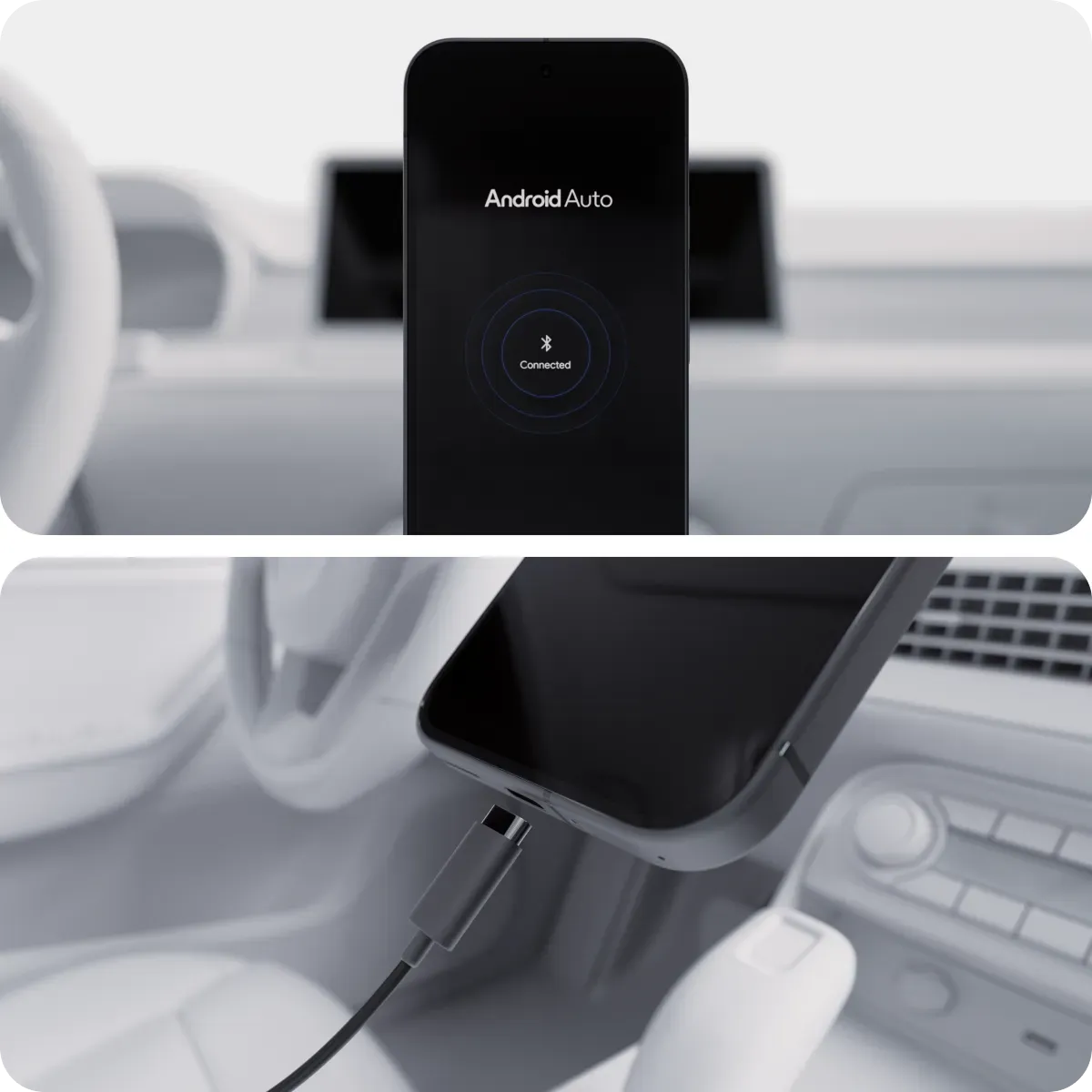
Wired Android Auto connects your phone to the car over a USB cable. It needs Android 9.0 or higher, a compatible car, an active mobile data connection on the phone, and a USB cable. Plug in with the car parked and the infotainment system on, and Android Auto should launch automatically or prompt you to confirm the connection.
Wireless Android Auto drops the cable: the phone and car pair once over Bluetooth, and the actual video/audio session then runs over a direct Wi-Fi link between them. It needs Android 11.0 or higher, a car or aftermarket stereo that specifically supports wireless Android Auto (not every wired-compatible car does), an active data plan, and Bluetooth, Wi-Fi, and Location Services all turned on on the phone. Google also notes the phone needs 5 GHz Wi-Fi support, and that drivers in the EU should confirm their phone meets local regulatory rules for using 5 GHz Wi-Fi inside a vehicle.
If your phone or car only supports one mode, that decides it for you. If both support wireless, it's worth trying wired first when you're troubleshooting a problem, since USB is generally the more stable and lower-latency connection, and it rules out Wi-Fi/Bluetooth interference as a cause.
Android Auto Requirements at a Glance
Before assuming something is broken, it's worth double-checking you actually meet the baseline requirements — a surprising share of "Android Auto not working" cases are really a version or hardware mismatch.
| Requirement | Wired | Wireless |
|---|---|---|
| Android version | 9.0 (Pie) or higher | 11.0 or higher |
| Data plan | Active mobile data required | Active mobile data required |
| Phone radios | None extra | Bluetooth, Wi-Fi (5 GHz), Location Services on |
| Cable | High-quality USB cable, ideally under 3 feet, no hub/extension | Not needed after initial pairing on some systems |
| Car / head unit | Android Auto–compatible display | Wireless Android Auto–compatible display (a separate spec from wired support) |
| App install | None — built into the phone | None — built into the phone |
If you've recently moved to a new phone, it's also worth confirming your Android version directly rather than assuming: our Android 17 compatibility rundown covers which devices are eligible for the latest OS update, which is more than enough for either wired or wireless Android Auto.
How to Set Up Android Auto With a Cable
- Park the car and turn on the infotainment system.
- Plug the USB cable into the car's USB port, then into your phone.
- Follow the on-screen prompts on the car display to finish setup the first time; after that, it should connect automatically whenever you plug in.
There's no app to find or download first — on a supported Android version, the car display triggers the Android Auto interface as soon as it detects a compatible phone over USB.
How to Set Up Android Auto Wirelessly
- On the phone, turn on Bluetooth, Wi-Fi, and Location Services.
- Open the phone's Bluetooth settings so it's ready to pair.
- In the car, press and hold the voice command button on the steering wheel (or use the car's Bluetooth pairing menu) to start pairing.
- Confirm the pairing prompts that appear on both the phone and the car display.
- Android Auto should launch automatically within a few seconds once pairing completes; on later drives, it should reconnect on its own as long as Bluetooth stays on.
Note that wireless support is a separate certification from wired support — a car that supports wired Android Auto doesn't automatically support the wireless version, so check your specific trim or head unit's spec sheet if you're not sure.
Android Auto Not Working: Where to Start
When Android Auto won't launch at all, work through the basics in this order before digging into anything more specific:
- Confirm your Android version. You need 9.0 or higher for wired, 11.0 or higher for wireless, plus an active data plan on the phone.
- Confirm the car is actually compatible — either a factory-supported model or an aftermarket unit with Android Auto support installed. Check android.com/auto/compatibility if you're not sure.
- Swap the cable. Use a high-quality cable under three feet long, ideally the one that came with your phone (a Pixel or Samsung cable for those phones), or one certified within the past two years. Don't use a USB hub or extension cable.
- Check the car's own settings. Make sure Android Auto is turned on in the infotainment system's settings menu, and try restarting the infotainment system itself.
- Update firmware on aftermarket units. If you're using a third-party head unit, check the manufacturer's website for a firmware update, since many wireless and stability fixes ship that way rather than through Google.
If you're switching between two different cars, Android Auto occasionally gets confused by saved pairing data from the other vehicle. Clear it out from Settings > Connected devices > Connection preferences > Android Auto > Previously connected cars, then choose "Forget all cars" and reconnect from scratch.
Android Auto Not Connecting: Likely Causes and Fixes
"Not working" and "not connecting" usually point to the same checklist above, but a few causes are specific to the initial handshake failing:
- Cable quality or a bad port is the most common culprit for wired setups that won't connect at all — try a different cable and a different USB port in the car if there's more than one.
- Android Auto turned off in the car's settings will block every connection attempt even with a perfect phone and cable, so this is worth checking before anything else.
- Stale "previously connected car" data can make a phone try to reconnect to settings that no longer match the car; use the "Forget all cars" steps above.
- Version mismatch — trying to use wireless on Android 10 or earlier, for example — will simply never connect wirelessly no matter what else you try, since the minimum is Android 11.0.
Android Auto Keeps Disconnecting: Why It Happens
A session that starts fine but keeps dropping is usually a connection-stability issue rather than a compatibility one:
- A failing or loose cable is the top wired cause — cables degrade with wear, and anything beyond the recommended three-foot length or routed through a hub or extension is more likely to drop the signal intermittently rather than fail outright.
- Wireless interference from other Bluetooth or Wi-Fi devices in the car can interrupt a wireless session; keeping the phone's Wi-Fi and Bluetooth exclusively focused on the car connection (rather than also streaming to a smartwatch or earbuds simultaneously) can help.
- Background battery optimization on the phone can suspend the Android Auto process mid-session on some devices, especially aggressive manufacturer battery-saving modes.
- Infotainment software bugs on the car's side are addressed through the manufacturer's own firmware updates for aftermarket units, so it's worth checking for one if disconnects are frequent and the phone and cable both check out.
If you're on a Samsung phone, it's also worth checking the device's own update status, since Samsung periodically adjusts background-process behavior in its One UI updates, and a pending update can affect how reliably apps stay active in the background during a long Android Auto session.
Wireless Android Auto Adapter Problems
Many drivers with a car that only supports wired Android Auto use a third-party wireless adapter — a small dongle that plugs into the car's USB port and relays the connection over Wi-Fi so the phone itself never needs a cable. Google doesn't make or certify these adapters itself, so for adapter-specific setup and pairing issues, the adapter manufacturer's own instructions are the right first stop rather than Google's support pages. That said, the same fundamentals from above still apply and are the most common fix: your phone still needs to meet Android Auto's own wireless minimum (Android 11.0 or higher, 5 GHz Wi-Fi support, Bluetooth and Location Services on), since the adapter is relaying an otherwise-standard Android Auto wireless session rather than replacing those requirements. If an adapter pairs but then disconnects repeatedly, treat it the same as any other wireless disconnect issue: rule out Bluetooth interference, confirm nothing else is also trying to pair with the adapter, and check whether the adapter has its own firmware update available.
Missing Apps or Apps Not Showing Up
If an app you expect to see simply isn't in the Android Auto app launcher on the car screen, the most common cause — especially on Samsung phones — isn't a bug but a battery-saving feature. Samsung phones can temporarily disable apps you haven't opened in a while to save battery, and while disabled, they stay installed but won't appear in Android Auto. Opening the app directly on your phone once typically restores it to the launcher the next time you connect. For a more permanent fix, go to your phone's battery settings and turn off "Auto disable unused apps" or "Put unused apps to sleep" (naming varies by manufacturer) so the system stops hiding apps you actually use regularly. If you can't find that setting, your phone maker's support site is the right place to look, since the exact menu location differs across brands.
Separately, if you simply can't find "Android Auto" itself as an app on your phone to open directly, that's expected on supported devices — it's built into the phone's software rather than existing as a standalone app in your app drawer, so there's nothing to search for or reinstall.
Keeping Android Auto Updated
Because Android Auto is part of the phone's software rather than a separate download, you don't manage its updates the way you would a typical app. The meaningful updates come from two places instead: your phone's overall Android version and security patch level, and, for aftermarket head units, firmware updates from the unit's manufacturer. Staying current on both reduces the odds of hitting compatibility bugs, since Google and car-stereo makers both periodically patch connection-stability issues on their own sides. If you're also keeping an eye on your phone's general health while you're in there, it's worth a quick check of your phone's battery health, since a phone that's thermal-throttling or battery-saving aggressively is more likely to kill background connections, including an active Android Auto session.
Quick Troubleshooting Reference
| Symptom | Most likely cause | What to try |
|---|---|---|
| Won't connect at all (wired) | Bad cable, wrong port, or Android Auto off in car settings | Swap cable, try a different port, enable Android Auto in infotainment settings |
| Won't connect at all (wireless) | Phone or car below minimum version/feature support | Confirm Android 11.0+, 5 GHz Wi-Fi, Bluetooth/Location on, car supports wireless specifically |
| Connects, then disconnects repeatedly | Worn cable, Wi-Fi/Bluetooth interference, or aggressive battery optimization | Try a certified cable under 3 ft, reduce other paired devices, check phone battery settings |
| Wireless adapter won't pair or keeps dropping | Adapter firmware, or phone doesn't meet wireless minimums | Check adapter maker's firmware update, confirm phone meets Android Auto wireless requirements |
| App missing from car launcher | Phone auto-disabled an unused app to save battery | Open the app on the phone once, then disable "put unused apps to sleep" |
| Works in one car, not another | Stale saved pairing/settings from a previous vehicle | Settings > Connected devices > Connection preferences > Android Auto > Previously connected cars > Forget all cars |
Bottom Line: What to Do Next
Most Android Auto problems trace back to a handful of causes: a cable or pairing that needs refreshing, a setting on the car's side that's switched off, a version mismatch between what your phone supports and what you're trying to do, or a phone-side battery feature quietly suspending the connection. Work through the requirements table and the quick-reference table above in order before assuming anything is seriously broken, and reach for the car or adapter manufacturer's own firmware updates when the phone side checks out completely clean. For anything that persists after all of that, Google's own Android Auto help community is the official next step, since some fixes are specific to a particular car model or head unit rather than something general advice can cover.
Frequently asked questions
What Android version do I need for Android Auto?
You need Android 9.0 (Pie) or higher for a wired connection, and Android 11.0 or higher for wireless Android Auto, along with an active mobile data plan on the phone.
Do I need to download the Android Auto app?
No. Android Auto is built directly into the phone's software on supported Android versions, so there's nothing to install from the Play Store.
Why does Android Auto keep disconnecting?
The most common causes are a worn or uncertified USB cable, Bluetooth or Wi-Fi interference during a wireless session, or a phone's battery-saving settings suspending the connection in the background.
Why is an app missing from my Android Auto screen?
On many phones, especially Samsung devices, apps you haven't opened recently get temporarily disabled to save battery. Opening the app once on your phone, or turning off 'put unused apps to sleep' in battery settings, brings it back.
Does every car support wireless Android Auto?
No. Wireless support is a separate certification from wired support, so a car that works with a cable doesn't automatically support wireless Android Auto. Check your car or head unit's specific listing to confirm.
What should I do if a wireless Android Auto adapter won't connect?
Confirm your phone still meets Android Auto's own wireless requirements (Android 11.0 or higher, 5 GHz Wi-Fi, Bluetooth and Location Services on), then check the adapter manufacturer's site for a firmware update, since Google doesn't make these adapters itself.
Sources
- Google Support: Get started with Android Autosupport.google.com
- Google Support: Set up Android Autosupport.google.com
- Google Support: My Android Auto app isn't workingsupport.google.com
- Google Support: Find an app that is not on the app launchersupport.google.com
- Google Support: I can't find the Android Auto app on my phonesupport.google.com
- Android Auto overviewandroid.com
Nadia Osei covers mobile and consumer gadgets for Pandromeda: smartphones, tablets, smartwatches, earbuds and smart-home devices. She tracks launches, software updates and pricing across Apple, Google, Samsung and the rest, and builds comparisons from the manufacturers' published specifications.