What Is Overclocking? A Plain-English Guide to CPU, GPU, RAM
What overclocking really means, how voltage and heat limit it, the official Intel, AMD, and Nvidia tools for doing it, and how it differs from just enabling XMP or EXPO.
- Overclocking means running a CPU, GPU, or RAM module faster than its factory-rated clock speed, usually by raising voltage and/or clock multipliers in firmware or vendor software.
- It is different from enabling XMP or EXPO, which just loads a memory module's pre-tested fast profile rather than pushing it past what the maker validated.
- Intel (XTU), AMD (Ryzen Master / Precision Boost Overdrive), and Nvidia (the Nvidia app's automatic tuning) all publish their own overclocking tools, and all three warn that it can void part of your warranty and shorten component life.
- Extra cooling and stability testing aren't optional extras — they're how you find out whether an overclock is safe to keep.
Overclocking is the practice of running a computer chip — a CPU, a graphics card's GPU, or a RAM module — at a clock speed higher than the one it shipped with, in order to extract more performance than the factory setting delivers. It works because manufacturers set default clock speeds conservatively, leaving a margin for manufacturing variance, cooling differences, and long-term reliability; overclocking spends some of that margin on speed instead. Done carefully, with adequate cooling and testing, it can meaningfully speed up a CPU, GPU, or memory kit. Done carelessly, it can make a system unstable or, according to every major chipmaker's own documentation, shorten the part's lifespan and affect warranty coverage.
This explainer breaks down how overclocking actually works at the voltage-and-heat level, the tools Intel, AMD, and Nvidia officially ship for it in 2026, how it differs from simply switching on an XMP or EXPO memory profile, and the practical steps people use to do it without destroying hardware.
What overclocking actually means
Every CPU, GPU, and RAM module is sold with a rated clock speed — the frequency the manufacturer guarantees it will run at reliably, under normal cooling, for the life of the product. Overclocking raises that frequency past the rated number, typically alongside the chip's voltage, which the silicon generally needs to stay stable at a higher clock.
According to Wikipedia's overview of overclocking, a faster clock doesn't automatically mean a faster computer: real-world performance also depends on the chip's microarchitecture, the specific software being run, and memory bandwidth and latency. Overclocking is also not a guaranteed feature — some CPUs are deliberately "locked" by the multiplier so only specific SKUs (Intel's K and KF models, for instance, or AMD's unlocked Ryzen parts) can be overclocked at all through official tools.
The voltage, clock, and heat relationship
The physics behind overclocking is straightforward even if the practice can get fiddly. Per the IEEE research Wikipedia cites, a chip's power draw is proportional to its clock frequency and to the square of its supply voltage. In plain terms: pushing the clock speed up a little requires a small voltage bump, but that voltage increase costs disproportionately more in heat than the clock increase alone. Thermal output rises roughly linearly with frequency and roughly quadratically with voltage — so a modest overclock achieved mostly through more voltage generates much more heat than one achieved with a lower voltage increase and a smaller frequency jump.
That's why every vendor overclocking tool revolves around three dials that all move together: clock speed (or "ratio"/multiplier), voltage, and temperature. Intel's own overclocking guide for its Extreme Tuning Utility advises raising the CPU's core ratio one step at a time, rebooting, and checking stability before the next increase — and specifically cautions against changing voltage by more than 0.05V in a single adjustment. If temperatures climb too high, the CPU's own protections cut in: Intel XTU flags thermal throttling, power-limit throttling, and even motherboard voltage-regulator heat as separate failure states it monitors for.
Overclocking vs. simply enabling XMP or EXPO
It's worth being precise here, because the two get conflated constantly. Turning on an XMP (Intel) or EXPO (AMD) memory profile is not overclocking in the traditional sense — it's selecting a faster timing/voltage/frequency combination that the memory maker already tested and validated for that specific kit, then stored on the module itself. The BIOS just has to read and apply it. Pandromeda has a separate explainer that walks through exactly how to check your RAM speed and turn on XMP or EXPO in Windows 11, so this piece won't repeat those steps.
True memory overclocking is what happens after you've already enabled XMP/EXPO and then go further — manually tightening timings, raising the memory voltage, or pushing the frequency beyond the kit's rated XMP/EXPO profile. That's genuinely overclocking, with the same stability and heat trade-offs as CPU or GPU overclocking, just applied to memory controllers and modules instead.
How people overclock CPUs today
On the Intel side, the Intel Extreme Tuning Utility (XTU) is Intel's own free Windows application for overclocking, monitoring, and stress-testing a system. Intel's support documentation is specific about who can actually use it: XTU targets "unlocked" processors — K- and KF-suffix Core chips and Intel's Core X-series — on a motherboard built for overclocking, generally one with a Z-series chipset. On a locked CPU or a non-Z board, most of the interesting controls simply aren't exposed, and Intel's own article notes that attempting voltage changes on unsupported hardware "can result in inconclusive and unreliable behavior." XTU also includes AI Assist, a feature Intel describes as estimating optimized values for parameters like the CPU core ratio automatically, and a built-in Stress Test tab that can run anywhere from a few minutes to several hours or days to validate a 24/7-stable configuration.
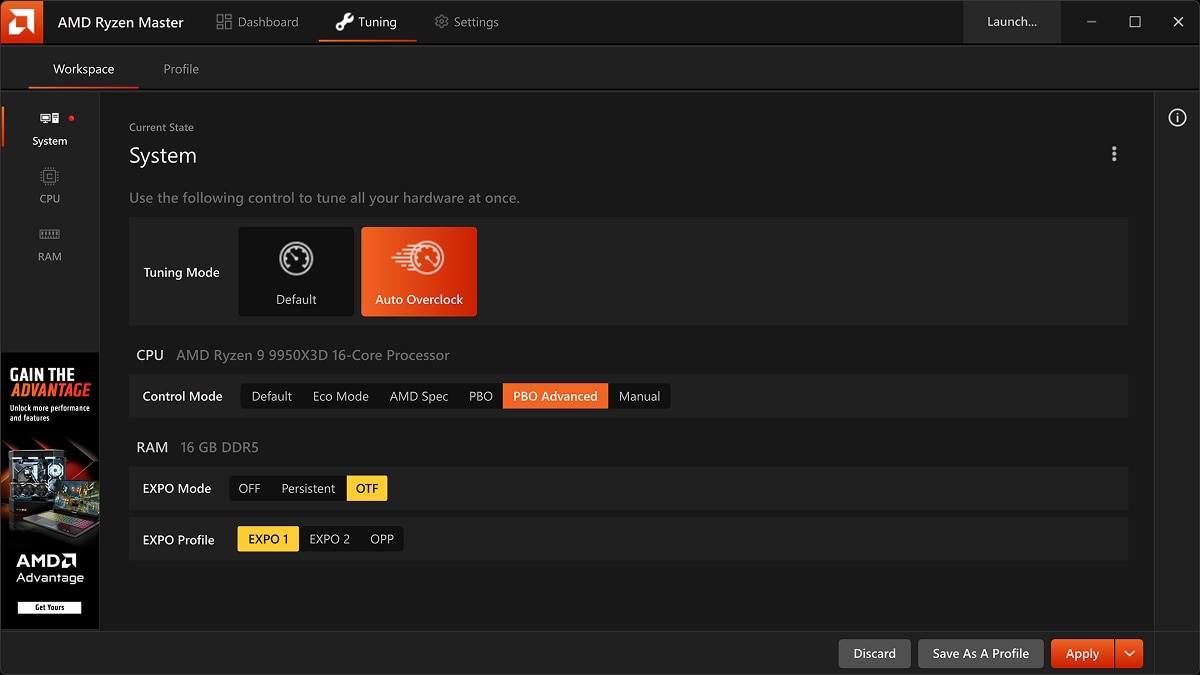
On the AMD side, the equivalent tool is Ryzen Master, AMD's own utility for monitoring and overclocking Ryzen CPUs. Ryzen Master is also how most people enable Precision Boost Overdrive (PBO), AMD's feature for letting the CPU push its own boost clocks and power limits further than the stock algorithm would, within the limits of the cooling and motherboard power delivery available. AMD's product page is explicit that PBO support is generation-specific: it requires "a compatible AMD Ryzen Threadripper, 3rd Gen AMD Ryzen 3, Ryzen 5, Ryzen 7, or Ryzen 9 processor," and that older Ryzen chips, including the Ryzen 3200G, aren't compatible with it at all.
Motherboard makers layer their own interfaces on top of both platforms. Every modern board's BIOS/UEFI includes a tuning section — often labeled something like "AI Tweaker" or "OC" — where the same clock-ratio and voltage controls exposed in XTU or Ryzen Master can be set directly, along with one-click "auto-overclock" presets that iteratively raise voltage until a built-in stability check fails or temperatures hit a safety ceiling, then back off a step.
How people overclock GPUs today
Graphics card overclocking usually touches two separate clocks — the GPU core and the video memory — which can be adjusted independently. Nvidia's current first-party route is built into the Nvidia app itself: its official FAQ describes a System tab that lets users "enable one-click automatic GPU Tuning and performance panel," which scans the card and builds a tuned clock/voltage profile automatically rather than requiring manual trial and error. Add-in-board (AIB) partners — Asus, MSI, Gigabyte, and others — also ship their own overclocking utilities for their specific graphics card models, and Intel's own support article on its Arc desktop graphics cards states plainly that overclocking through Intel's own Graphics Software "does not void the warranty" for Intel-branded cards, while noting that policies for third-party board partners' cards are set by those partners, not Intel.
Wikipedia's entry on overclocking cites one independent 2023 test of a factory RTX 3090 that found overclocking both the GPU core and memory raised frame rates by roughly 8.5% in Cyberpunk 2077 and 8.6% in Borderlands 3 — a useful reminder that GPU overclocking headroom, once you've already got a fast card, tends to be a single-digit percentage gain rather than a dramatic jump.
How people overclock RAM beyond XMP/EXPO
Manual memory overclocking happens in the same BIOS/UEFI menu where XMP and EXPO profiles are selected, just one level deeper. Instead of loading the kit's stored profile, you set frequency, primary and secondary timings, and DRAM voltage by hand, then stress-test. Because memory errors are often silent rather than crash-inducing, this is the category where Wikipedia's warning about "silent data corruption" is most relevant — an unstable memory overclock can pass casual use and still occasionally flip a bit, corrupting a file or a game save without any obvious error message pointing to the cause. If you haven't already sorted out how much memory your system needs before touching clock speeds, Pandromeda's RAM buying guide is the place to start.
CPU vs. GPU vs. RAM overclocking, compared
The three categories differ a lot in how much performance is realistically on the table, how hard they are to tune, and how much risk is involved. Here's a rough comparison based on the vendor documentation and testing referenced above:
| Component | Typical gain | Difficulty | Main risk |
|---|---|---|---|
| CPU | Low-to-mid single digits to ~10%+ on unlocked chips with strong cooling | Moderate — one slider (ratio) plus voltage, but needs careful stability testing per core | Heat buildup, voltage-related long-term wear, instability under sustained load |
| GPU | Roughly 5–10% combined core/memory gain on an already-fast card | Low with automatic tuning tools; higher for manual per-clock tuning | Driver crashes, visual artifacts, VRAM errors, less dramatic payoff than CPU/RAM tuning on some workloads |
| RAM | Can be the largest real-world gain in memory-sensitive games/apps once past XMP/EXPO, but diminishing and workload-dependent | Highest — many interacting timings, plus motherboard/CPU memory-controller limits | Silent data corruption and crashes that look unrelated to memory, boot failures requiring BIOS reset |
The real risks, in the makers' own words
None of the three big chipmakers downplay this. Intel's XTU support documentation states that altering clock frequency or voltage "may void any product warranties" and can "reduce stability, security, performance" while shortening component life, and adds that Intel's own technology can sometimes detect that clock or voltage settings were changed when investigating a support issue. AMD goes further for its flagship CPU overclocking feature specifically: AMD's Ryzen Master product page states that because Precision Boost Overdrive "enables operation of the processor outside of specifications and in excess of factory settings, use of the feature invalidates the AMD product warranty and may also void warranties offered by the system manufacturer or retailer." The Ryzen Master user guide's warning page is equally blunt, telling users the tool "may damage your processor" and other system components, including the motherboard and memory, and can cause "system instabilities (e.g., data loss and corrupted images)" — which is also why AMD's own documentation recommends saving important data before using the software at all.
Beyond the manufacturers' own warnings, Wikipedia's overclocking entry cites a large-scale 2011 field study of roughly one million consumer PCs that found overclocked machines logged four to twenty times more CPU-related crashes over an eight-month period than non-overclocked ones, depending on the CPU manufacturer — a data point worth keeping in mind before treating "it hasn't crashed yet" as proof an overclock is safe.
Cooling and power headroom come first
Because heat scales with both clock speed and voltage, cooling capacity is the real ceiling on how far any overclock can go. Intel's XTU guide specifically calls out that cooling needs to address heat near the CPU socket and the motherboard's voltage-regulator area, not just the processor die itself — an underpowered motherboard VRM can throttle an overclock even when the CPU itself is running cool. If you're planning to overclock, it's worth sizing a cooler and power supply with real headroom rather than the bare minimum; Pandromeda's PSU wattage guide covers how to budget for that extra draw, and the CPU buying guide covers which current Intel and AMD chips are actually sold unlocked for overclocking in the first place.
Stress-testing and knowing if it's stable
A benchmark score alone doesn't prove an overclock is stable — a benchmark run lasts minutes, while a crash under sustained load might take hours to show up. Intel's own XTU guide recommends layering stability checks: a five-minute stress test as a quick sanity check after any change, thirty minutes to get a read on cooling performance and catch obvious instability, and three to five hours (or longer) before trusting a configuration for everyday, 24/7 use. The same logic applies to GPU and RAM overclocks — a setting that survives a short synthetic test can still fail under a specific game engine or a long render job, which is why gradual, incremental changes (one variable at a time, as both Intel's and AMD's documentation recommend) make it far easier to isolate exactly what caused a crash when one happens.
Signs an overclock isn't stable include outright crashes or blue screens, graphical artifacts or corrupted textures (more common on an unstable GPU overclock), unexplained application crashes that don't reproduce on stock settings, and — the hardest to catch — files or saves that occasionally come out corrupted with no error message at all, which points toward marginal memory stability rather than CPU or GPU issues.
What's next for overclocking
The trend across all three major chipmakers has been toward automating the process rather than removing it. AMD's Precision Boost Overdrive and Nvidia's automatic GPU tuning both exist specifically to let the hardware find its own safe ceiling instead of asking users to hand-tune voltage curves, and Intel's AI Assist feature inside XTU does something similar for unlocked Intel CPUs. None of that changes the underlying trade-off described above — more clock speed still means more voltage and more heat, and the makers' own warranty language hasn't softened alongside the friendlier software. Anyone considering it in 2026 is better off treating the automated tools as a safer starting point than manual tuning, while still budgeting for the cooling, power supply, and stress-testing time that any overclock — automated or not — actually requires to run reliably.
Frequently asked questions
What is overclocking, in simple terms?
Overclocking is running a CPU, GPU, or RAM module at a higher clock speed than the manufacturer's rated default, usually alongside a small voltage increase, to get more performance than the stock setting provides.
Is overclocking the same as enabling XMP or EXPO?
No. XMP and EXPO just load a faster memory profile that the RAM maker already tested and stored on the module. Overclocking means pushing a component past what the maker validated, which is a different and riskier process.
Does overclocking void my warranty?
It depends on the maker and feature. AMD's Ryzen Master documentation states that enabling Precision Boost Overdrive invalidates the AMD product warranty, while Intel says overclocking its own Arc graphics cards through Intel Graphics Software does not void that warranty. Always check the specific component's documentation.
What tools do Intel, AMD, and Nvidia officially provide for overclocking?
Intel offers the Intel Extreme Tuning Utility (XTU) for unlocked CPUs, AMD offers Ryzen Master (including Precision Boost Overdrive) for compatible Ryzen chips, and Nvidia's automatic GPU tuning is built into the Nvidia app's Performance panel.
How do I know if my overclock is stable?
Run a stress test well beyond a quick benchmark. Intel's own XTU guide suggests a 5-minute check after any change, 30 minutes to judge cooling, and 3 to 5 hours or more before trusting a setting for everyday use. Crashes, graphical artifacts, or corrupted files without errors are signs it isn't stable yet.
Do I need better cooling to overclock?
Yes. Because heat rises with both clock speed and voltage, cooling capacity — including the motherboard's voltage-regulator area, not just the chip itself — is usually what limits how far an overclock can safely go.
Sources
- Intel: Overclocking CPU with Intel Extreme Tuning Utilityintel.com
- Intel Support: Intel Extreme Tuning Utility requirements and warranty notesintel.com
- AMD: Ryzen Master Utility for Overclocking Controlamd.com
- AMD: Ryzen Master User Guide - Warningdocs.amd.com
- Nvidia app FAQ (automatic GPU tuning)nvidia.com
- Wikipedia: Overclockingen.wikipedia.org
Mara Lindqvist edits the hardware desk. She covers graphics cards, processors, memory and storage, the foundries and chip designers behind them, and what the numbers on a spec sheet mean for people choosing a PC. Specifications in her stories come from manufacturer spec pages and datasheets.