Nintendo Switch 2 Mouse Mode: How It Works and Compatible Games
Switch 2’s Joy-Con 2 controllers double as a mouse on a flat surface. Here’s how the sensor works and which games officially support it.
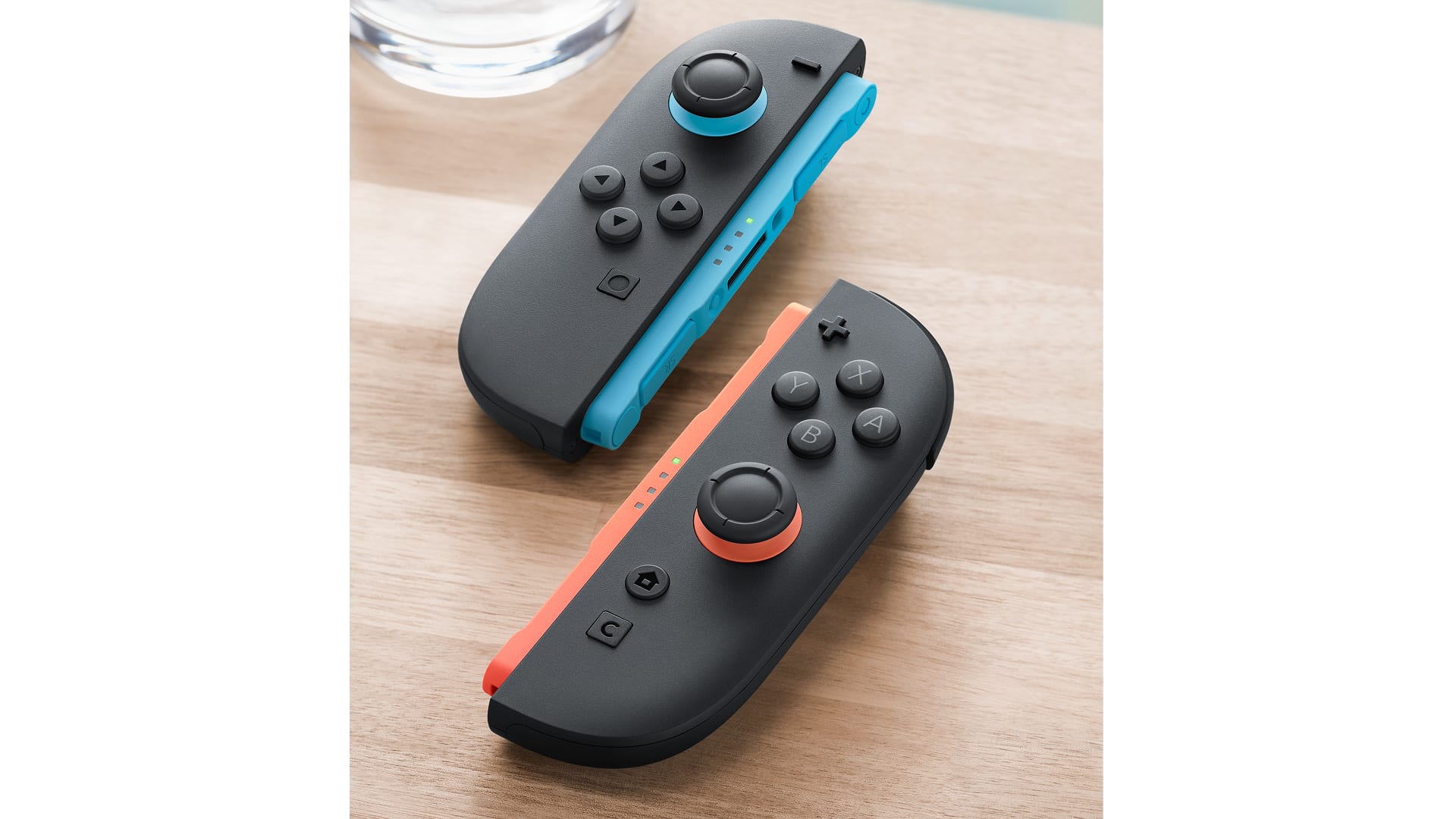
Nintendo Switch 2 Mouse Mode lets you detach a Joy-Con 2 controller, lay it on its side on a flat surface, and use it like a computer mouse, with an optical sensor on the controller’s inner edge tracking movement and the SL/SR shoulder buttons acting as mouse clicks. It works system-wide on the HOME Menu and, in software that specifically supports it, inside games — officially confirmed titles include Metroid Prime 4: Beyond, Civilization VII, Hogwarts Legacy, Cyberpunk 2077: Ultimate Edition, Super Mario Party Jamboree, Drag x Drive and Puyo Puyo Tetris 2S.
This guide covers exactly how the sensor works, how to switch a Joy-Con 2 in and out of mouse mode, what surfaces it does and doesn’t work on, and a current list of games with mouse mode support confirmed directly by Nintendo or by the game’s own publisher — not rumors pulled from autocomplete or forum speculation.
- What it is: An optical sensor on the flat inner edge of each Joy-Con 2 controller that tracks movement like a desktop mouse when the controller is laid on its side.
- Where it works: The Switch 2 HOME Menu and its settings menus, plus any individual game that has added its own mouse-mode support.
- Buttons used as clicks: The SL and SR shoulder buttons on the controller’s inner edge.
- Dual-mouse use: Both Joy-Con 2 controllers can be used as a left-hand/right-hand mouse pair at the same time in supporting games.
- Setup requirement: Nintendo says to attach the Joy-Con 2 strap before using mouse controls.
- Surfaces to avoid: Glass or highly reflective tables, some fabrics, and laps or other uneven surfaces can interfere with tracking, per Nintendo support.
What Is Nintendo Switch 2 Mouse Mode?
Mouse Mode is a control option built into the Joy-Con 2 controllers that ship with the Nintendo Switch 2. Nintendo’s own support documentation on Joy-Con 2 mouse controls describes it simply: a Joy-Con 2 controller "can be used as a mouse" on the Switch 2 HOME Menu or in software that is compatible with mouse controls. In practice, that means you can pop a Joy-Con 2 off the console, turn it on its side so the long flat edge faces down, and slide it across a table the way you would a PC mouse, with the cursor or in-game reticle following the controller’s movement.
It’s an optional control scheme, not a replacement for standard button and stick controls. Nintendo’s support pages and the game listings below consistently frame it as a "play how you want" option that sits alongside motion controls, touchscreen input and traditional buttons, rather than something every Switch 2 game is required to support.
How the Joy-Con 2 Mouse Sensor Actually Works
According to Nintendo’s official Joy-Con 2 component diagram, the flat inner edge of each controller — the same edge that magnetically attaches to the side of the Switch 2 console — houses a dedicated mouse sensor, with a pair of small raised "mouse feet" that let the controller glide smoothly across a surface. That layout is why the controller only works as a mouse when it’s detached from the console and turned on its side, rather than while it’s rail-mounted to the screen.
The same diagram places the SL Button directly next to the mouse sensor on that inner edge. Game-developer demonstrations covered by the gaming press — including a Koei Tecmo producer’s pre-release gameplay video — have shown that button being used to switch a Joy-Con 2 in and out of mouse mode on the fly, without opening a settings menu, though Nintendo’s own support pages don’t spell out a single universal toggle button that works the same way in every game; exact behavior can vary by title. Once a Joy-Con 2 is in mouse mode, its shoulder buttons (SL and SR) typically function as left- and right-click, and the analog stick can act as a scroll wheel, matching how reviewers have described the feel of games like Civilization VII’s Switch 2 Edition.
Because mouse mode uses the same Joy-Con 2 hardware as motion and gyro controls, several supported games — Cyberpunk 2077: Ultimate Edition among them — let you combine mouse-style cursor movement with gyro aiming in the same control scheme, rather than forcing a choice between the two.
Using Both Joy-Con 2 Controllers as a Mouse Pair
Nintendo’s support documentation confirms that one or two Joy-Con 2 controllers can be used on a table or similarly flat surface at the same time. A handful of launch and post-launch games build entire control schemes around using both controllers as a simultaneous mouse pair instead of a single cursor.
Drag x Drive, Nintendo’s own wheelchair-basketball sports game, is the clearest example: each hand holds one Joy-Con 2 flat on the table, and pushing both forward together builds speed, while moving just one turns or pivots the chair — essentially treating the pair of controllers as two independent mice that steer a single character. Puyo Puyo Tetris 2S also lets local spectators use a spare Joy-Con 2 in mouse mode to point at a player’s board, separately from whichever controller the active player is using.
Setting Up Mouse Mode: Straps, Surfaces and Troubleshooting
Nintendo’s support pages lay out a short setup checklist before mouse controls will track reliably:
- Attach the strap first. Nintendo’s guidance says to attach the Joy-Con 2 strap before using mouse controls, the same way you would before motion-control play.
- Use a flat, non-glossy surface. A table or similarly flat surface is recommended. Glass tables, or tables that reflect a lot of light, can prevent the sensor from tracking properly.
- Watch the surface material. Some fabrics can stop the sensor from responding correctly, and Nintendo notes that rubbing a Joy-Con 2 on certain fabrics may cause its color to fade over time.
- Avoid your lap and other uneven surfaces. Nintendo specifically warns that using the controllers on your lap or another uneven surface can cause interference, recommending a flat surface with a clear path between the controllers and the console.
If a game’s cursor feels jumpy or unresponsive, these are the first things worth checking before assuming the hardware itself is at fault — Nintendo’s own troubleshooting language points squarely at surface and lighting conditions rather than a defective sensor.
Games That Officially Support Mouse Mode Right Now
Mouse mode only does something in games that have specifically built support for it. The list below includes only titles whose mouse-mode support is confirmed by Nintendo’s own game listings or by the publisher’s own official announcement — not blog roundups or unconfirmed autocomplete suggestions. If a game isn’t on this list, treat any mouse-mode claim about it as unverified until Nintendo or the publisher confirms it directly.
| Game | What Mouse Mode Does | Official Source |
|---|---|---|
| Metroid Prime 4: Beyond (Switch 2 Edition) | Joy-Con 2 mouse controls for aiming, an addition exclusive to the Switch 2 Edition over the original Switch version | Nintendo game listing |
| Super Mario Party Jamboree – Nintendo Switch 2 Edition + Jamboree TV | Mouse controls power new Jamboree TV minigames, including aiming at flying targets in Carnival Coaster | Nintendo game listing |
| Drag x Drive | Both Joy-Con 2 used together as a simultaneous mouse pair to roll wheels, turn and shoot | Nintendo "What’s New" feature |
| Sid Meier’s Civilization VII (Switch 2 Edition) | Joy-Con 2 mouse controls for map panning, unit selection and menu navigation | Nintendo game listing |
| Hogwarts Legacy (Switch 2 version) | Optional "Joy-Con 2 mouse sensor support" for aiming and casting | Nintendo game listing |
| Cyberpunk 2077: Ultimate Edition | Joy-Con 2 (R) can be used as a mouse for combat aiming, alongside gyro and touch controls | CD Projekt Red announcement |
| Puyo Puyo Tetris 2S | Joy-Con 2 mouse controls for fast piece placement; spectators can point at a player’s board | SEGA press release |
Several of these are upgrade-pack titles rather than standalone purchases — if you already own the original Switch version of Metroid Prime 4: Beyond or Super Mario Party Jamboree, Nintendo’s listings note you only need the paid upgrade to unlock the Switch 2 Edition and its mouse controls, similar to how Switch 2 Game-Key Cards handle some physical upgrade releases.
USB Mouse Support: A Related but Separate Feature
It’s worth keeping Joy-Con 2 mouse mode distinct from a second, related capability: plugging a standard wired USB mouse directly into the Switch 2. In a pre-release gameplay video reported by the gaming press, a Koei Tecmo producer demonstrated a regular USB mouse working in Nobunaga’s Ambition: Awakening Complete Edition, with the wired mouse taking priority over Joy-Con 2 mouse controls once connected. That remains a press-reported developer demonstration rather than something confirmed on an official Nintendo or Koei Tecmo product page as of this writing, and Nintendo has not published a general, game-by-game list of which titles accept USB mice the way it has for Joy-Con 2 mouse mode. Treat any specific USB-mouse compatibility claim for a given game as unconfirmed unless that game’s own official page says so.
How Mouse Mode Differs From Other Switch 2 Joy-Con Features
Nintendo has packed several distinct Joy-Con 2-dependent features into the Switch 2, and it’s easy to mix them up. Mouse mode is purely a control scheme — it changes how you provide input, not how you share a game or a session. It’s a different feature from GameShare, which lets one Switch 2 beam a local copy of certain games to other nearby systems, and from GameChat, the voice-and-video chat feature triggered by the dedicated C Button on the Joy-Con 2 (R). It’s also unrelated to Virtual Game Cards, which govern how digital game licenses move between consoles rather than how you physically control a game. Mouse mode can be used alongside any of those features; it just isn’t the same thing as any of them.
Tips for Getting the Most Out of Mouse Mode
- Start on a wooden or laminate desk. It’s the surface type Nintendo’s own setup guidance points to, and it’s the easiest to get consistent tracking on before troubleshooting anything else.
- Keep the strap on. Beyond Nintendo’s own instruction to attach it before use, it also stops the controller sliding off the edge of a desk during fast cursor movements.
- Check in-game settings for sensitivity options. Reviewers of Civilization VII and Puyo Puyo Tetris 2S have both noted that default mouse sensitivity can feel too fast or too imprecise out of the box, and that several titles let you remap or soften actions like hard drops onto a button instead of a cursor flick.
- Remember it’s optional. Every currently confirmed mouse-mode game also supports standard button controls, so there’s no need to force mouse mode in a genre, like a puzzle game, where you don’t find it comfortable.
What’s Next for Mouse Mode
Mouse mode launched alongside the Nintendo Switch 2 console and its original Joy-Con 2 controllers, and Nintendo has continued selling new Joy-Con 2 colorways with the identical sensor and button layout, rather than changing the hardware. New software support has arrived in waves tied to individual game releases and upgrade packs rather than on a fixed schedule, so the realistic way to track new additions is on a game-by-game basis: check a title’s own Nintendo eShop listing or its publisher’s official product page for a specific mention of Joy-Con 2 mouse controls before assuming support exists. As more Switch 2-native and upgraded titles ship, expect this list to keep growing — genres like strategy, puzzle and first-person games have been the earliest and most natural fits so far, and Nintendo’s own messaging continues to frame the feature as a "play how you want" option rather than a requirement.
Frequently asked questions
What is Nintendo Switch 2 Mouse Mode?
Mouse Mode is a Joy-Con 2 feature that lets you detach the controller, lay it on its side on a flat surface, and use it like a computer mouse. An optical sensor on the controller's inner edge tracks movement, and the SL/SR shoulder buttons work as mouse clicks. It works on the Switch 2 HOME Menu and in any game that has added support for it.
How do I use mouse mode on a Joy-Con 2 controller?
Detach a Joy-Con 2 from the console, attach its strap (Nintendo recommends this before use), and set it on its side on a flat, non-reflective surface such as a wooden desk. Move the controller like a mouse to control the cursor, and use the SL/SR shoulder buttons as left/right clicks. Developer demonstrations have shown the SL button toggling a Joy-Con 2 in and out of mouse mode in some games, though exact behavior can vary by title.
Can both Joy-Con 2 controllers be used as a mouse at the same time?
Yes. Nintendo's support documentation confirms one or two Joy-Con 2 controllers can be used on a flat surface simultaneously. Drag x Drive is built entirely around this, using both controllers as a dual-mouse pair to steer and shoot.
Which games officially support Nintendo Switch 2 mouse mode?
As of October 2026, officially confirmed titles include Metroid Prime 4: Beyond (Switch 2 Edition), Super Mario Party Jamboree - Nintendo Switch 2 Edition + Jamboree TV, Drag x Drive, Sid Meier's Civilization VII (Switch 2 Edition), Hogwarts Legacy (Switch 2 version), Cyberpunk 2077: Ultimate Edition, and Puyo Puyo Tetris 2S, per Nintendo's own game listings and the respective publishers' official announcements.
Does Switch 2 support a regular USB mouse, not just the Joy-Con 2?
A Koei Tecmo producer demonstrated a standard wired USB mouse working in Nobunaga's Ambition: Awakening Complete Edition in a pre-release gameplay video, with the USB mouse taking priority over Joy-Con 2 mouse controls once connected. That's a press-reported developer demo rather than an official, game-by-game compatibility list from Nintendo, so treat USB mouse support as unconfirmed for any specific game unless its own official page says so.
Why isn't my Joy-Con 2 mouse mode tracking properly?
Check the surface first. Nintendo's support pages warn that glass or highly reflective tables, certain fabrics, and laps or other uneven surfaces can all interfere with the optical sensor. Switch to a flat, non-glossy surface like a wooden or laminate desk, and make sure the Joy-Con 2 strap is attached.
Sources
- Nintendo Support: Joy-Con 2 Mouse Controlsen-americas-support.nintendo.com
- Nintendo Support: Joy-Con 2 Diagramen-americas-support.nintendo.com
- Nintendo: Metroid Prime 4: Beyond - Nintendo Switch 2 Editionnintendo.com
- CD Projekt Red: Cyberpunk 2077: Ultimate Edition coming to Nintendo Switch 2cyberpunk.net
- SEGA: Puyo Puyo Tetris 2S official press releasesega.co.jp
- Nintendo: Sid Meier's Civilization VII - Nintendo Switch 2 Editionnintendo.com
Jonah Reyes leads Pandromeda's gaming coverage: console and handheld hardware, release dates, pricing changes, patch notes and the business moves behind the biggest franchises. He sources every date and price from the platform holders and publishers themselves, and says plainly when something is still only a rumour.