How to Run AI Models Locally With Ollama: Step-by-Step Guide
Install Ollama, pull an open-weight model like Gemma 4, Qwen 3.8 or gpt-oss, and keep it on your GPU with the right context and privacy settings.
Running an AI model locally with Ollama takes three steps: install the free Ollama app for macOS, Windows or Linux, download an open-weight model such as Google’s Gemma 4 with ollama pull, and start chatting with ollama run. The current release, Ollama v0.34.4, came out on September 23, 2026, and Ollama’s own quickstart recommends at least 8 GB of available graphics memory, or unified memory on a Mac, for its smallest suggested model. This guide walks through setup, picking a model that fits your hardware, and the settings that matter most.
Key facts
- Cost: Ollama is free to download; local models run on your own hardware without an account
- Latest version: v0.34.4, released September 23, 2026
- Requirements: macOS 14 Sonoma or later, Windows 10 22H2 or later, or Linux
- Starter model: Gemma 4 E2B, a 7.2 GB download with a recommended 8 GB of VRAM
- Local API: runs at http://localhost:11434, with OpenAI- and Anthropic-compatible endpoints
What is Ollama and why run AI locally?
Ollama is a free, MIT-licensed open-source tool that downloads, manages and runs open-weight language models on your own computer. It wraps inference engines including llama.cpp and Apple’s MLX in a single app, a command-line tool and a local web API. Once a model is downloaded, it runs without an internet connection.
The main reasons to run a model locally are privacy, cost and control. In its official FAQ, Ollama says: “Ollama runs locally. We don’t see your prompts or data when you run locally.” There are no per-token charges, and you choose exactly which model version you use. The trade-off is that the models you can run on a laptop or desktop are much smaller than frontier cloud models such as GPT-6 Astra or Claude Opus 5.5, and speed depends entirely on your hardware.
Ollama also offers optional cloud models that run on its servers and require signing in. This guide focuses on local use; you can switch cloud features off entirely, as explained below.
What hardware do you need?
The single most important number is memory. A model must fit in your GPU’s video memory (VRAM), or in unified memory on Apple Silicon Macs, to run at full speed. If it does not fit, Ollama can spill over into regular system RAM, but responses will be slower.
| Platform | Minimum OS | GPU acceleration |
|---|---|---|
| macOS | macOS 14 Sonoma or later | Apple M-series chips (CPU and GPU); Intel Macs run on CPU only |
| Windows | Windows 10 22H2 or later, Home or Pro | Nvidia (driver 551.61 or newer); AMD Radeon via ROCm v7 or Vulkan |
| Linux | x86-64 and ARM64 builds available | Nvidia (compute capability 5.0+, driver 550+); AMD via ROCm package |
Ollama’s hardware support page says Nvidia GPUs need compute capability 5.0 or higher and driver 550 or newer, with older cards in the 5.0 to 6.2 range needing driver 570 or newer. In practice, that covers GeForce cards from the GTX 750 Ti and GTX 900 series through the RTX 50 series. On Windows, Ollama needs at least 4 GB of disk space for the app itself, and models can take “tens to hundreds of GB” more.
Step 1: Download and install Ollama
Go to the official Ollama download page and choose your operating system.
On a Mac
- Click Download for macOS and open the downloaded disk image.
- Drag the Ollama app into your Applications folder, which Ollama says is the preferred install location.
- Launch Ollama. On first start it checks that the
ollamacommand-line tool is on your PATH and asks permission to create a link in /usr/local/bin if it is not.
On Windows
- Click Download for Windows and run the installer, or paste the one-line PowerShell command shown on the download page:
irm https://ollama.com/install.ps1 | iex - No administrator rights are needed; Ollama installs in your home directory by default.
- Ollama then runs in the background, and the
ollamacommand works in Command Prompt, PowerShell or any terminal.
On Linux
- Run the official install script:
curl -fsSL https://ollama.com/install.sh | sh - If the server is not already running, start it with
ollama serve. - In another terminal, check it is working with
ollama -v, which prints the installed version.
Ollama’s documentation also offers a manual Linux install from a compressed archive, with a separate ROCm package for AMD GPUs and an ARM64 build, plus instructions for running Ollama as a systemd service so it starts automatically.
Since v0.34.2, released September 15, running ollama on its own launches a first-run setup that lets you sign in or “continue locally.” Choose the local option if you do not want an account.
Step 2: Choose a model that fits your computer
Ollama’s model library lists the download size and context window for every version, or “tag,” of a model. As a rule of thumb, pick a model whose download size is comfortably below your available VRAM or unified memory, leaving room for the context window. The table below shows popular local options as listed in the Ollama library today.
| Model tag | Maker | Download size | Context window | Inputs |
|---|---|---|---|---|
| gemma4:e2b | 7.2 GB | 128K | Text, image | |
| gemma4:12b | 7.6 GB | 256K | Text, image | |
| gemma4 (e4b, default) | 9.6 GB | 128K | Text, image | |
| gpt-oss:20b | OpenAI | 14 GB | 128K | Text |
| qwen3.8:27b | Alibaba Qwen | 18 GB | 256K | Text, image |
| muse-glimmer:30b | Meta | 18 GB | 128K | Text, image |
| gemma4:26b | 19 GB | 256K | Text, image | |
| gemma4:31b | 20 GB | 256K | Text, image | |
| gpt-oss:120b | OpenAI | 65 GB | 128K | Text |
Some rough pairings based on those download sizes (a starting point, not an official Ollama recommendation):
- 8 GB of VRAM or a 16 GB Mac: start with
gemma4:e2b, the model Ollama’s own quickstart uses for local examples. - 16 GB of VRAM or a 24 to 32 GB Mac:
gemma4(the E4B default) orgpt-oss:20b. - 24 GB of VRAM or larger Macs:
qwen3.8:27b,muse-glimmer:30bor the larger Gemma 4 models. - Workstations with 80 GB or more:
gpt-oss:120b.
Some newer models in the library, such as DeepSeek V4 Flash and GLM 5.3, are currently listed with a “cloud” tag, meaning they run on Ollama’s servers rather than your machine. Check a model’s library page for the list of tags before you pull.
Step 3: Download a model and start chatting
Open a terminal and download your chosen model. For the recommended starter model:
ollama pull gemma4:e2b
Then start an interactive chat:
ollama run gemma4:e2b
Type a question and press Enter. To paste text over several lines, wrap it in triple quotes ("""). Vision-capable models can read images if you include a file path in the prompt, for example ollama run gemma4 "What's in this image? /path/to/photo.png".
Essential Ollama commands
These commands, from Ollama’s CLI reference and FAQ, cover almost everything day to day:
| Command | What it does |
|---|---|
ollama pull <model> | Downloads a model without starting it |
ollama run <model> | Starts a chat, downloading the model first if needed |
ollama ls | Lists models you have downloaded |
ollama ps | Shows loaded models, memory use and whether they run on GPU or CPU |
ollama stop <model> | Unloads a model from memory immediately |
ollama rm <model> | Deletes a downloaded model to free disk space |
ollama show <model> | Shows model details, including thinking controls since v0.34.3 |
ollama launch | Sets up and starts supported tools such as Claude Code, Codex CLI or OpenCode with Ollama models |
By default, a model stays in memory for five minutes after its last use so follow-up questions are fast. You can change that with the OLLAMA_KEEP_ALIVE environment variable or unload a model straight away with ollama stop.
Step 4: Check the model is running on your GPU
Slow responses usually mean part of the model is running on your CPU. Run ollama ps while a model is loaded and look at the PROCESSOR column:
- 100% GPU means the whole model is in video memory, which is the fastest setup.
- 100% CPU means the model is running entirely from system memory.
- A split such as 48%/52% CPU/GPU means the model did not fit and is being shared between the two.
If you see a CPU share, try a smaller model or tag, reduce the context length, or close other GPU-heavy apps. On Windows machines with both integrated and discrete AMD graphics, Ollama’s documentation notes you can point its Vulkan backend at the discrete GPU with the GGML_VK_VISIBLE_DEVICES variable.
Step 5: Set the right context length
The context length is how many tokens of conversation and documents the model can hold at once. According to Ollama’s context length documentation, the default depends on your GPU memory: 4K tokens below 24 GiB of VRAM, 32K between 24 and 48 GiB, and 256K at 48 GiB or more. Ollama recommends at least 64,000 tokens for web search, agents and coding tools.

There are three ways to change it:
- In the app: open Settings and move the context length slider.
- For the whole server: start Ollama with an environment variable, for example
OLLAMA_CONTEXT_LENGTH=64000 ollama serve. - For a single chat: inside
ollama run, type/set parameter num_ctx 8192, or passnum_ctxin the options of an API request.
Longer contexts need more memory, so raising this value can push a model that fit comfortably into a CPU/GPU split. Check ollama ps again after changing it; its CONTEXT column shows how much context was allocated.
Use local models with other apps and code
Ollama runs a local server at http://localhost:11434 that other software can talk to. It offers its own API plus endpoints compatible with OpenAI’s Chat Completions and Responses APIs and Anthropic’s Messages API, so many tools built for those services can be pointed at Ollama by changing the base URL. The OpenAI compatibility documentation notes that each compatibility layer covers only a subset of the original API, and that Responses requests are stateless.
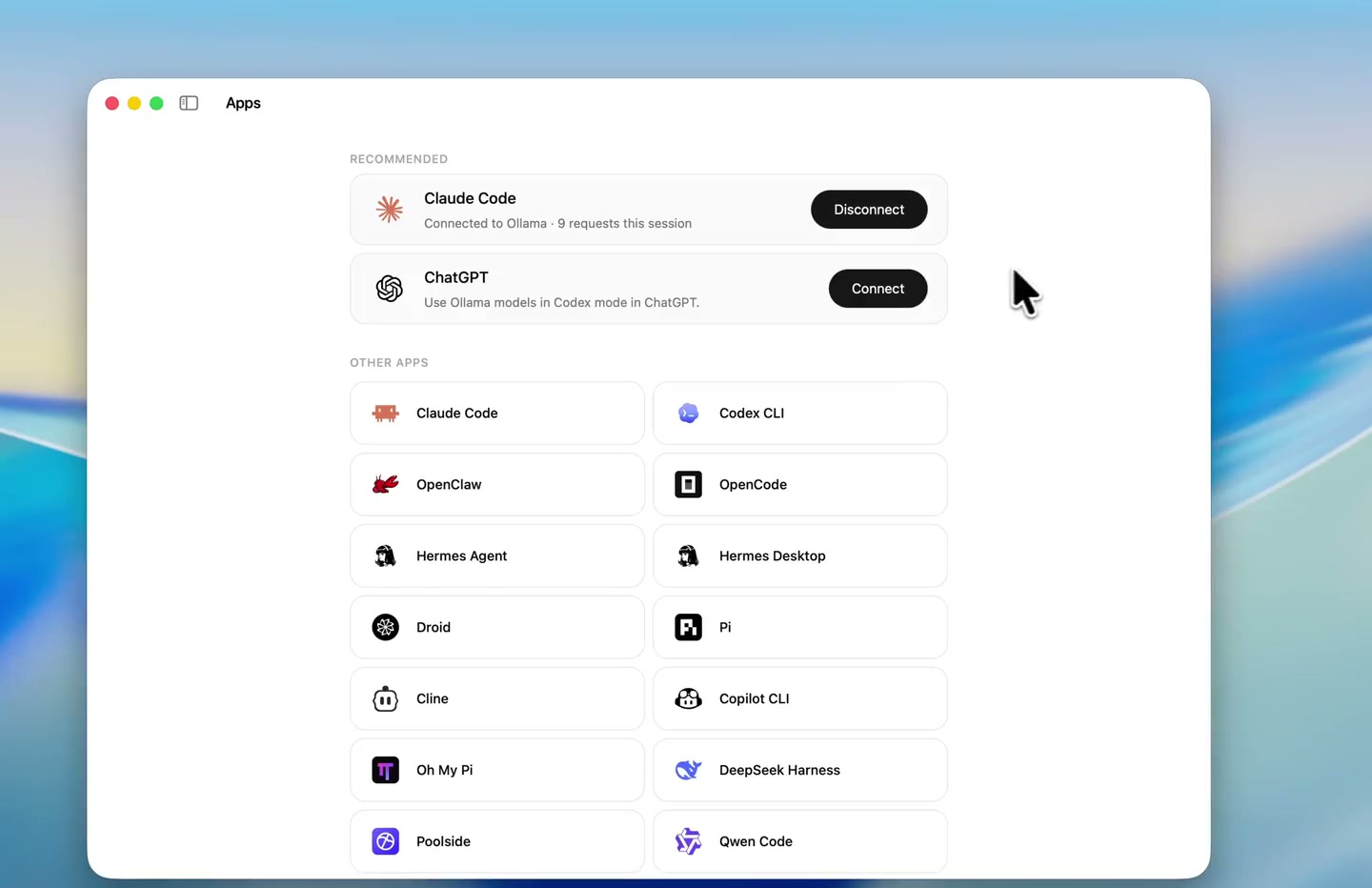
Ollama has also added direct integrations. On macOS, the app’s Apps page can connect Claude Desktop or ChatGPT Desktop to your Ollama models; for ChatGPT, this works in Codex mode, while regular chat and voice keep using OpenAI’s service. The ChatGPT Desktop integration arrived in Ollama v0.34.0 on September 5, 2026. For coding agents, ollama launch claude, ollama launch codex or ollama launch opencode sets up the tool to use a model you choose.
Keep everything local: privacy and network settings
- Turn off cloud features: set
"disable_ollama_cloud": truein~/.ollama/server.json, or set the environment variableOLLAMA_NO_CLOUD=1, then restart Ollama. The app’s airplane mode switch does the same job, keeping data local by disabling cloud models and web search. - Keep the server private: Ollama listens only on 127.0.0.1 by default. Change the
OLLAMA_HOSTvariable, or use the “Expose Ollama to the network” switch, only if you want other devices to connect. - Move model storage: models live in
~/.ollama/modelson macOS,/usr/share/ollama/.ollama/modelson Linux andC:\Users\%username%\.ollama\modelson Windows. SetOLLAMA_MODELSto use a larger drive.
Common problems and fixes
The model is very slow
Run ollama ps. If the PROCESSOR column shows any CPU share, the model does not fit in GPU memory. Pick a smaller tag or lower the context length.
“Model not found” errors
Check the exact tag with ollama ls. Ollama v0.34.4 also fixed intermittent “model not found” errors on machines with a large local library, so update if you are on an older release.
Your Nvidia GPU isn’t used
Confirm your card has compute capability 5.0 or higher and update the driver to version 550 or newer (570 or newer for older 5.x and 6.x cards).
How to update Ollama
On macOS and Windows, Ollama downloads updates automatically; click the menu bar or taskbar icon and choose “Restart to update.” On Linux, re-run the install script.
Bottom line
For most people, the quickest path to a private, offline AI assistant in September 2026 is to install Ollama, run ollama run gemma4:e2b, and move up to a larger model only if your hardware has room. Keep an eye on ollama ps to make sure the model stays on your GPU, raise the context length if you plan to use agents or coding tools, and switch on airplane mode or OLLAMA_NO_CLOUD if you want to be certain nothing leaves your machine.
Frequently asked questions
Is Ollama free?
Yes. Ollama is a free, MIT-licensed open-source app, and running models locally on your own hardware has no per-token charges. Its optional cloud models require signing in.
How much RAM or VRAM do I need to run Ollama?
Ollama recommends 8 GB of available VRAM, or unified memory on a Mac, for its starter model Gemma 4 E2B, a 7.2 GB download. Larger models such as Qwen 3.8 27B need about 18 GB and gpt-oss 120B about 65 GB.
Does Ollama work without the internet?
Yes. Once a model is downloaded it runs locally, and Ollama says it does not see your prompts or data when you run locally. You can disable cloud features with OLLAMA_NO_CLOUD=1 or the app’s airplane mode.
What is the best model to start with in Ollama?
Ollama’s own quickstart uses Gemma 4 E2B for local examples. Run ollama pull gemma4:e2b, then ollama run gemma4:e2b to start chatting.
How do I increase the context length in Ollama?
Use the context length slider in the app’s settings, start the server with OLLAMA_CONTEXT_LENGTH set, or type /set parameter num_ctx inside an ollama run session. Ollama recommends at least 64,000 tokens for agents and coding tools.
Can I use Ollama with Claude Code or Codex?
Yes. Commands such as ollama launch claude and ollama launch codex set those tools up to use an Ollama model, and on macOS the app can connect Claude Desktop or ChatGPT Desktop.
Sources
- Ollama docs: Quickstartdocs.ollama.com
- Ollama docs: FAQdocs.ollama.com
- Ollama docs: Hardware supportdocs.ollama.com
- Ollama docs: Context lengthdocs.ollama.com
- Ollama releases on GitHubgithub.com
- Ollama download pageollama.com
Theo Park runs the AI desk at Pandromeda. He follows model launches from the frontier labs and the open-weight community, tracks the assistants and developer tools built on them, and explains what each release changes on pricing, capability and safety. His reporting leans on primary sources: model cards, technical reports, API documentation and the companies' own announcements.