What Is VS Code? Setup, Extensions, and AI Features Explained
A plain-English guide to Microsoft's free code editor: what it is, how to install it on Windows, Mac, or Linux, how extensions work, and what its built-in AI features actually do.
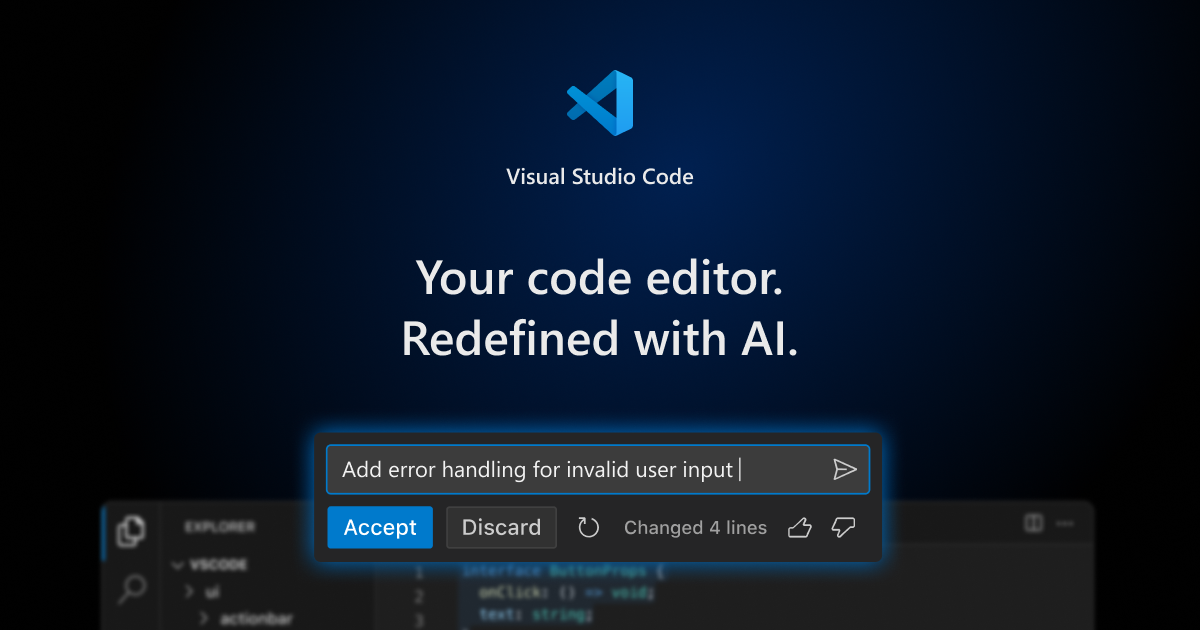
Visual Studio Code, better known as VS Code, is a free source code editor from Microsoft that runs on Windows, macOS, and Linux. It combines a fast, lightweight editing core with a built-in debugger, Git integration, an integrated terminal, and an extension marketplace that turns it into a full development environment for almost any language or stack. It is also, as of 2026, the most common entry point developers have to AI pair-programming tools, since Copilot's chat and agent features are built directly into the editor.
This guide covers what VS Code actually is, how to install it on each platform, how the extension ecosystem works, and what its built-in AI features do conceptually — without assuming you already know any of it.
- Maker: Microsoft, first released April 29, 2015
- License: Free, proprietary freeware; built on the MIT-licensed open-source "Code – OSS" project
- Platforms: Windows 10+, macOS 12+, Linux (x64/Arm64/Arm32), plus a browser version at vscode.dev
- Price: Free to download and use; AI features depend on your GitHub Copilot plan
- Core idea: A lightweight editor you extend yourself, not an all-in-one IDE out of the box
What is VS Code?
VS Code is a source code editor, not a traditional heavyweight IDE like Visual Studio or Android Studio. Microsoft built it on Electron and TypeScript, which is why it runs identically on Windows, macOS, and Linux. Out of the box it gives you syntax highlighting, IntelliSense (smart code completion), a built-in debugger, source control support for Git, and an integrated terminal. Everything beyond that — language support for Python, Java, Go, C#, Rust, and hundreds of others, linters, formatters, and AI assistants — is added through extensions.
That "small core plus extensions" design is the main reason VS Code became the default editor for so many developers: it starts fast and stays fast, and you only add the weight you actually need. The open-source foundation, called Code – OSS, is maintained publicly on GitHub, while the Microsoft-branded VS Code build adds a few proprietary pieces like telemetry and the official Marketplace connection.
VS Code first shipped on April 29, 2015, announced at Microsoft's Build conference, with the open-source Code – OSS base following that November. It is free and proprietary freeware under the Microsoft Software License, distinct from the fully open-source Code – OSS project it's built on, and it's a separate product from Microsoft's older Visual Studio IDE despite the shared name (more on that distinction below). A decade on, it's regularly cited as the most widely used development environment among professional programmers, largely because it never forces a language, framework, or workflow on you — you shape it yourself.
How to install VS Code
Installation is the same basic idea on every platform: download a package from the official VS Code download page and run it. Before installing on an older or managed machine, it's worth checking Microsoft's system requirements page — VS Code is lightweight, but very old Windows builds, 32-bit systems, or heavily restricted corporate laptops can hit specific limitations that are documented there.
Windows
Download the User Setup installer (.exe) for x64 or Arm64, run it, and follow the prompts. The installer adds the code command to your PATH automatically, so you can open any folder in VS Code by typing code . in a terminal. A System Setup installer and a portable ZIP build are also available if you need to install without admin rights.
macOS
Download the .dmg for Apple silicon or Intel, open it, and drag Visual Studio Code.app into your Applications folder. To get the code command working in Terminal, open the Command Palette (Shift+Cmd+P) and run Shell Command: Install 'code' command in PATH.
Linux
On Debian or Ubuntu, download the .deb package and install it with sudo apt install ./<file>.deb; on Fedora or RHEL, use the .rpm package with sudo dnf install ./<file>.rpm. Installing either package also registers the apt or dnf repository, so future updates arrive through your normal package manager. Snap, Arch (AUR), and Nix packages are documented in Microsoft's Linux setup guide for anyone who prefers those.
There is also a web version at vscode.dev that runs entirely in the browser, with no install at all — useful for a quick edit on a machine that isn't yours, though it has less access to your local filesystem and terminal than the desktop app.
Setting it up for the first time
The first things most people do after installing: pick a color theme (Code: Preferences → Theme), sign in with a Microsoft or GitHub account to sync settings across machines, and install the extensions for whatever language they write. VS Code also ships with Profiles, which let you save a distinct set of extensions, settings, and keybindings for different kinds of work — for example a lean "writing" profile versus a heavier "backend" profile — and switch between them without one polluting the other.
The single most useful habit to build early is the Command Palette (Ctrl+Shift+P on Windows/Linux, Cmd+Shift+P on macOS). Nearly every action in VS Code — changing a setting, installing an extension, switching a theme, formatting a file, opening a terminal — is reachable by typing a few words into it, which means you rarely need to hunt through menus once you know roughly what you're looking for.
Setting up VS Code for a specific language: Python as an example
Because VS Code is language-agnostic by default, getting productive in any particular language follows the same pattern, and Python is a good example since it's one of the most common searches around the editor. After installing Python itself separately from your OS's package manager or python.org, you install the Microsoft Python extension from the Marketplace, which adds IntelliSense for Python syntax, a built-in way to select which Python interpreter or virtual environment a project uses, integrated debugging, and one-click running of scripts and Jupyter notebooks. Microsoft maintains a full Python getting-started tutorial that walks through creating a virtual environment, installing packages, and running your first script inside the editor. The same pattern — install the language's official extension, then layer on linters or formatters as needed — applies whether you're setting up Java, Go, C#, or Rust.
The extension ecosystem
Almost everything that makes VS Code feel tailored to a specific job comes from the Visual Studio Marketplace, which Microsoft describes as having "thousands of extensions supporting hundreds of programming languages and tasks." To install one:
- Open the Extensions view from the Activity Bar on the side, or run View: Extensions from the Command Palette.
- Search by name, language, or tool (for example, "Python" or "Docker").
- Open the extension's page and click Install.
Popular categories include language packs (Python, C/C++, Java, Go, Rust), linters and formatters (ESLint, Prettier), remote-development tools, and Git enhancements like GitLens. VS Code also supports installing an extension manually from a downloaded .vsix file, which matters in locked-down corporate environments that block the public Marketplace.
One extension category worth calling out on its own: Remote Development. The Remote - SSH, Dev Containers, and WSL extensions let the VS Code window on your laptop act purely as the interface while the actual code, compiler, and dependencies run on a remote server, inside a Docker container, or inside the Windows Subsystem for Linux. GitHub Codespaces extends the same idea into a fully cloud-hosted dev environment you can open from a browser. This is how a lot of teams standardize a development setup across a whole team without everyone installing the same toolchain locally.
Extensions are sandboxed from each other and run in their own process where possible, so a slow or buggy extension is less likely to freeze the whole editor — though installing dozens of them at once is still the most common cause of a sluggish VS Code, and periodically auditing what you actually use is worth the five minutes it takes. Microsoft's own extension marketplace documentation also covers extension packs (bundles curated for a specific stack, like "Python" or "Java Extension Pack"), workspace recommendations (a project can suggest extensions to anyone who opens it), and how publishers verify their identity so you can tell an official vendor extension from an unofficial one.
| Feature | Built into VS Code | Added via extension |
|---|---|---|
| Syntax highlighting, IntelliSense | Yes (base languages) | Extended per language |
| Debugger | Yes (generic) | Language-specific debug adapters |
| Git source control | Yes | GitLens, GitHub Pull Requests, etc. |
| Integrated terminal | Yes | Shell-specific tooling |
| Remote/container development | No | Remote - SSH, Dev Containers, WSL |
| AI chat and code agents | No (requires Copilot or another provider) | GitHub Copilot and related extensions |
Built-in AI features, at a conceptual level
Since 2023, Microsoft has steadily folded AI assistance directly into the editor rather than treating it as a bolt-on extension. Conceptually, VS Code's AI layer breaks down into a few pieces:
- Inline suggestions — as you type, the editor proposes completions and whole-edit suggestions inline, which you accept or ignore without leaving the keyboard.
- Chat — a dedicated Chat view lets you ask questions about your workspace, request explanations, or ask for changes in natural language, with the assistant able to see your open files, terminal, and test output for context.
- Agent mode — rather than suggesting one change at a time, an agent can plan a multi-step task, edit several files, run commands, and check its own results, with you reviewing and approving along the way.
- Model choice — VS Code lets you pick from multiple underlying model providers through GitHub Copilot, or connect your own API key, rather than locking you into a single model.
Access to these features depends on your GitHub Copilot plan (or another configured provider), not on VS Code itself — the editor is free either way, and everything above is optional, and you can turn off AI features entirely and use VS Code exactly as a conventional editor. Microsoft documents the full feature set in its AI features overview. If you want the deeper mechanics of how AI coding agents actually plan and execute changes, that's covered separately in our explainer on agentic coding; this piece sticks to the editor itself.
VS Code vs. Visual Studio
These are two different products that happen to share a name. Visual Studio is Microsoft's full, heavyweight IDE for Windows, aimed primarily at .NET, C++, and large enterprise codebases, with deep built-in project and solution management. VS Code is a lightweight, cross-platform editor that gets language-specific depth from extensions rather than baking it all in. If you do serious Windows desktop or enterprise .NET development, Visual Studio's integrated tooling is often worth the weight; for web, scripting, cross-platform, or polyglot work, VS Code's speed and flexibility usually win out. Plenty of developers use both, depending on the project.
Why VS Code still matters in 2026
VS Code's appeal was never about having the most features out of the box — it was about being fast, free, and adaptable. In 2026 that combination still holds, and the editor has become the default surface where many developers now also do their AI-assisted coding, rather than switching to a separate AI-only tool. Microsoft continues to ship monthly stable releases (our coverage of VS Code 1.145 and the earlier 1.144 update tracks what's new release by release), but the core value proposition — a lean editor you extend to fit your own stack — hasn't changed since 2015, a history Wikipedia's entry on the project lays out in more detail.
It's also worth being honest about the trade-off: because VS Code depends on extensions for deep language support, a brand-new or niche language sometimes gets a less polished experience than it would in a purpose-built IDE, and very large monorepos can occasionally strain its performance compared with a tool designed around indexing a single giant codebase. For the vast majority of web, scripting, data, and general-purpose development, though, the balance of speed, cost, and flexibility is hard to beat — which is why it remains the starting point most developers reach for first, AI features or not.
What to do next
If you're starting from zero: download VS Code from the official download page, install the extension for the language you use most, and spend ten minutes with the Command Palette (Ctrl/Cmd+Shift+P) — nearly every feature in the editor is reachable from it. From there, the Marketplace and the built-in AI chat are the two places worth exploring next, at your own pace.
Frequently asked questions
Is VS Code free?
Yes. Visual Studio Code itself is free to download and use on Windows, macOS, and Linux. Optional AI features through GitHub Copilot or another provider depend on a separate paid or free-tier plan, but the editor does not require one.
What is the difference between VS Code and Visual Studio?
They are separate products from Microsoft. Visual Studio is a full, heavyweight IDE for Windows built mainly around .NET and C++ development. VS Code is a lightweight, cross-platform editor that gains language-specific depth through extensions rather than having it all built in.
Can I use VS Code on a Mac?
Yes. Microsoft provides native .dmg builds for both Apple silicon and Intel Macs, downloadable from the official VS Code download page.
Does VS Code support Python?
Yes, through the official Microsoft Python extension, which adds IntelliSense, interpreter and virtual environment selection, debugging, and notebook support once installed from the Marketplace.
Do I need an extension to use Git in VS Code?
No. Basic Git support, including staging, committing, and viewing diffs, is built into VS Code. Extensions like GitLens add further history and blame visualization on top of that built-in support.
What are VS Code Profiles?
Profiles let you save a distinct set of extensions, settings, and keybindings for different kinds of work and switch between them instantly, so a setup for one project does not clutter another.
Sources
- VS Code documentation — Overviewcode.visualstudio.com
- VS Code — Download pagecode.visualstudio.com
- VS Code documentation — Setup overviewcode.visualstudio.com
- VS Code documentation — Extension Marketplacemarketplace.visualstudio.com
- VS Code documentation — AI features overviewcode.visualstudio.com
- Wikipedia — Visual Studio Codeen.wikipedia.org
Felix Moreau writes Pandromeda's software coverage and how-to guides. He covers Windows, macOS and Linux updates, the apps people rely on, emulators and developer tools, and turns official documentation into clear, numbered steps that work on the current version.