VS Code 1.139: What’s New, Linux Launcher Fix and How to Update
Microsoft’s third weekly VS Code release runs agents in remote Dev Containers, speeds up session lists and renames Linux desktop files. Here is what changed.
Microsoft released Visual Studio Code 1.139 on September 23, 2026, followed by a 1.139.1 stable update on September 25. The release lets AI agent sessions run inside a project’s Dev Container on remote SSH, Tunnel and WSL hosts, makes large agent session lists load up to about 12 times faster, and adds word wrap indicators to the editor. It also renames the Linux desktop files, which can break pinned VS Code launchers on Linux until you re-add them.
Key facts
- Version: VS Code 1.139, released September 23, 2026; 1.139.1 on September 25
- Headline feature: agent sessions in Dev Containers on SSH, Tunnel and WSL hosts
- Performance: first session listing 1.3 s to 0.1 s in Microsoft’s test with about 645 sessions
- Editor: word wrap indicators and smarter bracket auto-closing
- Linux:
code.desktoprenamed tocom.microsoft.VSCode.desktop - Cadence: third weekly release in a row after 1.137 (September 9) and 1.138 (September 16)
What’s new in VS Code 1.139?
According to the official VS Code 1.139 release notes, this update “makes large agent session lists faster, extends Dev Container support to remote projects, and improves everyday editing.” Most of the changes land in the Agents window, the separate workspace VS Code uses to manage AI agent sessions, but there are also two quality-of-life improvements in the main editor and a packaging change on Linux that some users will notice immediately.
Microsoft says VS Code rolls out gradually to all users, so not everyone gets the update on day one. The downloads page lists builds for Windows (x64 and Arm64), macOS (Universal, Intel and Apple silicon) and Linux (.deb, .rpm, .tar.gz and Snap).
Agent sessions in Dev Containers on remote hosts
The biggest feature extends something Microsoft introduced a week earlier. VS Code 1.138 let an agent session run inside a local folder’s Dev Container, so the agent used the project’s own toolchain and dependencies instead of whatever happened to be installed on your laptop. Version 1.139 extends that to projects on SSH, Tunnel and WSL hosts.
Microsoft’s pitch is that agents can “build and test your remote project with the right tools and dependencies, without duplicating toolchain setup on your laptop or the remote host.” To try it:
- Enable the setting
chat.agentHost.devContainer.enabled. - Open the Agents window and pick the remote folder.
- Select Use Dev Container from the folder menu.
Two requirements apply: the remote folder needs a supported Dev Container configuration, and Docker must be available on the remote host. Microsoft adds that Dev Container sessions are rolling out gradually, so the setting may not be on by default yet; you can switch it on manually.
Faster agent session lists
If you use agents heavily, the sessions list could become slow because VS Code previously opened every conversation database each time it built the list. In 1.139 the agent host keeps lightweight session and chat metadata in a central catalog instead, while the full conversation content stays in each session’s own database. Microsoft published these measurements from a development machine with around 645 sessions:
| Operation | Before | After | Improvement |
|---|---|---|---|
| First session listing after launch | 1.3 seconds | 0.1 seconds | About 12x faster |
| Refresh the session list | 0.6 seconds | 0.15 seconds | About 4x faster |
Microsoft notes that the gain grows with the number of sessions, so people with only a handful will see a smaller difference. Existing sessions are migrated to the new catalog automatically in the background.
Other Agents window changes
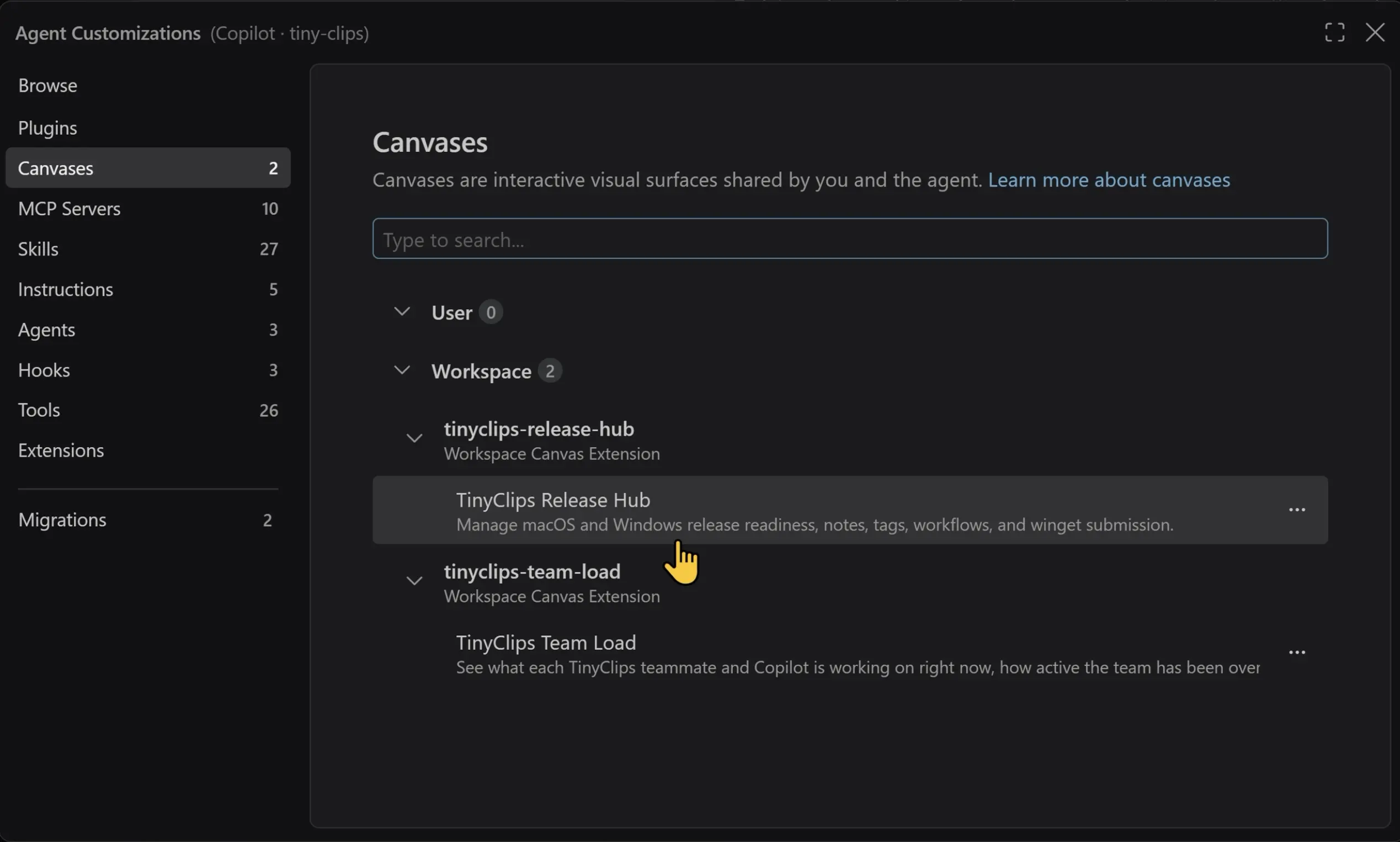
- Compact View. A new option in the sessions list shows only the session title until you hover over or focus a row. Rows expand automatically when a session needs your input or approval, so those requests stay visible.
- Hide empty groups. Turning off Empty Groups under Filter Sessions hides empty custom groups and the empty Chats section. The preference is stored in your profile.
- Rename in place. Double-click a session or chat title, use the Rename menu action, or press F2 to rename it directly in the list. Blank titles are blocked and cancelling restores the old name.
- Chat tabs (Preview). The
sessions.showChatTabssetting lets a session with several chats show them as tabs (Multiple) or show only the active chat (Single), without losing open chats or conversation state when you switch.
There is also a lighter note: Microsoft says its naming contest for the experimental VS Code pet closed on September 17 and the winner will be announced soon. Typing /vscode-pet in chat brings it up in the meantime.
Editor improvements: word wrap indicators and brackets
Two changes affect everyone, not only agent users:
- Word wrap indicators. An arrow at the word wrap column on the right side of the editor now shows that a line wraps, making soft-wrapped lines easier to tell apart from real line breaks.
- Better bracket auto-closing. When you type an opening bracket, VS Code no longer inserts a duplicate closing bracket if a matching one already exists; it only inserts one when needed.
Linux: VS Code launcher stopped working after the update?
This is the change most likely to generate support questions this week. The Linux DEB and RPM packages now use reverse-DNS desktop file names “to align with the application’s desktop identity.” For the Stable packages, the files in /usr/share/applications/ are renamed like this:
| Previous name | New name in 1.139 |
|---|---|
code.desktop | com.microsoft.VSCode.desktop |
code-url-handler.desktop | com.microsoft.VSCode.UrlHandler.desktop |
Microsoft warns that existing favourites, pinned launchers and custom references to the old names are not updated automatically, and that reinstalling the package does not fix saved references. On KDE Plasma, a stale favourite can even report “You are not authorized to execute this file,” although the real problem is a missing desktop file rather than permissions.
How to fix a broken VS Code launcher on Linux
- Remove the old pinned launcher or favourite from your dock, panel or favourites bar. On KDE Plasma, use Remove From Favorites on the old entry.
- Open your desktop’s application menu and find Visual Studio Code again. On KDE Plasma it is under Applications > Development.
- Pin it or choose Add to Favorites from the new entry.
- Update any custom shortcuts or scripts that reference
code.desktoporcode-url-handler.desktop. - If you had set VS Code as the default app for certain files or URLs, select it again in your desktop’s default-application settings.
Starting VS Code from a terminal with the code command is unaffected.
Fixes for managed and enterprise setups
Several fixes in this cycle target organisations that control VS Code centrally:
- Agent mode policy. Where an organisation disables Agent mode by account policy, the Welcome invitation to open the Agents window is now hidden, and other ways of launching it, such as
code --agents, no longer get around the control. - OpenTelemetry. A race condition that could drop enterprise-managed OpenTelemetry settings in the Copilot extension’s local harness is fixed.
- Managed settings (1.139.1). The only change listed for the September 25 update on VS Code’s GitHub releases page is a fix titled “managed settings: keep policy through transient refresh failures.”
For extension authors, 1.139 also adds a proposed API: an optional expiresAfter property on AuthenticationSession, giving the remaining lifetime of an access token in milliseconds so extensions can refresh credentials at the right moment. The built-in Microsoft account provider already supplies the value.
Three VS Code releases in three weeks
VS Code 1.139 is the third stable release in three weeks. The VS Code 1.138 release notes are dated September 16 and the 1.137 notes September 9. Microsoft’s GitHub release tags show 1.137.0, 1.138.0 and 1.139.0 on three consecutive Wednesdays in September, with 1.139.1 following two days later.
| Version | Release date | Highlights |
|---|---|---|
| 1.137 | September 9, 2026 | Automations (Preview) for scheduled agent tasks, Voice Mode (Experimental), GitHub issues and pull requests in the Agents window |
| 1.138 | September 16, 2026 | Agent sessions in local Dev Containers, expanded Codex harness, automations on by default, session cleanup (Preview) |
| 1.139 | September 23, 2026 | Remote Dev Container sessions, faster session lists, word wrap indicators, Linux desktop file rename |
| 1.139.1 | September 25, 2026 | Managed settings policy fix |
What changed in 1.138
Last week’s release is worth a recap if you skipped it. Automations, which schedule recurring agent tasks, became enabled by default and can now be exported and imported. The Codex harness gained the option to run on either a GitHub Copilot or a ChatGPT subscription, to continue the same Codex session between the ChatGPT app and VS Code, and to use VS Code’s built-in, extension and MCP tools. Microsoft also added a form for creating pull requests from agent sessions (experimental) and optional settings to mark sessions as done and delete them after their pull requests merge.
What changed in 1.137
The September 9 release introduced Automations as a preview, letting you schedule recurring agent tasks to run hourly, daily or weekly or on demand. It also added an experimental Voice Mode for talking to an agent and interrupting or redirecting it mid-task, the ability to attach a project to an existing quick chat without losing its history, and an experimental view of GitHub issues and pull requests inside the Agents window.
What is the VS Code Agent Host?
Many of these features depend on the Agent Host, which Microsoft introduced in an August 26 post on the VS Code blog. It is “a self-contained process that owns agent sessions,” paired with an open Agent Host Protocol (AHP) for connecting hosts and clients. Previously, VS Code ran the local agent harness in each window’s extension host, so closing the window stopped the agent. Moving sessions into their own process lets them keep running after you close the folder or window, stay in sync across several VS Code windows, and run locally or remotely. It also gives VS Code one foundation for several agent harnesses, including Copilot, Anthropic’s Claude agent and Codex. If you are comparing the models behind those harnesses, our look at Claude Opus 5.5 pricing and access covers one of the options.
How to update to VS Code 1.139
VS Code normally updates itself, but because Microsoft rolls releases out gradually you can pull the update immediately:
- On Windows and Linux, open Help > Check for Updates. On macOS, use Code > Check for Updates.
- Restart VS Code when prompted.
- Confirm the version under Help > About (Code > About Visual Studio Code on macOS). You should see 1.139.1.
You can also download installers for every platform directly from the release notes page. Microsoft points anyone who wants features before they reach Stable to the nightly Insiders build.
If you are setting up a new development machine at the same time, our step-by-step guide to installing Python on Windows with the new install manager pairs well with a fresh VS Code install.
Should you update?
Yes, for most people. The editor changes are small but welcome, the session list speed-up is significant for anyone who uses the Agents window heavily, and remote Dev Container sessions remove a real pain point for teams working on SSH or WSL hosts. The one thing to plan for is Linux: if you pinned VS Code to a dock or favourites bar, expect to re-add it once after updating. Administrators who enforce policies should make sure clients reach 1.139.1, which contains the managed settings fix.
Frequently asked questions
What is the latest version of VS Code?
As of September 25, 2026 the latest stable release is VS Code 1.139.1. Version 1.139 was released on September 23 and 1.139.1 followed on September 25 with a managed settings fix.
What is new in VS Code 1.139?
The main additions are agent sessions in Dev Containers on SSH, Tunnel and WSL hosts, much faster agent session lists, a compact sessions view with in-place renaming, word wrap indicators and smarter bracket auto-closing.
Why did my VS Code launcher stop working on Linux?
VS Code 1.139 renamed its Linux desktop files, for example code.desktop to com.microsoft.VSCode.desktop. Remove the old pinned launcher or favourite and add VS Code again from your application menu.
How do I run agents in a Dev Container in VS Code?
Enable the chat.agentHost.devContainer.enabled setting, open the folder in the Agents window and select Use Dev Container from the folder menu. The folder needs a supported Dev Container configuration and Docker must be available on the host.
How do I update VS Code manually?
Use Help > Check for Updates on Windows and Linux, or Code > Check for Updates on macOS, then restart when prompted. Installers are also available from the release notes page.
How often does VS Code release updates now?
In September 2026 Microsoft shipped stable releases on three consecutive Wednesdays: 1.137 on September 9, 1.138 on September 16 and 1.139 on September 23.
Sources
- Visual Studio Code: September 2026 release notes (version 1.139)code.visualstudio.com
- Visual Studio Code: version 1.138 release notescode.visualstudio.com
- Visual Studio Code: version 1.137 release notescode.visualstudio.com
- VS Code blog: Introducing the Agent Hostcode.visualstudio.com
- GitHub: microsoft/vscode release 1.139.1github.com
Felix Moreau writes Pandromeda's software coverage and how-to guides. He covers Windows, macOS and Linux updates, the apps people rely on, emulators and developer tools, and turns official documentation into clear, numbered steps that work on the current version.