How to Install Python on Windows With the Python Install Manager
The old Python installer is on its way out. Here is how to set up Python 3.14 the recommended way and be ready for Python 3.15 next week.
The recommended way to install Python on Windows is now the Python install manager, a small tool from the Python Software Foundation that you get from the Microsoft Store or python.org and then use to add, update and remove Python versions with the py command. The current release is Python 3.14.7, and the old one-click installer is deprecated: Python’s documentation says it “will not be produced for Python 3.16 or later.” With Python 3.15.0 scheduled for Thursday, October 1, 2026, this guide walks through a clean setup that will pick up the new version with one command.
Key facts
- Tool: Python install manager 26.3 (June 30, 2026), Microsoft Store ID 9NQ7512CXL7T
- Latest Python: 3.14.7 (August 5, 2026); 3.15.0 expected October 1, 2026
- Commands installed:
python,py,pymanager(plus windowed versions) - Supported Windows: Windows 10 and newer for Python 3.14
- Old installer: deprecated since 3.14, not produced for 3.16 or later
What is the Python install manager?
Windows does not ship with Python, so you have to get it from somewhere. According to the official Using Python on Windows documentation, the CPython team’s answer is the Python install manager: “a standalone tool that makes Python available as global commands on your Windows machine, integrates with the system, and supports updates over time.”
Once it is installed, three commands become available in any terminal:
pythonlaunches your default Python, which is the latest stable release unless you change it.pydoes the same by default, but also lets you pick a specific version and manage installs with subcommands such aspy install,py listandpy uninstall.pymanageris an unambiguous alias forpy, useful in scripts where an olderpy.exelauncher might already exist.
The install manager updates itself automatically, and that does not touch the Python runtimes you have installed. Uninstalling the manager does not remove runtimes either.
Before you start
Three quick checks will save time:
- Windows version. Python’s docs say Python 3.14 supports Windows 10 and newer, following PEP 11’s rule that Python only supports Windows versions still under Microsoft’s extended support. If you are planning a Windows upgrade anyway, our guide to moving from Windows 11 24H2 to 25H2 covers that first.
- Old Python installs. If you already installed Python with the classic installer or edited your
PATHby hand, the docs warn you “may need to remove them or undo the modifications.” An old “Python launcher” entry in Installed apps is the most common cause of conflicts. - Architecture. The install manager handles 64-bit, 32-bit and ARM64 builds, so it works on Snapdragon-based Windows laptops too.
How to install Python on Windows: step by step
Step 1: Install the Python install manager
You have three equivalent routes. The documentation says the Store and python.org versions “are identical.”
- Microsoft Store: open the Python Install Manager listing in the Microsoft Store, published by the Python Software Foundation, and click Install.
- python.org: download the MSIX installer from the Python Releases for Windows page, then double-click it and select Install. The page lists install manager 26.3, released June 30, 2026.
- WinGet: in PowerShell or Windows Terminal, run
winget install 9NQ7512CXL7T -e --accept-package-agreements --disable-interactivity. Python’s docs recommend this for scripted installs.
Windows Server 2019 cannot install MSIX packages, so Python provides a separate MSI there; the docs note it has no user interface and performs per-machine installs only.
Step 2: Open a terminal and install Python
Open Windows Terminal or PowerShell and type python. The docs explain that if no runtimes are installed at all, “the current latest release will be installed automatically.” To be explicit instead, run:
py install 3.14
To see what is available online before installing, use py list --online. The docs say the result of py list --online --one <TAG> matches what py install <TAG> would install.
Step 3: Decide whether to add the aliases folder to PATH
The first time you install a runtime, you will probably be asked to add a directory to your PATH. This is optional. It makes version-specific commands such as python3.14.exe work anywhere. The folder is %LocalAppData%\Python\bin by default. To add it yourself, click Start, search for “Edit environment variables for your account”, and add that path to your user PATH. Alternatively, run py install --configure -y, which the docs describe as running the configuration checker and accepting all of its changes.
Step 4: Check which versions are installed
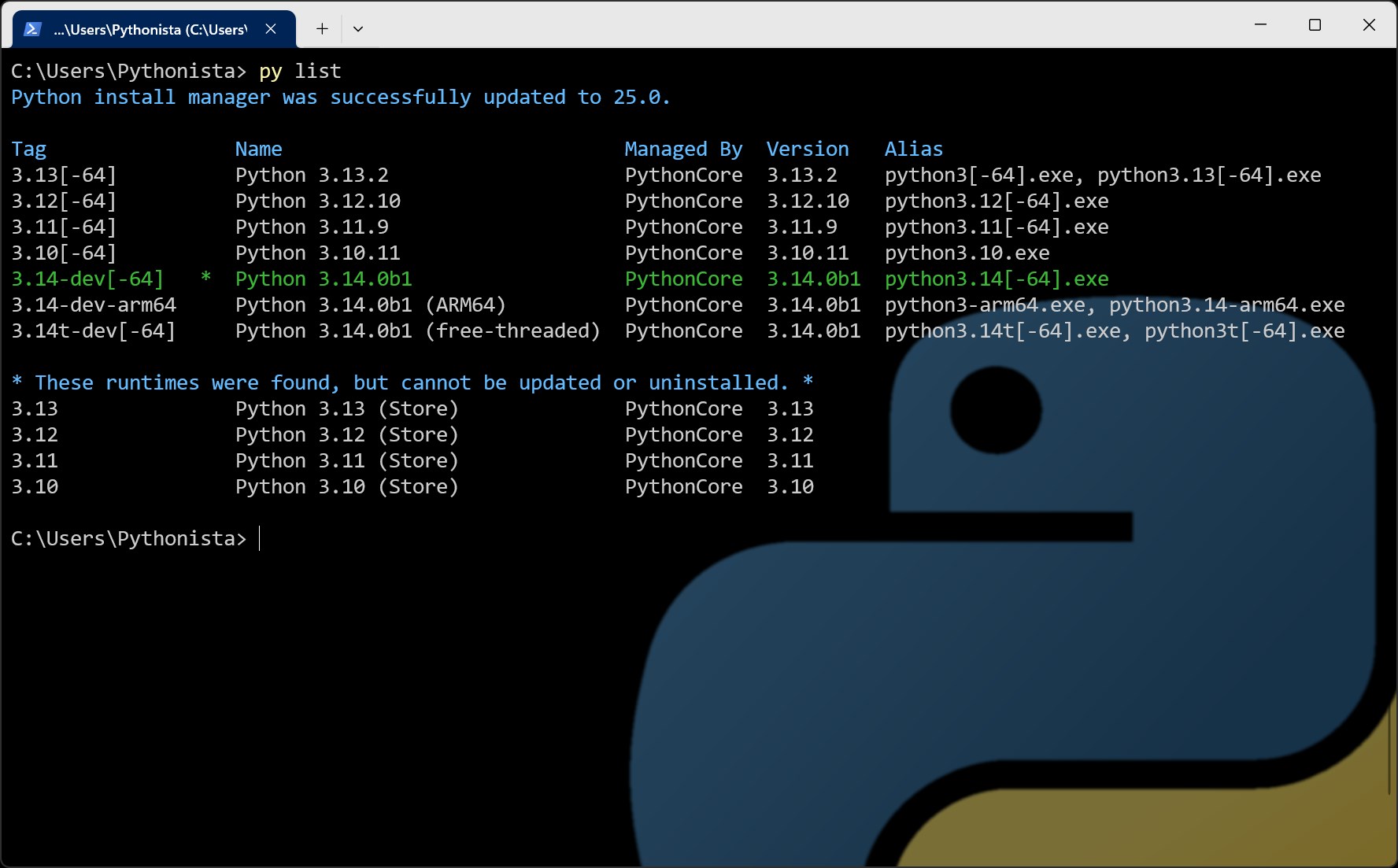
Run py list. It prints every installed runtime with its tag, version and aliases, and marks the default. Adding -1 shows just the one that python would launch. For compatibility with the old launcher, py -0p still works.
Step 5: Create a virtual environment for each project
Python’s documentation recommends a virtual environment per project for isolation and consistency. In your project folder, run:
python -m venv .venv
Then activate it with .venv\Scripts\Activate. While it is active, python and pip refer to that environment. The docs also recommend installing packages with python -m pip install <package> rather than relying on a global pip command.
Step 6: Run a specific Python version
To launch a particular version, pass -V: with its tag before any other options, for example py -V:3.14 script.py or py -V:3-arm64. For official releases the docs say you can drop the V:, so py -3.14 also works. Scripts can request a version with a shebang line such as #! /usr/bin/python3.14, which py reads when no version is given on the command line.
Step 7: Keep Python up to date
Run py install --update to replace every managed install with a newer build where one exists. The docs warn that updates remove modifications made inside the install, including globally installed packages, but existing virtual environments keep working. That is another reason to install packages into a venv, not the base interpreter.
Step 8: Remove versions you no longer need
Use py uninstall 3.13 to remove a runtime, adding --yes to skip the prompt. py uninstall --purge removes every runtime the manager installed and cleans up Start menu entries, registry keys and download caches. Runtimes installed by other means are left alone.
Python install manager command cheat sheet
| Task | Command |
|---|---|
| Install the latest stable Python | py install default |
| Install a specific version | py install 3.14 |
| Install the free-threaded build | py install 3.14t |
| List installed runtimes | py list |
| List runtimes available online | py list --online |
| Run a specific version | py -V:3.14 script.py |
| Update all managed runtimes | py install --update |
| Refresh shortcuts after installing packages | py install --refresh |
| Uninstall a runtime | py uninstall 3.13 |
| Show help | py help |
How to get Python 3.15 when it is released
Python 3.15 is in its final stretch. The official Python 3.15 release schedule (PEP 790) lists release candidate 2 on September 1, 2026 and the 3.15.0 final release as expected on Thursday, October 1, 2026, with bugfix releases roughly every two months after that and security fixes until about October 2031.
Because py install installs whatever matches a tag in the online index, py install 3.15 should fetch the new version once it is published there, and py list --online 3.15 will show whether it has arrived. Keep 3.14 installed alongside it until the packages you depend on support 3.15; you can switch between them per project with py -V:.
According to the What’s New in Python 3.15 page, the headline features include:
- Explicit lazy imports (PEP 810).
- A built-in
frozendicttype (PEP 814) and a built-in sentinel type (PEP 661). - A dedicated profiling package (PEP 799), including “Tachyon,” a high-frequency statistical sampling profiler.
- Frame pointers enabled by default (PEP 831) and unpacking in comprehensions (PEP 798).
- A stable ABI for free-threaded builds (PEP 803) and an upgraded experimental JIT compiler.
Installing free-threaded Python
Free-threaded builds, which run without the global interpreter lock, are installed with a t suffix on the tag: py install 3.14t, py install 3.14t-arm64 or py install 3.14t-32. If other runtimes are installed, launch it with py -V:3.14t or, if the aliases folder is on your PATH, python3.14t.exe. Check that the packages you rely on support free-threading before making it your default.
Troubleshooting common Python install problems on Windows
The Python docs include a troubleshooting table. These are the fixes for the problems people hit most:
- Typing
pythonopens the Microsoft Store or says “command not found”. Click Start, open Manage app execution aliases, and make sure the “Python (default)” aliases are on. If they already are, turn them off and on again. Also check that yourPATHstill contains%UserProfile%\AppData\Local\Microsoft\WindowsApps. pygives a “can’t open file” error. This usually means the legacy Python launcher is installed and takes priority. Open Installed apps, search for “Python launcher” and uninstall it.pythonandpylaunch different versions. Remove older Python installs from Installed apps, or modify them to disable their PATH options, and check thepython.exealias is set to “Python (default).”pipis not found. Activate your virtual environment, or usepython -m pip. Runningpy install --refreshrecreates global shortcuts for packages you installed.- Long file paths fail. Windows limits paths to 260 characters unless an administrator enables the “Enable Win32 long paths” policy or sets
LongPathsEnabledto 1 in the registry, then reboots.
Install manager vs the old installer
If you have installed Python on Windows before, the new approach works differently in a few ways worth knowing:
| Python install manager | Full installer (deprecated) | |
|---|---|---|
| Status | Recommended by the CPython team | Deprecated since 3.14; not produced for 3.16 or later |
| Where to get it | Microsoft Store, python.org (MSIX or MSI), WinGet | python.org, one installer per version |
| Multiple versions | Managed with py install, py list, py uninstall | Separate installer for each version |
| Updates | py install --update; the manager updates itself | Download and run a newer installer |
| Install scope | Per-user runtimes only | Per-user or all users |
| Launcher | py built in | Legacy py launcher (also deprecated), or the install manager as an option |
The per-user limitation matters on shared PCs. Python’s docs say the install manager “does not support installing runtimes per-machine,” and suggest administrators emulate it with py install --target=<shared location> plus their own PATH and Start menu changes.
Should you switch from the old installer?
Yes, if you are setting up a new PC or planning to try Python 3.15. The classic installer still exists for 3.14 and 3.13, but it is deprecated and will not be built for 3.16 or later, so the install manager is where Windows Python is heading. It also makes running several versions side by side far simpler than juggling separate installers and PATH edits. Existing runtimes from the classic installer are not managed by the new tool: py uninstall --purge leaves them untouched and py list --only-managed hides them, so remove them through Installed apps if you want a clean start. Install the manager, run py install 3.14 today, and py install 3.15 once the new release lands.
Frequently asked questions
What is the best way to install Python on Windows?
The Python documentation recommends the Python install manager, available from the Microsoft Store, python.org or WinGet. It installs the python, py and pymanager commands and lets you add, update and remove Python versions.
Is the Python .exe installer going away?
Yes. The full installer is deprecated since Python 3.14 and the docs say it will not be produced for Python 3.16 or later.
When is Python 3.15 released?
The official schedule in PEP 790 lists Python 3.15.0 as expected on Thursday, October 1, 2026. Once it is in the install manager’s index, py install 3.15 installs it alongside existing versions.
Why does typing python open the Microsoft Store?
Windows app execution aliases are pointing at the Store stub. Install the Python install manager, then open Manage app execution aliases and make sure the Python (default) aliases are enabled, toggling them off and on if needed.
How do I run a specific Python version on Windows?
Use py with a -V: tag, for example py -V:3.14 script.py. For official releases the V: can be dropped, so py -3.14 also works.
Which Windows versions does Python 3.14 support?
Python’s documentation says Python 3.14 supports Windows 10 and newer. Windows 8.1 users need Python 3.12 and Windows 7 users Python 3.8.
Sources
- Python docs: Using Python on Windowsdocs.python.org
- Python.org: Python Releases for Windowspython.org
- PEP 790: Python 3.15 Release Schedulepeps.python.org
- Python docs: What’s New in Python 3.15docs.python.org
- Microsoft Store: Python Install Managerapps.microsoft.com
Felix Moreau writes Pandromeda's software coverage and how-to guides. He covers Windows, macOS and Linux updates, the apps people rely on, emulators and developer tools, and turns official documentation into clear, numbered steps that work on the current version.