What Is Quick Share (Nearby Share)? Android, Windows, iPhone
Nearby Share was renamed Quick Share in 2024. Here is how the file-sharing feature works on Android, Windows and Chromebook, and why iPhone support is limited.
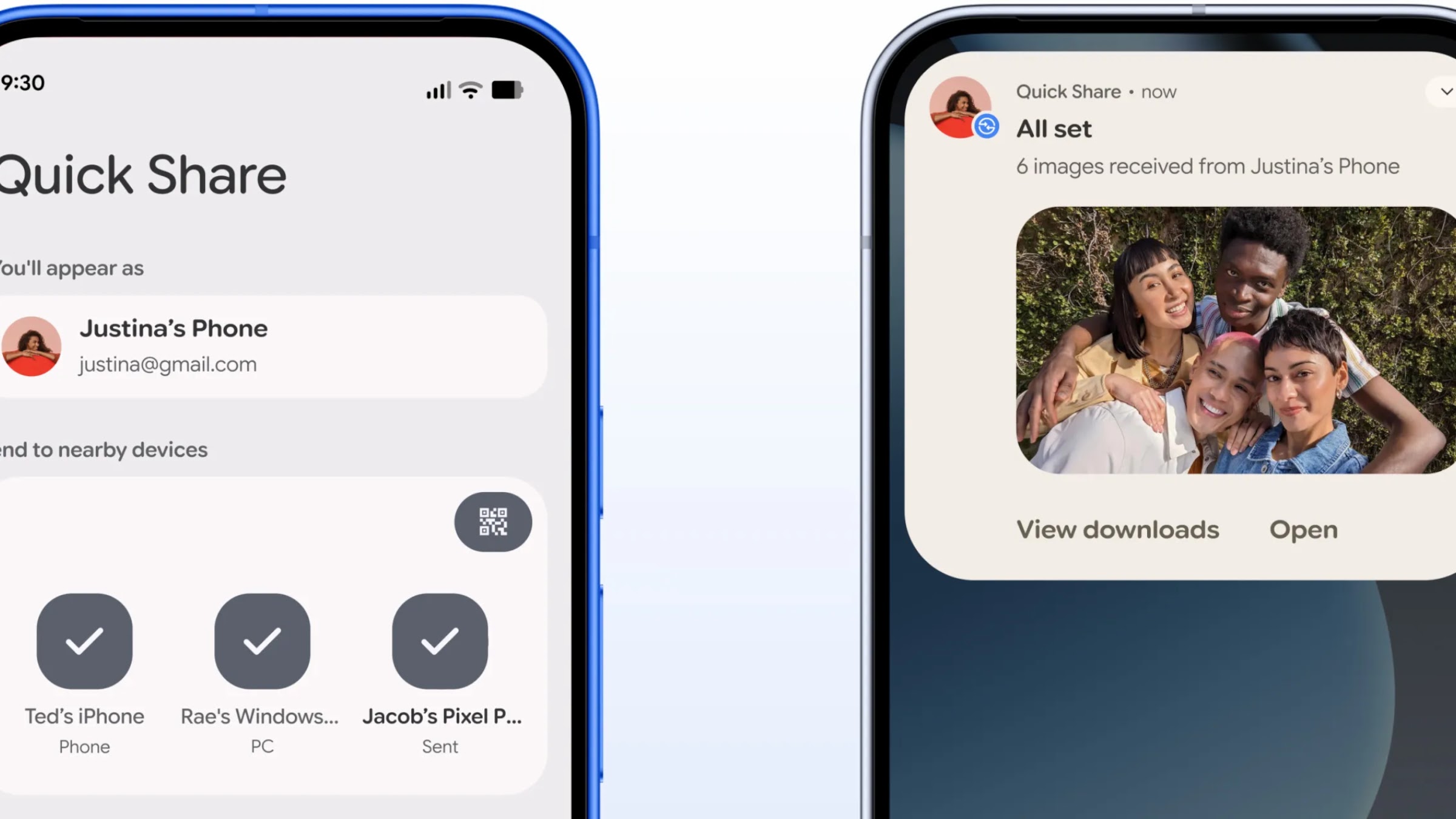
Quick Share — the feature most people still search for as "Nearby Share" — is Google's built-in system for sending photos, files, and links to nearby devices without cables, email, or a shared app account. It works over Bluetooth and Wi-Fi Direct on Android phones and tablets, on Chromebooks, and on Windows PCs through a free Google app, and as of late 2025 it can also send files directly to an iPhone, iPad, or Mac using Apple's AirDrop protocol — no separate app or iPhone-side download required. "Nearby Share" is not a separate, newer feature; it is simply the old name. Google and Samsung merged their competing proximity-sharing tools into one in 2024 and renamed the result Quick Share, and Google's own support pages now use "Quick Share" exclusively, while noting it was "previously known as Nearby Share."
- Current official name: Quick Share (Nearby Share is the retired name for the same feature)
- Works on: Android 6.0+, Chrome OS 91+, Windows 10/11 (64-bit) via a free app
- iPhone/iPad/Mac: Supported one-way through AirDrop interoperability, starting with Pixel 10 and select newer Pixel models — not a universal Android feature yet
- Connection method: Bluetooth to discover devices, Wi-Fi Direct (or local Wi-Fi) to transfer the actual files
- Cost: Free, no account required to use between two phones, though signing in enables more options
What Is Quick Share, and Why Do People Still Call It Nearby Share?
Quick Share is Google's answer to Apple's AirDrop: a way to beam photos, documents, videos, links, and even clipboard text to a device that's physically nearby, using a direct device-to-device connection instead of uploading anything to the cloud. Google launched the feature as "Nearby Share" in 2020. In January 2024, Google and Samsung — which had been running a rival proximity-sharing feature on Galaxy phones — agreed to combine the two into a single, cross-brand standard and call it Quick Share. The rollout happened gradually through a Google Play services update, which is why some older Android phones briefly showed both names, or still show "Nearby Share" in menus if they haven't picked up the latest update.
Functionally, almost nothing changed in the merge. Google's support page for the feature is titled "Quick Share (formerly Nearby Share)" and states plainly that the older name may still appear on some devices. If a search engine, a help forum, or an older phone's settings menu points you to "Nearby Share," you're looking at the same feature — just under its previous branding. This kind of quiet rename isn't unique to file sharing: Google did something similar when it folded Find My Device into the broader Find Hub rebrand, so if a once-familiar Google feature suddenly has a new name in your settings, that's usually the explanation.
How Quick Share Actually Works
Quick Share doesn't route your files through Google's servers when you're sharing between two devices that are near each other. Instead, it uses a layered connection process:
- Discovery: Bluetooth Low Energy scans for other devices nearby that also have Quick Share open or listening.
- Negotiation: Once two devices see each other, they exchange a small amount of identifying information (like a device name and an account match, if signed in) so you can confirm you're sending to the right person.
- Transfer: The actual file transfer typically switches to Wi-Fi Direct, a peer-to-peer Wi-Fi connection that doesn't require a router, for speed — though a shared Wi-Fi network or mobile data can be used for larger or cross-platform transfers, including the newer QR-code and AirDrop-interoperable methods.
Because the core transfer is peer-to-peer, you generally don't need an internet connection for two Android devices sitting next to each other to exchange a handful of photos. That changes for specific scenarios — sharing with an iPhone over AirDrop interoperability, or using the QR-code method for devices that aren't Quick Share-compatible, both require that each device has internet access, since those transfers are relayed through an encrypted link rather than a pure local connection.
Which Platforms Support Quick Share?
Quick Share's platform support has expanded significantly since its 2020 debut as Nearby Share. Here's the current state, according to Google's own documentation:
| Platform | Support level | Requirements |
|---|---|---|
| Android phones & tablets | Full native support | Android 6.0 or later |
| Chromebooks | Full native support (off by default) | Chrome OS 91 or later |
| Windows PC | Supported via free Quick Share app | 64-bit Windows 10 or later; Windows 11 required on ARM devices |
| Samsung Galaxy | Supported, with Samsung's own settings layer | Android 10 and One UI 2.1 or later |
| iPhone, iPad, Mac | One-way via AirDrop interoperability | Sender needs Pixel 10 (or newer eligible Pixel); receiver sets AirDrop to "Everyone for 10 Minutes" |
Two caveats are worth calling out clearly. First, Samsung also ships its own "Quick Share" app on the Microsoft Store that's built for Galaxy-to-Galaxy and Galaxy-to-PC transfers specifically; Google's Quick Share for Windows app will actually redirect Samsung PCs to that Samsung-built version instead of installing its own. Second, the iPhone/iPad/Mac support is real, but it is not yet a universal Android feature — more on that below.
How to Turn On Quick Share on Android
Quick Share is built into Android and doesn't require installing anything. There are three ways to open it:
- From the share sheet: Open the photo, file, or link you want to send, tap Share, then select Quick Share from the list of apps.
- From Quick Settings: Swipe down from the top of the screen to find the Quick Share tile. If it isn't there, tap Edit and drag it into your Quick Settings panel.
- From Settings directly: Open your device's Settings app, search "Quick Share," then choose Send or Receive.
To receive a file, put your device into Receive mode from the Quick Share page — your phone is only visible to others while that screen is open (unless you've set broader visibility, covered below). When someone sends you something, accept the pop-up request with your screen unlocked. Incoming files land in Files > Downloads > Quick Share. If you and the sender are signed into the same Google Account, transfers between your own devices complete automatically without a manual accept step.
How to Use Quick Share on a Chromebook
Quick Share ships on every Chromebook running Chrome OS 91 or later, but it's turned off out of the box. To enable it:
- Click the clock in the bottom-right corner to open Quick Settings, then go to Settings > Connected devices.
- Next to Quick Share, select Set Up.
- Name your device and choose a visibility setting.
From then on, you can open the Quick Share panel from Quick Settings any time you want to make your Chromebook temporarily visible to everyone nearby for 10 minutes, or leave it on your default visibility level. Managed Chromebooks — the kind issued by a school or employer — may have Quick Share restricted or disabled entirely by an administrator, so if the option doesn't appear, that's the likely reason.
How to Get Quick Share on a Windows PC
Unlike Android and Chrome OS, Windows doesn't come with Quick Share pre-installed (despite earlier reports that Google was working with PC makers to bundle it). You install it as a free standalone app from Google's own Quick Share for Windows page. A few practical notes from Google's setup documentation:
- System requirements: 64-bit Windows 10 or later. If you're on a Windows-on-ARM device (like some Snapdragon-powered laptops), you need Windows 11.
- Sign in for full features: You can use Quick Share without a Google Account, but signing in unlocks visibility options like "Contacts" and "Your devices."
- Don't run it as administrator: Google explicitly warns that launching Quick Share with admin rights can break drag-and-drop sharing and the right-click "Send with Quick Share" option in File Explorer.
- Samsung PCs are different: If you're on a Samsung-made Windows PC, Google's download page redirects you to Samsung's own Quick Share app in the Microsoft Store instead.
Once installed, sending from Windows works by opening the Quick Share app and selecting or dragging in a file, or by right-clicking any file in File Explorer and choosing "Send with Quick Share." Receiving works the same way it does on phones: your PC needs to be visible to the sender, and you'll get a prompt to accept the incoming transfer (with a PIN to confirm on both ends for extra security). Files land in a "Quick Share" subfolder inside your Downloads folder.
Can You Use Quick Share With an iPhone?
This is where a lot of search traffic for "Nearby Share iPhone" or "Nearby Share Android to iPhone" runs into outdated assumptions, so it's worth being precise. For most of Quick Share's history, the honest answer was no — it was an Android-and-Windows-only feature, and there was no app or workaround that let an iPhone send or receive through it, officially or otherwise.
That changed on November 20, 2025, when Google announced that Quick Share had become interoperable with Apple's AirDrop. According to Google's official announcement, the feature lets Android and iOS users exchange files directly and in both directions, without either side installing a new app — the iPhone side uses AirDrop exactly as it normally would. Google says the connection is peer-to-peer rather than routed through a server, and the company has stated that Apple was not involved in building the feature. It arrived first on the Pixel 10 family, with Google saying at the time that it planned to expand the capability to more Android phones; by early 2026, Google had extended it to the Pixel 9, 9 Pro, 9 Pro XL, and 9 Pro Fold (notably excluding the Pixel 9a), with company representatives indicating a broader non-Pixel rollout was coming.
To actually use it: the iPhone, iPad, or Mac owner needs to set their AirDrop visibility to "Everyone for 10 Minutes" so the Android device can see them, then accept the incoming transfer like any normal AirDrop request. On the eligible Pixel, you select the iPhone from your list of nearby Quick Share devices the same way you'd select another Android phone. If your Android phone isn't on the supported list yet, Quick Share still offers a separate QR-code method for sending to any device with internet access, including iPhones and Macs — it just isn't the same direct AirDrop handshake, and files are relayed through an encrypted link with a 24-hour availability window rather than transferred purely peer-to-peer. This kind of staged, device-by-device cross-platform rollout mirrors what's happening elsewhere in the push toward better Android-iPhone interoperability, where support tends to arrive unevenly across device generations before it becomes universal.
In short: Nearby Share for iPhone, in the sense of a dedicated iOS app, does not exist and Google has given no indication one is coming. What exists instead is one-way-compatible interoperability with Apple's own AirDrop, currently limited to specific recent Pixel phones as the sending/receiving Android device.
Visibility and Privacy Settings, Explained
Quick Share's visibility setting controls who can see your device and attempt to send you something. The exact wording varies slightly by platform, but the options map onto the same four concepts everywhere:
| Visibility option | Who can see you |
|---|---|
| Your devices | Only your own devices signed into the same Google Account — even with the screen off |
| Contacts | People in your phone's contacts, only while your screen is on and unlocked |
| Everyone (10 minutes) | Any nearby Quick Share device; automatically reverts to your previous setting after 10 minutes |
| Hidden / No one | Nobody can see or send to you until you manually open Quick Share to receive |
On Android, you manage this under Settings, by searching "Quick Share" and opening "Who can share with you." On Windows, it's the "Receiving" setting inside the Quick Share app. The "Everyone for 10 minutes" option is the one you'll want when receiving from a stranger, a new coworker, or — per the iPhone instructions above — when an Apple device needs to find you via AirDrop.
Fixing Quick Share When It's Not Working or Not Finding Devices
Quick Share failing to find a nearby device is one of the most common complaints around the feature, and Google's own troubleshooting guidance is consistent across Android, Chrome OS, and Windows. Work through these in order:
- Confirm Bluetooth is on for both devices. Quick Share uses Bluetooth for discovery even though the file itself transfers over Wi-Fi — if Bluetooth is off on either device, neither one will show up for the other.
- Move the devices closer together. Google's guidance puts the reliable discovery range at about 1 foot (30 cm) for phone-to-phone, and recommends staying within roughly 5 meters (16 feet) for Android-to-Windows transfers.
- Check the receiving device is actually in Receive mode with its screen on and unlocked — Quick Share won't surface a device that's asleep or that hasn't opened the Quick Share screen.
- Review the visibility setting. If a device is set to "Your devices" or "Hidden," it won't be visible to someone outside your account or contacts, even standing right next to you.
- Toggle Airplane mode on, then off. This resets the Bluetooth and Wi-Fi radios in one step and clears a surprising number of stuck connections.
- On Android 12 or earlier, check that Location is turned on. Older Android versions require Location services to be enabled for Nearby Share/Quick Share's device-discovery radios to function — this requirement was dropped in later Android versions.
- Wait if someone else is already sharing with that device. Quick Share can only manage one incoming transfer negotiation at a time per device.
- On a shared or office Wi-Fi network (Windows especially), ask whether the network blocks device-to-device discovery — many corporate and school networks isolate clients from each other by design. A personal mobile hotspot is a reliable workaround.
- Restart the app or device. Fully quitting and reopening Quick Share on Windows (via the system tray icon), or restarting the phone or Chromebook, resolves most remaining stuck states.
If you're not seeing transfer notifications on Windows specifically, check that Focus Assist/Do Not Disturb is off, then confirm notifications are enabled for Quick Share under Settings > System > Notifications & actions. The pattern of needing to check radios, visibility, and background permissions in sequence is pretty similar to diagnosing other finicky Google connectivity features — the same systematic approach is worth using if you've ever had to troubleshoot Android Auto refusing to connect.
Quick Share vs. AirDrop and Other Sharing Methods
Quick Share, AirDrop, and sending a file through a messaging app all solve the same basic problem — getting a file from one device to another — but they work differently enough that it's worth knowing when each one makes sense.
| Method | Platforms | Needs internet? | Notes |
|---|---|---|---|
| Quick Share | Android, Chrome OS, Windows; limited AirDrop interop with iPhone/iPad/Mac | No, for device-to-device Android/Windows/Chrome OS transfers | Peer-to-peer; no file size cap from Quick Share itself, though the sending app may impose one |
| AirDrop | iPhone, iPad, Mac only (plus select Pixel phones via interop) | No | Uses Bluetooth + Apple-created Wi-Fi mesh; natively Apple-only |
| Quick Share QR code | Any device with a camera and internet access | Yes | Relayed through an encrypted link; files available for 24 hours, up to 10 GB per day |
| Messaging apps / email | Any device | Yes | Simplest for small files, but compresses photos/videos and relies on both parties having an account |
Quick Share Explained: The Bottom Line
If you've been searching for "Nearby Share," you're not missing a feature — you're just looking for Quick Share under its old name. It remains Google's fastest, most private way to move files between your own Android devices, between you and another Android or Windows user nearby, and, as of the Pixel 10 and select newer Pixel generation, directly to and from an iPhone or Mac using Apple's own AirDrop. The platform coverage is genuinely broad now (Android, Chrome OS, and Windows are all fully supported), but the iPhone story is still a work in progress: real, officially sanctioned, and two-way — just not yet available from every Android phone. If a transfer isn't working, the fix is almost always one of a handful of things: Bluetooth, proximity, visibility settings, or a stale connection that a quick Airplane Mode toggle clears up. Expect Google to keep widening both the AirDrop interoperability and the list of supported devices over the next several Android releases.
Frequently asked questions
Is Nearby Share the same thing as Quick Share?
Yes. Google renamed Nearby Share to Quick Share in a 2024 partnership with Samsung that unified the two companies' separate proximity-sharing tools. The feature works the same way; only the name and icon changed.
Does Nearby Share work on iPhone?
There is no dedicated Nearby Share or Quick Share app for iPhone. However, since November 2025, Quick Share on eligible Pixel phones (the Pixel 10 family and newer Pixel 9 models) can send and receive files directly with an iPhone, iPad, or Mac via Apple's AirDrop, with the Apple device set to Everyone for 10 Minutes.
How do I get Quick Share on a Windows PC?
Download the free Quick Share app from Google's official Quick Share for Windows page. It requires 64-bit Windows 10 or later, or Windows 11 if your PC uses an ARM processor. Samsung PCs are instead directed to Samsung's own Quick Share app on the Microsoft Store.
Why can't my devices find each other with Quick Share?
The most common causes are Bluetooth being off, the devices being too far apart, the receiving device's screen being locked, or a visibility setting that restricts who can see the device. Toggling Airplane Mode and restarting the Quick Share app or device also resolves many stuck connections.
Is there a file size limit on Quick Share?
Google states Quick Share itself doesn't impose a content size or file-count limit, though the app you are sharing from might. The QR-code method used for non-compatible devices is capped at 10 GB per 24 hours and 1,000 files per session.
Do I need a Google Account to use Quick Share?
No, you can send and receive between two nearby devices without signing in. Signing in with a Google Account adds options like automatic transfers between your own devices and visibility to your contacts.
Sources
- Google Support: Quick Share (formerly Nearby Share)support.google.com
- Google Support: Share files between Android & Windows with Quick Sharesupport.google.com
- Google Support: Use Quick Share on your Chromebooksupport.google.com
- Android: Quick Share product pageandroid.com
- Android: Quick Share for Windows PCandroid.com
- Google Blog: Quick Share now works with AirDropblog.google
Nadia Osei covers mobile and consumer gadgets for Pandromeda: smartphones, tablets, smartwatches, earbuds and smart-home devices. She tracks launches, software updates and pricing across Apple, Google, Samsung and the rest, and builds comparisons from the manufacturers' published specifications.