iPhone Satellite Explained: How It Works and What It Costs
Emergency SOS, Messages, Find My and Roadside Assistance via satellite: which iPhones support them, where they work, what they cost, and how to turn satellite mode on.
iPhone satellite features let an iPhone 14 or later text emergency services, message friends and family, share your location, or request roadside help when you have no cell signal and no Wi-Fi — by connecting directly to a satellite instead. As of today, every one of Apple's own satellite features (Emergency SOS, Messages, Find My, and Roadside Assistance via satellite) is still free, because Apple has quietly pushed back the original two-year cutoff for the third time, most recently around the iPhone 18 Pro and iPhone Duo launch in September 2026. Here is exactly what each feature does, which iPhones and countries support it, and how to actually turn it on.
- Which iPhones: iPhone 14 or later (all models) for Emergency SOS, Messages, Find My, and Roadside Assistance via satellite.
- Cost: Free for two years after activation, per Apple's own support pages — but Apple has extended that free window multiple times, so no iPhone 14, 15, or 16 owner has been charged yet, and no price has been announced for when it does end.
- Where: Emergency SOS and Find My via satellite work in 20 countries and regions; Messages via satellite works in the U.S., Canada, Mexico, and Japan; Roadside Assistance via satellite works in the U.S., U.K., and Australia.
- How to use it: Go outside with a clear view of the sky, then open Settings > Satellite or swipe into Control Center and tap the cellular icon > Satellite. The option only appears when you have no cell or Wi-Fi signal.
- Limits: No photos, videos, stickers, or group messages over satellite; messages can take 30 seconds to several minutes to send; it doesn't work above roughly 62° latitude (northern Alaska, northern Norway).
What "iPhone satellite" actually means
"iPhone satellite" isn't one single feature — it's a set of four separate Apple-built tools, all running over the same underlying satellite connection, plus a fifth option that comes from your carrier instead of Apple. When people search for "iphone satellite mode" or "iphone satellite connection," they're usually looking for one of these:
- Emergency SOS via satellite — text 911 or another local emergency number when you can't call or text normally.
- Messages via satellite — send iMessages or SMS texts to contacts, not just emergency services.
- Find My via satellite — share your live location with people you already share it with in Find My.
- Roadside Assistance via satellite — text a roadside provider (AAA, Verizon, Green Flag, NRMA, and others) if your car breaks down off the grid.
- Carrier-provided satellite — a separate system some carriers (for example, T‑Mobile's Starlink partnership) run over their own satellite deals, available on iPhone 13 and later and shown as "SAT" in the status bar, independent of anything Apple charges or controls.
All four Apple features share the same underlying mechanics and the same Connection Assistant interface, and all rely on Apple's satellite partner, Globalstar, and its affiliated or third-party network providers.
Which iPhone models and countries support it
Apple's own satellite features require an iPhone 14 or later — that includes the iPhone 14, 14 Plus, 14 Pro, 14 Pro Max, the entire iPhone 15 and iPhone 16 lineups (including iPhone 16e), iPhone 17, and iPhone 18 Pro. Carrier-provided satellite (the T-Mobile/Starlink-style option) has a lower bar: iPhone 13 or later, on a supported carrier plan. Satellite connectivity isn't offered at all on iPhones purchased in Armenia, Belarus, China mainland, Kazakhstan, Kyrgyzstan, or Russia, and on iPhones purchased in Hong Kong or Macao it's limited to iPhone 16e and later.
| Feature | iPhone models | Countries/regions | Current price |
|---|---|---|---|
| Emergency SOS via satellite | iPhone 14 or later (all models) | Andorra, Australia, Austria, Belgium, Canada, France, Germany, Iceland, Ireland, Italy, Japan, Luxembourg, Mexico, Netherlands, New Zealand, Norway, Portugal, Spain, Switzerland, U.K., U.S. | Free (trial repeatedly extended) |
| Messages via satellite (iMessage/SMS) | iPhone 14 or later (all models) | U.S., Canada, Mexico, Japan | Free (trial repeatedly extended) |
| Find My via satellite | iPhone 14 or later (all models) to send; iOS 16.1+ to view a shared location | Same as Emergency SOS availability | Free (trial repeatedly extended) |
| Roadside Assistance via satellite | iPhone 14 or later (any model) | U.S. (incl. Puerto Rico), U.K., Australia | Free to connect; the roadside provider may still charge its own fee |
| Carrier-provided satellite (e.g. T-Mobile/Starlink) | iPhone 13 or later (any model) | Depends on carrier | Set by carrier; fees and data rates may apply |
Is iPhone satellite messaging free, or does it cost money now?
As of today, every Apple-built satellite feature is still free for eligible iPhone owners, but the story behind that price is more complicated than Apple's own support pages let on. When Apple launched Emergency SOS via satellite with the iPhone 14 in November 2022, it bundled in two years of free access. Apple's current support pages for Emergency SOS, Messages, Find My, and Roadside Assistance via satellite all still use that same wording today: the features are "free for two years after the activation of an iPhone 14 or later."
In practice, Apple has quietly pushed that expiration date back multiple times rather than start charging, most recently with an extension announced alongside the iPhone 18 Pro and iPhone Duo launch in September 2026 — at least the third such extension since 2022. The upshot is that iPhone 14, 15, and 16 owners who were technically due to lose free access have kept it, year after year, without Apple ever publishing what it would cost if the free period actually ended. There's no confirmed subscription price, and no indication the features will be bundled into iCloud+ or another paid plan — that's simply unannounced. If you own an eligible iPhone today, you can use Emergency SOS, Messages, Find My, and Roadside Assistance via satellite at no extra cost, and Apple has given no signal that's about to change.
Carrier-provided satellite is a different arrangement entirely: some carriers charge for it as part of a plan, others include it, and Apple has no role in setting that price — check with your own carrier.
How to turn on satellite mode and connect
You don't "turn on" satellite connectivity the way you'd toggle Wi-Fi — the Satellite option only shows up once your iPhone genuinely has no cellular and no Wi-Fi signal. To connect:
- Go outside with a clear, open view of the sky and the horizon.
- Open Control Center (swipe down from the top-right corner), tap the cellular signal icon, then tap Satellite — or open the Settings app and tap Satellite directly.
- Choose the feature you need: Emergency SOS, Messages, Find My, or Roadside Assistance.
- Hold your iPhone naturally in your hand — you don't need to raise your arm, but keep it out of a pocket or bag.
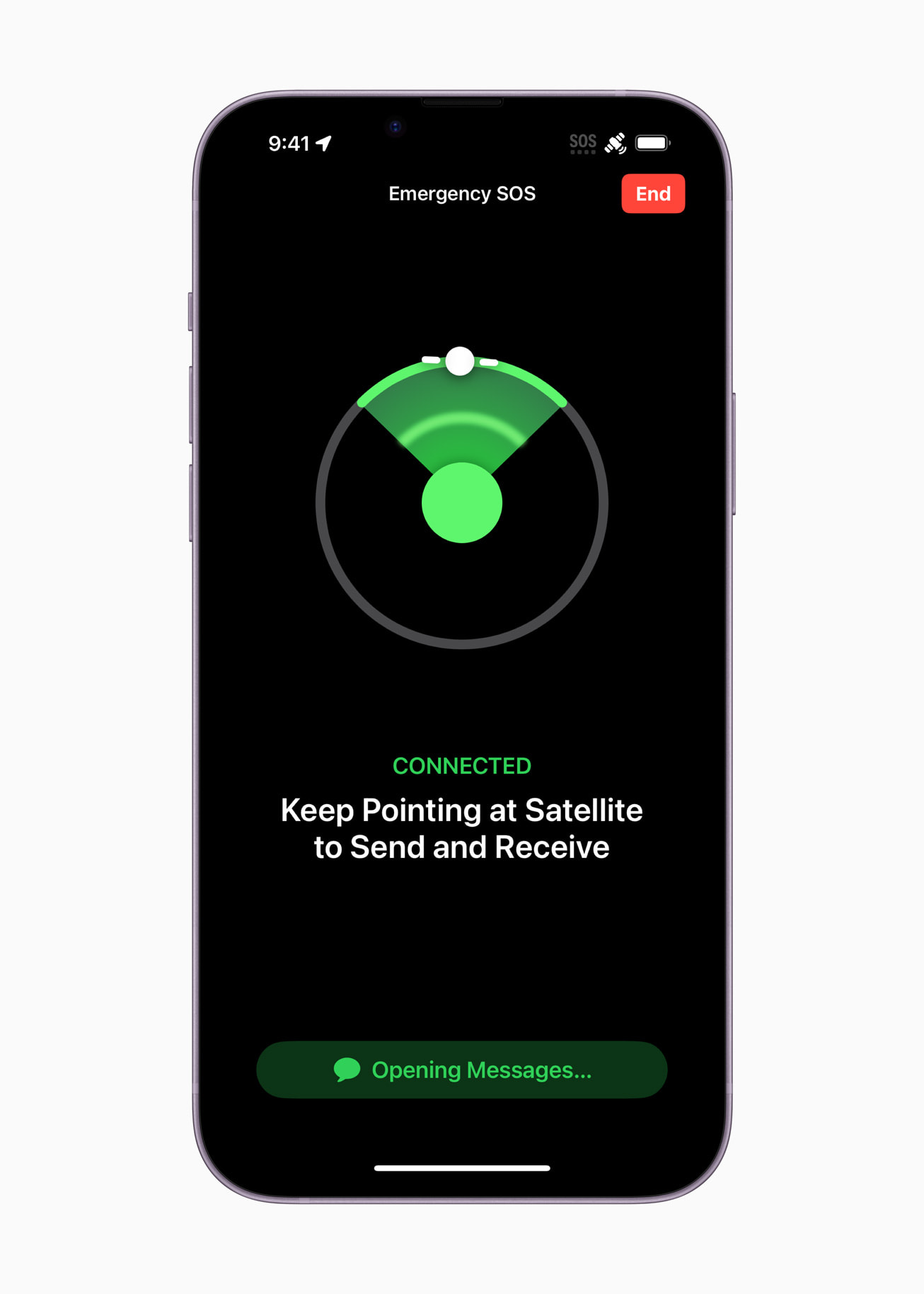
- Follow the onscreen prompts; if you need to turn left or right to find the satellite, your iPhone will tell you. On iPhone 14 Pro and later, the Dynamic Island shows connection-strength dots and directional arrows.
Trees with light foliage can slow the connection; heavy foliage, hills, mountains, canyons, and tall buildings can block it outright, and it generally doesn't work above about 62° latitude, such as the northern parts of Alaska and Norway. A connection can be held even with the screen locked, but you do need an active SIM and, ideally, the latest version of iOS installed before you lose signal — not after.
Emergency SOS via satellite, step by step
If you try to call your local emergency number and the call won't connect, your iPhone offers to text emergency services via satellite instead — or you can type "emergency," "SOS," "help," or "send help" in a new Messages conversation. After tapping through a short questionnaire about who needs help and the nature of the emergency, your iPhone walks you through connecting to a satellite and sending the message. Once connected, it automatically shares your location (including elevation), remaining battery life, and — if you've set them up — your Medical ID and emergency contacts. If your iPhone or Apple Watch detects a severe crash or hard fall and you're unresponsive, this same system can trigger automatically. Emergency contacts on iOS 16.4 or later get a live transcript of your exchange with responders; everyone else gets a text alert from a short code (for example, 767911 in the U.S. and Canada, or SOS112 in much of Europe).
Messages via satellite: texting off the grid
Starting in iOS 18, Messages via satellite lets you send and receive plain texts, emojis, and Tapbacks over iMessage or SMS when you're off the grid — it's meant for staying in touch, not for emergencies (Apple explicitly says to use Emergency SOS via satellite for those). You need to turn iMessage on before you lose signal, and the person you're messaging needs iOS 18 or later to receive an iMessage via satellite, or iOS 17.6 or later (or any non-Apple phone) to get it as SMS. A handful of things don't work over a satellite link: photos, videos, audio messages, stickers, and group messages are all unsupported. In ideal conditions with a clear view of sky and horizon, a message can go out in about 30 seconds; under light or medium foliage it can take over a minute, and heavy foliage can block it completely.
Find My via satellite: sharing your location
Find My via satellite lets you send your current location to someone you're already sharing your location with — it won't let you start sharing with a new contact for the first time once you're off the grid, so set that up beforehand. In the Find My app, tap the Me tab, then tap Send My Location under "My Location via Satellite." It can take a few minutes to go through, and you can only send an updated location once every 15 minutes. Your location is end-to-end encrypted, so Apple can't read it, and the person receiving it needs iOS 16.1 or later to see it (they don't need an iPhone 14 or later themselves). A location shared this way stays visible to them for up to seven days, and you won't see their location back while you're the one connecting via satellite.
Roadside Assistance via satellite
If you're stuck with a flat tire, a dead battery, or you've locked your keys inside, Roadside Assistance via satellite connects you to a provider — AAA or Verizon in the U.S., Green Flag in the U.K., or one of several providers (NRMA, RACV, RACQ, RAA, RAC, RACT, AANT) in Australia. Type "roadside" into a new Messages conversation, or open Connection Assistant from Control Center or Settings, and follow the prompts. Connecting to a satellite this way is free, but the roadside provider itself can still charge its normal fee once help is on the way — Apple's support page is explicit that "the roadside provider's pricing information, if any, will be provided by the roadside provider before help is dispatched." A Verizon SIM is specifically required to reach Verizon's roadside service.
Carrier satellite vs. Apple's satellite features
It's easy to confuse Apple's satellite features with the separate satellite-to-cell service some carriers now offer directly, using partners like Starlink. Carrier-provided satellite works on the slightly older iPhone 13 and later, needs the latest iOS and a supported carrier and, in some cases, a specific cellular plan. When it's active, "SAT" appears in the iPhone status bar, and some carriers allow a limited amount of data through select apps over that connection, generally at a carrier-set fee or data rate. You can turn it off in Settings > Cellular > Cellular Data Options > Satellite. It's worth knowing the difference: if your specific worry is why a text isn't sending the way you expect, whether it's because of a satellite connection or a messaging protocol issue depends on which of these two systems is involved.
How to test it before you actually need it
Apple builds a practice mode into iOS specifically so you're not figuring this out for the first time in an emergency. Open Settings > Apps > Messages and scroll to Satellite Connection Demo, or open Control Center, tap the cellular icon, tap Satellite, then tap Try Demo. You'll need to be outside on relatively open ground with a clear sky view and Location Services turned on for Satellite Connection. The demo walks you through connecting to a real satellite and shows you the same compass-style pointing interface you'd see in an actual Emergency SOS or Messages via satellite session — it just doesn't contact emergency services. It's a reasonable thing to try once after setting up a new eSIM or before a trip somewhere remote.
What's next for iPhone satellite features
iOS 27 shipped on September 14, 2026, and Apple's satellite features carried over unchanged and, for now, still free — the free-access extension for iPhone 14, 15, and 16 owners was announced at the same September event that introduced the iPhone 18 Pro and iPhone Duo, alongside the new C2 modem in Apple's latest hardware. Beyond that, Apple hasn't published a firm roadmap or pricing plan for its satellite features, and this piece will be updated if that changes. For now, the practical takeaway is simple: if you own an iPhone 14 or later, make sure it's updated, set up your Medical ID and emergency contacts before you need them, and try the Satellite Connection Demo at least once so the real thing isn't unfamiliar. If you're weighing a new iPhone partly for its off-grid features, every current model from the iPhone Duo down through the iPhone 14 supports the same core set of satellite tools.
Frequently asked questions
Is iPhone satellite messaging free?
Yes, for now. Apple's support pages say Emergency SOS, Messages, Find My, and Roadside Assistance via satellite are each free for two years after you activate an iPhone 14 or later, but Apple has extended that free window multiple times — most recently in September 2026 — so no eligible iPhone owner has been charged yet, and Apple hasn't announced what it would cost if that changes.
Which iPhones support satellite features?
Apple's own satellite features (Emergency SOS, Messages, Find My, and Roadside Assistance via satellite) require an iPhone 14 or later, any model. Carrier-provided satellite, offered directly by some carriers, works on the older iPhone 13 and later.
How do I turn on satellite mode on my iPhone?
You can't toggle it on in advance — the Satellite option only appears in Control Center or Settings once your iPhone has no cellular and no Wi-Fi signal. Go outside with a clear sky view, open Control Center, tap the cellular icon, then tap Satellite, or go to Settings and tap Satellite directly.
Does iPhone satellite work anywhere in the world?
No. Emergency SOS and Find My via satellite currently work in 20 countries and regions, Messages via satellite works only in the U.S., Canada, Mexico, and Japan, and Roadside Assistance via satellite works only in the U.S., U.K., and Australia. It also generally doesn't work above about 62° latitude, such as northern Alaska or northern Norway.
Can I send photos over iPhone satellite messages?
No. Messages via satellite only supports plain text, emojis, and Tapbacks — photos, videos, audio messages, stickers, and group messages aren't supported over a satellite connection.
How can I practice using satellite features before an emergency?
Open Settings, then Apps, then Messages, and tap Satellite Connection Demo, or open Control Center, tap the cellular icon, tap Satellite, then tap Try Demo. You need to be outside with a clear view of the sky; the demo doesn't contact real emergency services.
Sources
- Apple Support: Use Emergency SOS via satellite on your iPhonesupport.apple.com
- Apple Support: About Messages via satellite on your iPhonesupport.apple.com
- Apple Support: Connect to a satellite with your iPhonesupport.apple.com
- Apple Support: Use Roadside Assistance via satellite on your iPhonesupport.apple.com
- Apple Support: About carrier-provided satellite features on iPhonesupport.apple.com
- Apple Support: Send your location via satellite in Find My on iPhonesupport.apple.com
Nadia Osei covers mobile and consumer gadgets for Pandromeda: smartphones, tablets, smartwatches, earbuds and smart-home devices. She tracks launches, software updates and pricing across Apple, Google, Samsung and the rest, and builds comparisons from the manufacturers' published specifications.