Always-On Display on iPhone, Android and Apple Watch
A query-by-query guide to Always-On Display: how to enable it, the LTPO tech behind its battery use, and why it goes greyed out or stops working.
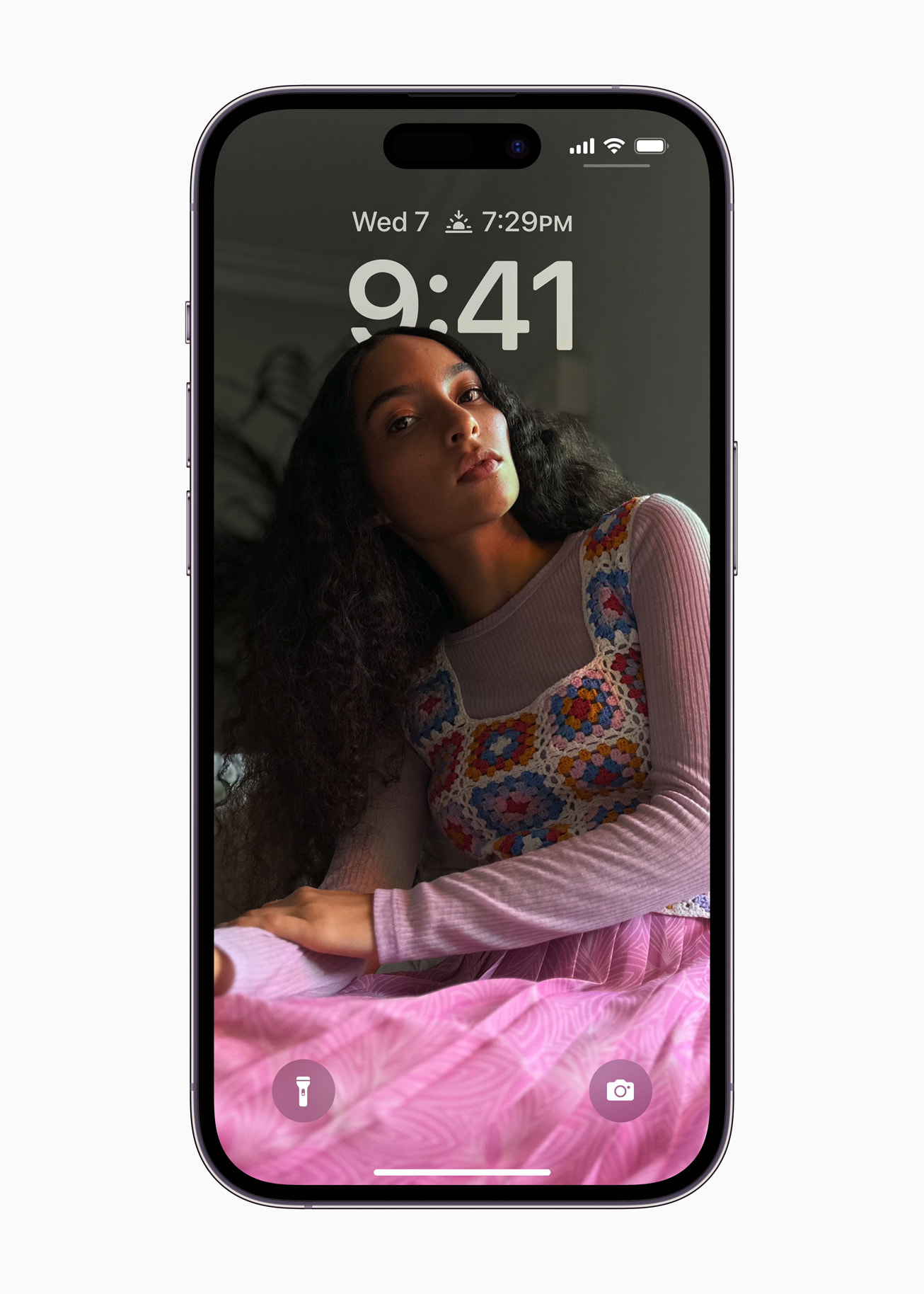
Always-On Display keeps a dimmed version of your lock screen, like the clock, your widgets and your notifications, visible all the time, even when the phone or watch is locked and the screen would otherwise be black. On iPhone, Samsung Galaxy and Google Pixel phones, and on Apple Watch, it works the same basic way: a small patch of pixels stays lit at a very low refresh rate, usually around 1Hz, instead of the display fully switching off or redrawing itself 60 or 120 times a second. You turn it on or off in Settings on each platform, and on supported models it is already on by default. It is greyed out most often because Low Power Mode, Power Saving Mode or Battery Saver is active, because the phone is face down or in a pocket, or because the exact model does not support it at all.
What Is Always-On Display, and What Does It Actually Do?
Always-On Display, often shortened to AOD, is a lock-screen mode built into modern OLED phones and the Apple Watch. Instead of the screen going completely black between glances, a dimmed, low-brightness version stays visible: the time and date, your wallpaper or lock-screen widgets, missed-call and notification icons, and on some phones a music player or calendar strip. You do not need to tap, raise your wrist or press a button to see it, though all three gestures will still wake the display to full brightness.
The feature depends on the display itself, not just software. Apple, Samsung and Google all ship it only on phones with the right kind of OLED panel, which is why it is missing on cheaper and older models even when the software otherwise looks identical.
Always-On Display on iPhone: Which Models and How to Turn It On
Apple's own support documentation lists the Always-On Display as a feature of specific iPhone models only. According to Apple's current "Models with Always-On Display" guide, that list is the iPhone 14 Pro, 14 Pro Max, 15 Pro, 15 Pro Max, 16 Pro, 16 Pro Max, the standard iPhone 17, the iPhone 17 Pro and 17 Pro Max, iPhone Air, the 18 Pro and 18 Pro Max, and iPhone Duo. Standard and Plus iPhones below the 17 generation, and any iPhone SE, do not have it, because they use OLED or LCD panels that cannot hold a low enough refresh rate.
Apple's support article on keeping the iPhone display on longer explains that Always-On Display is turned on by default on supported models. To turn it off, or back on:
- Open the Settings app.
- Tap Display & Brightness.
- Turn Always On Display off or on.
While you're there, Apple also lets you choose whether the dimmed screen shows your wallpaper and notifications, under the same Always On Display menu.
Apple's documentation also spells out exactly when the feature switches itself off automatically, which explains a lot of "it's not working" reports: when the iPhone is face down or its sensor is obstructed, when it is not near a paired Apple Watch, when a CarPlay session starts, while Continuity Camera is in use, while Low Power Mode is on, while a Sleep Focus is active, or around your usual bedtime.
Always-On Display on Samsung Galaxy
Samsung has supported this feature since the Galaxy S7 in 2016, and its current support pages describe it as a way to see the time, date, notifications and missed calls "without having to press a button." Per Samsung's current Always On Display support page, it is on by default, and you can reach its settings two ways:
- Open Settings, then search for and select "Always On Display," or go to Settings > Lock screen and AOD > Always On Display.
- Tap the switch at the top to turn it on or off.
On One UI 6.1 and later, Samsung lets you choose when the dimmed screen appears, under Always On Display > When to show: Auto (hides in dark areas, pockets or bags), Always, Tap to Show, As Scheduled, or For New Notifications only. Older software adds a plain "Always" toggle. Samsung also says the AOD image shifts position slightly over time specifically to avoid screen burn-in, and that the feature is not available on the cover screen of the Galaxy Z Flip line.
Always-On Display on Google Pixel and Other Android Phones
Google's own Pixel Phone Help documents the setting under Settings > Display & touch > Always-on Display, where you flip the switch off or on. Google describes it simply as a way to see information without waking the whole screen. On the Pixel 10 Pro and Pixel 10 Pro XL specifically, Google's help center adds a "Show lock screen wallpaper" option under that same menu, letting the always-on screen mirror your actual lock-screen wallpaper instead of showing a plain clock face.
Other Android phones, including OnePlus, Motorola and older Pixel models, bury the same toggle under slightly different names, most often Settings > Display > Lock Screen > "Always show time and info" or "Ambient display." The underlying mechanism, an OLED panel that can hold a very low refresh rate for the parts of the screen that are not changing, is the same across brands; only the menu labels differ.
Always-On Display on Apple Watch
Apple Watch was actually first: the always-on retina display debuted on Apple Watch Series 5 in 2019. Apple's support page for the Always On feature says it now ships on, and is turned on by default on, Apple Watch Series 5 and later, Apple Watch SE 3, and Apple Watch Ultra models. To change it:
- Open Settings on the watch.
- Tap Display & Brightness, then tap Always On.
- Use the toggle to turn it on or off, and choose whether the dimmed face shows complication data, Live Activities, notifications or apps.
Apple explains that the display dims, rather than turning fully off, when your wrist drops or you cover the screen with your hand, and that while dimmed, the time and most complications still update roughly once a minute; live data like Compass or Noise readings pauses until you raise your wrist again. Always On is unavailable whenever Low Power Mode or Theater Mode is switched on in Control Center, which is the most common reason people find it missing or disabled on a watch that normally has it.
How Much Battery Does Always-On Display Actually Use?
The honest answer from all three companies is: some, but less than you'd think, and none of them publish an exact percentage. The technical reason comes down to the display panel itself. According to the Wikipedia entry on LTPO (low-temperature polycrystalline oxide), this is a backplane technology, originally developed by Apple, that combines LTPS transistors for switching with oxide (IGZO) transistors for driving the pixels. The oxide layer has lower leakage than a standard LTPS-only backplane, which "allows for more efficient use of power," and it is what lets the panel's refresh rate drop far below the 60Hz or 120Hz used for normal interaction, down toward 1Hz, when nothing but a clock needs to change.
That variable refresh rate is exactly how an always-on screen avoids redrawing the full panel dozens of times a second: with most of the screen off or dark, and only a handful of pixels (the digits of a clock, a notification dot) refreshing, and refreshing rarely, the power draw is a fraction of what a fully lit, actively-used screen needs. Samsung's support page describes its Always On Display as "optimized to use very little battery" but adds that any setting which keeps it visible longer, such as choosing "Always" over "Tap to Show," will use more power than the reverse. Google's documentation makes a similar trade-off explicit: its Extreme Battery Saver mode, available on Pixel 3 and later, is documented to turn off "Always show time and info" specifically because it is one of the features worth sacrificing when a phone is nearly out of charge.
If you're trying to squeeze more runtime out of an iPhone generally, not just from this one feature, it's worth first checking how much of your battery's original capacity is left; our guide on how to check iPhone battery health and what it means walks through where that number lives and when it is worth acting on.
| Platform | Setting path | On by default? | Automatically turns off when... |
|---|---|---|---|
| iPhone (14 Pro and later supported models) | Settings > Display & Brightness > Always On Display | Yes | Face down, obstructed, away from paired Apple Watch, CarPlay, Continuity Camera, Low Power Mode, Sleep Focus, usual bedtime |
| Samsung Galaxy | Settings > Lock screen and AOD > Always On Display | Yes | Power saving mode enabled; mode set to "Tap to Show" or scheduled hours |
| Google Pixel / other Android | Settings > Display & touch > Always-on Display (menu names vary by brand) | Varies by phone | Extreme Battery Saver (Pixel); standard Battery Saver on some OEM skins |
| Apple Watch (Series 5+, SE 3, Ultra) | Settings app > Display & Brightness > Always On | Yes | Low Power Mode or Theater Mode enabled |
"Always-On Display" Apps on Android: What They Actually Do
A lot of search traffic for "always on display app" and "always on display app android" comes from people whose phone does not have a native AOD option, usually a budget or mid-range model without the right panel, and who are looking for a workaround. Third-party always-on display apps exist for this reason, and typically work by drawing a clock or notification overlay on top of the lock screen and keeping part of the display awake using the phone's ambient or doze sensors, rather than through the OLED panel's own low-refresh hardware mode.
The trade-off is real: on a phone without a genuine LTPO-style variable refresh panel, that overlay cannot drop to anywhere near 1Hz, so it draws noticeably more battery than native AOD on a supported flagship. If your phone doesn't appear on Apple's, Samsung's or Google's supported-device lists above, that is the underlying reason, and it is worth weighing a basic lock-screen clock widget or simply raising the phone to wake it against the extra drain of a full overlay app.
Always-On Display Not Working or Greyed Out? How to Fix It
Across iPhone, Galaxy and Pixel phones, the toggle being missing or greyed out almost always traces back to one of the same handful of causes:
- A battery-saving mode is on. Apple's documentation confirms Always-On Display is unavailable while Low Power Mode is active; Samsung's support team explicitly says the option "may be grayed out if you have Power saving mode enabled"; and Google documents that Extreme Battery Saver turns off its equivalent "Always show time and info" setting. Turn off whichever battery mode your phone is running and check again.
- The phone is face down, in a pocket, or the sensor is blocked. On iPhone, Apple's support page lists "face down or obstructed from view" as an automatic trigger. Samsung's own troubleshooting page for Always On Display not showing tells users to remove any case or screen protector that covers the sensor near the top of the screen, and to check that a "dark area" auto-detect mode (on Galaxy's "Auto" display setting) is not simply hiding it in a dim room or bag.
- A conflicting screen saver or focus mode is active. Samsung's troubleshooting steps also point to Settings > Display > Screen Saver, suggesting you set it to "None" since an active screen saver can override AOD. On iPhone, an active Sleep Focus or your device's usual bedtime hours will suppress Always-On Display by design, not by fault.
- The model simply doesn't support it. This is the single most common cause on iPhone, where only specific Pro models and newer ultra-thin models made Apple's supported list, and on budget Android phones that use fixed-refresh-rate OLED or LCD panels instead of a variable-refresh panel.
- You're near a paired device that takes priority (iPhone only). Apple's documentation notes the display also turns off automatically when the iPhone is not near a paired Apple Watch, and during an active CarPlay session or Continuity Camera use, none of which is a malfunction.
- The display mode is set to something that looks "off." On Samsung, if "When to Show" is set to "Tap to Show" or "As Scheduled," the screen will look blank until you tap it or until the scheduled window begins; that is expected behavior, not a bug, and switching the mode to "Always" will confirm the feature is actually working.
If none of that explains it, a basic restart and a check for a pending iOS, One UI or Android software update is the next reasonable step, since Apple, Samsung and Google have each shipped point updates in the past that specifically patched Always-On Display bugs on certain models.
Quick Answers
Does Always-On Display work the same way on every phone? The goal is the same everywhere, a dimmed lock screen that never fully goes black, but the menu names, default display modes and exact battery-saving interactions differ by brand, as the comparison table above shows.
Is it worth leaving on? On a phone or watch that supports it, Apple, Samsung and Google all frame it as a low-cost convenience by design, not a meaningful drain, which is why all three leave it on by default out of the box rather than requiring you to opt in.
Does it affect screen longevity? Samsung specifically addresses this for its own panels, saying the AOD content shifts position slightly over time to avoid burn-in, which is the same logic OLED makers apply to status bars and navigation buttons generally.
What to Read Next
If a dimmed lock screen is part of a bigger decision about which watch to buy, our side-by-side of the Pixel Watch 4 and Galaxy Watch 8 on price and specs covers how each handles its own always-on screen alongside battery life and the rest of the spec sheet. And if Always-On Display is one item on a longer list of settings you're weighing against battery life on your current iPhone, start with that battery health check linked above before deciding what to switch off.
Frequently asked questions
What is Always-On Display?
Always-On Display (AOD) is a lock-screen mode on OLED phones and the Apple Watch that keeps a dimmed version of the clock, notifications and widgets visible at all times, instead of the screen going fully black between glances.
Does Always-On Display drain the battery?
It uses some power, but Apple, Samsung and Google all describe it as a low-draw feature by design. The screen relies on an LTPO-style OLED panel that can hold a refresh rate as low as roughly 1Hz for the static parts of the display, rather than redrawing the whole screen at normal rates, which is why none of the three ships it as an opt-in-only feature.
Which iPhones support Always-On Display?
Per Apple's support documentation, the iPhone 14 Pro, 14 Pro Max, 15 Pro, 15 Pro Max, 16 Pro, 16 Pro Max, the standard iPhone 17, 17 Pro, 17 Pro Max, iPhone Air, 18 Pro, 18 Pro Max and iPhone Duo support it. Standard and Plus models below the 17 generation, and the iPhone SE line, do not.
Why is Always-On Display greyed out on my phone?
The most common cause is an active battery-saving mode: Low Power Mode on iPhone, Power Saving Mode on Samsung, or Extreme Battery Saver on Pixel all disable it. A case or screen protector covering the proximity sensor, an active screen saver, or a model that simply doesn't support the feature are the other usual culprits.
Can I get Always-On Display on a phone that doesn't officially support it?
Third-party Android apps can simulate it with a clock or notification overlay, but without a genuine variable-refresh OLED panel behind it, that overlay can't drop to the low refresh rates native AOD uses, so it will draw noticeably more battery than the real feature on a supported flagship.
Does Always-On Display work on Apple Watch?
Yes. Apple's support documentation confirms Always On ships on and defaults to on for Apple Watch Series 5 and later, Apple Watch SE 3, and Apple Watch Ultra models, and that it switches off automatically in Low Power Mode or Theater Mode.
Sources
- Apple Support: Models with Always-On Displaysupport.apple.com
- Apple Support: Use the Always On feature with your Apple Watchsupport.apple.com
- Samsung Support: Always On Display on your Galaxy phone or tabletsamsung.com
- Samsung Support: Samsung phone Always On Display does not showsamsung.com
- Google Pixel Help: Change screen brightness, size and other display settingssupport.google.com
- Wikipedia: LTPOen.wikipedia.org
Nadia Osei covers mobile and consumer gadgets for Pandromeda: smartphones, tablets, smartwatches, earbuds and smart-home devices. She tracks launches, software updates and pricing across Apple, Google, Samsung and the rest, and builds comparisons from the manufacturers' published specifications.