What Is Samsung DeX? How It Works and How to Use It on PC
Samsung's DeX mode turns a compatible Galaxy phone or tablet into a full desktop workspace on any screen. Here's how it works, which devices qualify, and why newer phones lost DeX for PC.
Samsung DeX is a built-in desktop mode on Galaxy phones and tablets that turns the device into a PC-like workspace the moment you plug it into a monitor, cast it to a compatible TV, or link it wirelessly to a Windows or Mac computer. If you've searched for "Samsung DeX for PC" and come up confused, there's a reason: Samsung quietly dropped PC support from its newest flagships, even though the core DeX experience is more widely supported than ever on screens and TVs.
Samsung DeX in short
- DeX turns a compatible Galaxy phone or tablet into a desktop-style, multi-window interface on an external display.
- You can start it with an HDMI/USB-C cable, wirelessly on a Miracast-capable smart TV, or by docking a tablet from Quick Settings.
- DeX for PC (linking to a Windows PC or Mac over the same Wi-Fi network) is not supported on the Galaxy S25 series, the Galaxy S26 series, or any Galaxy phone running Android 15 / One UI 7 or later.
- Samsung's current compatibility list runs from the Galaxy S8 through the S26 series and Tab S4 through Tab S12, with a few exceptions (see the table below).
What Is Samsung DeX?
DeX ships on every current Galaxy S flagship and most Tab models, including the Galaxy Z Fold8 and the Galaxy Tab S12, and it runs on top of Samsung's own One UI software rather than needing a separate app or subscription.
According to Samsung's own DeX page, DeX is a platform built into recent Galaxy phones and tablets that lets you power a desktop-like experience on an external display. Pull an app down from the top of the screen and it opens as a resizable window, just like on a laptop; you get multiple workspaces, true multitasking, and the option to use your phone itself as a touchpad or on-screen keyboard while it's connected.
Samsung's developer documentation frames DeX as an extension of Android's native multi-window mode with added Samsung features layered on top, according to Samsung's "How Samsung DeX Works" developer guide. Crucially, apps don't need any special Samsung code to work in DeX — any app that follows standard Android multi-window practices will resize and behave like a normal desktop window. Apps that don't follow those practices still open, just locked to mobile dimensions.
How Samsung DeX Works
Samsung's developer documentation describes several distinct DeX states:
- DeX mode: the external display shows the full desktop-style interface, built from your phone's apps.
- Dual mode: the external display runs DeX while your phone's own screen keeps running separately, so you can use the phone for something else at the same time.
- Standalone mode: the DeX desktop appears directly on the device's own screen, with no external display needed.
- Input mode: the phone itself acts as a trackpad or keyboard for whatever DeX session is running.
Whichever mode you use, DeX windows fall into two types: apps that follow Android's multi-window guidelines become freely resizable desktop windows, while apps that don't are locked to a fixed, phone-shaped window inside the desktop. Widget-only apps and anything that strictly requires touch input (Samsung's own example is a car-mode app) generally won't run in DeX at all.
Which Galaxy Phones and Tablets Support DeX
Samsung's current support page lists a broad range of compatible devices, though a handful of budget and FE models are missing cable or wireless display support even though they can still run DeX in standalone mode. Based on Samsung's published compatibility list:
| Device family | Examples | Cable / wireless TV connection |
|---|---|---|
| Galaxy S phones | Galaxy S8 through Galaxy S26 series | Supported (S26 FE is an exception) |
| Galaxy Note | Note8 through Note20 series | Supported |
| Galaxy Z foldables | Galaxy Fold, Z Fold2 through Z Fold8, Z Flip7, Z Flip8 | Supported (Z Flip7 FE is an exception) |
| Galaxy Tab | Tab S4, Tab S5e, Tab S6, Tab S7 through Tab S12, Tab Active Pro/3 | Supported (Tab S9 FE, Tab A9 Plus, Tab S10 Lite/FE, Tab A11 Plus are exceptions) |
Samsung also notes that tablets need at least One UI 3.1 to use DeX, and your external display has to accept a standard video input, Miracast, SmartView, or Wireless DeX. Devices without listed HDMI or wireless display support can still run DeX in standalone mode directly on their own screen.
How to Start Samsung DeX on Your Device
Per Samsung's support documentation, there are three ways to launch DeX without any accessory at all:
- Pull down on an open app's top edge to drop it into a resizable DeX-style window.
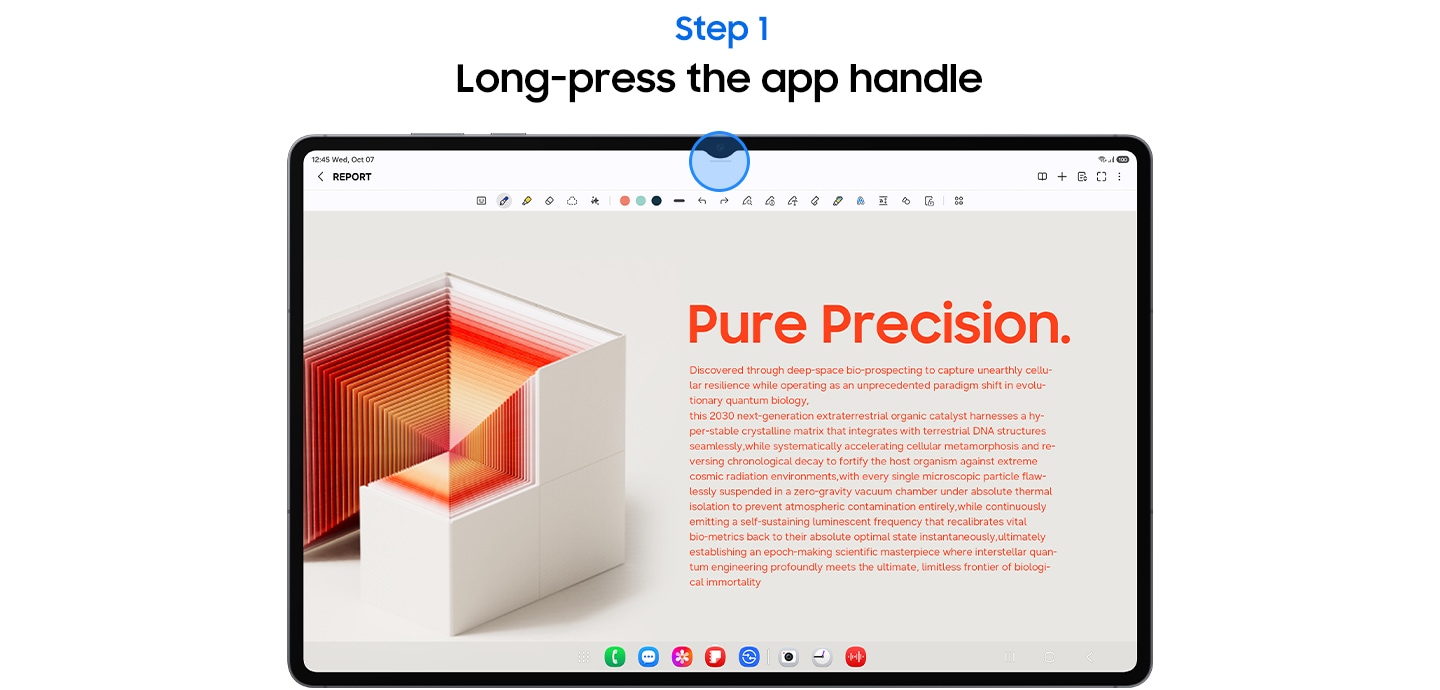
- Long-press an app's window handle, drag it to the DeX entry zone in the top-right corner of the screen.
- Open the Recents screen and select or create a new desktop space.
On Galaxy tablets, you can also switch straight into DeX mode from the Quick Settings panel with a single tap.
Connecting to a Monitor or TV With a Cable
For a wired connection, Samsung's support pages point to a DeX-certified USB-C to HDMI cable or adapter connected directly to a monitor or TV, or the quicker route of switching Quick Settings to "Wired DeX" once a cable is already plugged in. If you connect with just the DeX cable (no dock), only wireless keyboards and mice work alongside it; a DeX Pad or DeX Station docks the phone and gives you physical ports for a wired keyboard and mouse too.
Using Wireless DeX With a Smart TV
No cable is required if your TV supports it. Samsung's instructions are to open Quick Settings, tap "Wireless DeX," pick a compatible smart TV or display from the list, and tap Start. Samsung specifies this only works with Samsung Smart TVs from 2018 onward, Samsung Smart Monitors, and any other smart TV that supports Miracast screen mirroring — and that your phone and the TV need to be reachable over the same network. You can't run this alongside standard screen mirroring at the same time.
Samsung DeX for PC: What Changed on Newer Phones
This is the part that trips up the most searches. DeX for PC — the mode that connects your Galaxy phone wirelessly to an actual Windows PC or Mac, using the computer's own screen, keyboard, and mouse — is no longer available on current flagships. Samsung's own support page states plainly that "DeX for PC is not supported on Galaxy S25 series" or on any Galaxy phone running Android 15 and One UI 7 or later. Since the Galaxy S26 series ships with a newer One UI version than that cutoff, the same restriction carries over to it too — DeX for PC simply isn't an option on a current-generation Galaxy S flagship.
Samsung's listed devices that still support DeX for PC are older models: the Galaxy Fold, S10 through S24, Note10, Note20, and the Z Fold series — and it has never been available on Galaxy tablets at all. For phones that do support it, a regional Samsung support page notes the PC and phone need to be on the same Wi-Fi access point at 5 GHz, and the PC side needs Samsung's DeX for PC software installed on Windows or macOS. For anyone on a newer phone who's lost the feature, Samsung now points people toward its separate "Link to Windows" tool instead, which covers calls, texts, and some app access from a Windows PC without a full desktop session.
What You Can Do Once You're in DeX
Once a session is running, Samsung's documentation describes a genuinely desktop-like set of interactions: a scroll bar and right-click-style context menus, keyboard shortcuts, drag-and-drop between windows, double-click text selection, Alt+Tab window switching, and a taskbar-style control bar showing active and inactive windows. You can run up to four separate desktop workspaces, each holding up to five open apps, and switch between them the way you'd switch virtual desktops on a laptop.
Because the whole session runs on the phone itself rather than a separate OS, Samsung notes that DeX is covered by the same Knox security platform protecting the rest of the device — there's no separate desktop OS attack surface to worry about. Apps are split into two behaviors once they're on an external display: those built to Android's multi-window guidelines become freely resizable windows you can snap, stack, or stretch across the screen, while apps that ignore those guidelines still launch but stay locked to a fixed, phone-shaped box floating on the desktop. That second group is usually older or more niche apps; most mainstream productivity, browser, and office apps resize properly.
Who Actually Uses Samsung DeX
DeX is aimed less at replacing a primary laptop and more at cutting down how much hardware someone has to carry. Samsung's own framing for the feature — both the consumer DeX page and its enterprise-focused DeX for business page — is squarely about mobile workers who want a full-size screen and keyboard at a desk, a hotel room, or a client site without hauling around a second computer. A field technician, a student moving between a dorm and a lecture hall, or anyone who already does most of their work from a phone can plug into whatever monitor is available and get a proper multi-window desktop rather than juggling a single small screen.
It's worth being clear about the limits, too: DeX runs whatever Android apps are installed on the phone, not Windows or macOS software, so anything that only exists as a desktop program (most full versions of Photoshop or Excel's deepest features, for instance) won't appear just because you're on a bigger screen. For email, browsers, chat apps, cloud office suites, and most mobile-first productivity tools, though, Samsung's model is that the jump to a monitor-and-keyboard setup should feel close to a real desktop.
A Quick History: From DeX Station to Wireless-Only
DeX didn't start as a cable-free feature. Samsung's original 2017 Newsroom announcement introduced DeX alongside a physical dock — the DeX Station — built specifically to reduce how many separate computers mobile professionals needed to carry. Later hardware, like the DeX Pad, kept the docking approach but added a flatter form factor you could type across. Over subsequent One UI releases, Samsung layered in ways to skip the dock entirely: a direct HDMI/USB-C cable connection, Wireless DeX to Miracast-capable TVs and Samsung Smart Monitors, and — for a window of several years — DeX for PC, which skipped an external display altogether and projected straight onto a Windows or Mac computer's existing screen. That last option is the one now being phased out starting with the Galaxy S25 generation, even as cable and TV-based DeX keep expanding to new devices each year.
Troubleshooting Common DeX Problems
Most DeX connection failures trace back to one of a few causes, based on Samsung's own support guidance:
- Wireless DeX won't find your TV: confirm the TV is a 2018-or-newer Samsung Smart TV, a Samsung Smart Monitor, or explicitly lists Miracast support, and that both devices are on the same network.
- DeX for PC option is missing entirely: check your phone model and One UI version against Samsung's supported list above — this is expected behavior on the Galaxy S25/S26 series and anything on One UI 7 or later, not a bug.
- Cable connection shows a black screen or won't mirror: use a cable or adapter Samsung specifically certifies for DeX rather than a generic USB-C-to-HDMI cable, and switch Quick Settings to Wired DeX rather than standard screen mirroring.
- No keyboard or mouse response: Samsung notes you can fall back to the on-screen keyboard and use the phone itself as a touchpad by tapping the touchpad icon in the navigation bar.
What to Do Next
If you just want the desktop experience on a bigger screen, start with the free option: pull down an app to window it, or long-press and drag it into the DeX corner, with no cable or TV required. For a permanent desk setup, a DeX-certified cable or a DeX Pad/Station is the most reliable path across the widest range of devices. If you were specifically hoping to link a brand-new Galaxy S26 to a Windows laptop the way DeX for PC used to work, that option is gone for this generation — check Samsung's current DeX compatibility page for your exact model before buying any dock or cable, since support still varies between phones, foldables, and tablets.
Frequently asked questions
What is Samsung DeX?
Samsung DeX is a built-in desktop mode on compatible Galaxy phones and tablets that turns the device into a resizable, multi-window desktop interface on an external monitor, TV, or the device's own screen.
Which Galaxy phones and tablets support Samsung DeX?
Samsung currently lists support across the Galaxy S8 through S26 series, Note8 through Note20, the Z Fold and Z Flip lines, and Tab S4 through Tab S12, with a few budget and FE models lacking cable or wireless TV support specifically.
Does Samsung DeX for PC still work on the Galaxy S26?
No. Samsung's support page states DeX for PC is not supported on the Galaxy S25 series or on any phone running Android 15 and One UI 7 or later, and the Galaxy S26 series falls under that same restriction.
Do I need a dock or cable to use Samsung DeX?
No. You can start DeX with no accessories at all by pulling an app down into a window or dragging it into the DeX entry zone, though a DeX-certified cable, DeX Pad, or compatible Miracast TV is needed to show it on an external display.
Can I use Samsung DeX wirelessly with a TV?
Yes, with a 2018-or-newer Samsung Smart TV, a Samsung Smart Monitor, or another smart TV that supports Miracast screen mirroring, started from the Wireless DeX option in Quick Settings.
Sources
- Samsung DeX — official overviewsamsung.com
- Samsung Developers — How Samsung DeX Worksdeveloper.samsung.com
- Samsung Support — Use a keyboard and mouse with Samsung DeXsamsung.com
- Samsung Support (Philippines) — How to use Samsung DeX for PCsamsung.com
- Samsung Newsroom — Samsung DeX launch announcementnews.samsung.com
- Samsung Business — DeX for Businesssamsung.com
Nadia Osei covers mobile and consumer gadgets for Pandromeda: smartphones, tablets, smartwatches, earbuds and smart-home devices. She tracks launches, software updates and pricing across Apple, Google, Samsung and the rest, and builds comparisons from the manufacturers' published specifications.

