ChatGPT Slides: How OpenAI's New Slide Maker Works
OpenAI's new ChatGPT Slides turns chats, files, and outlines into decks teammates can co-edit live in Space.
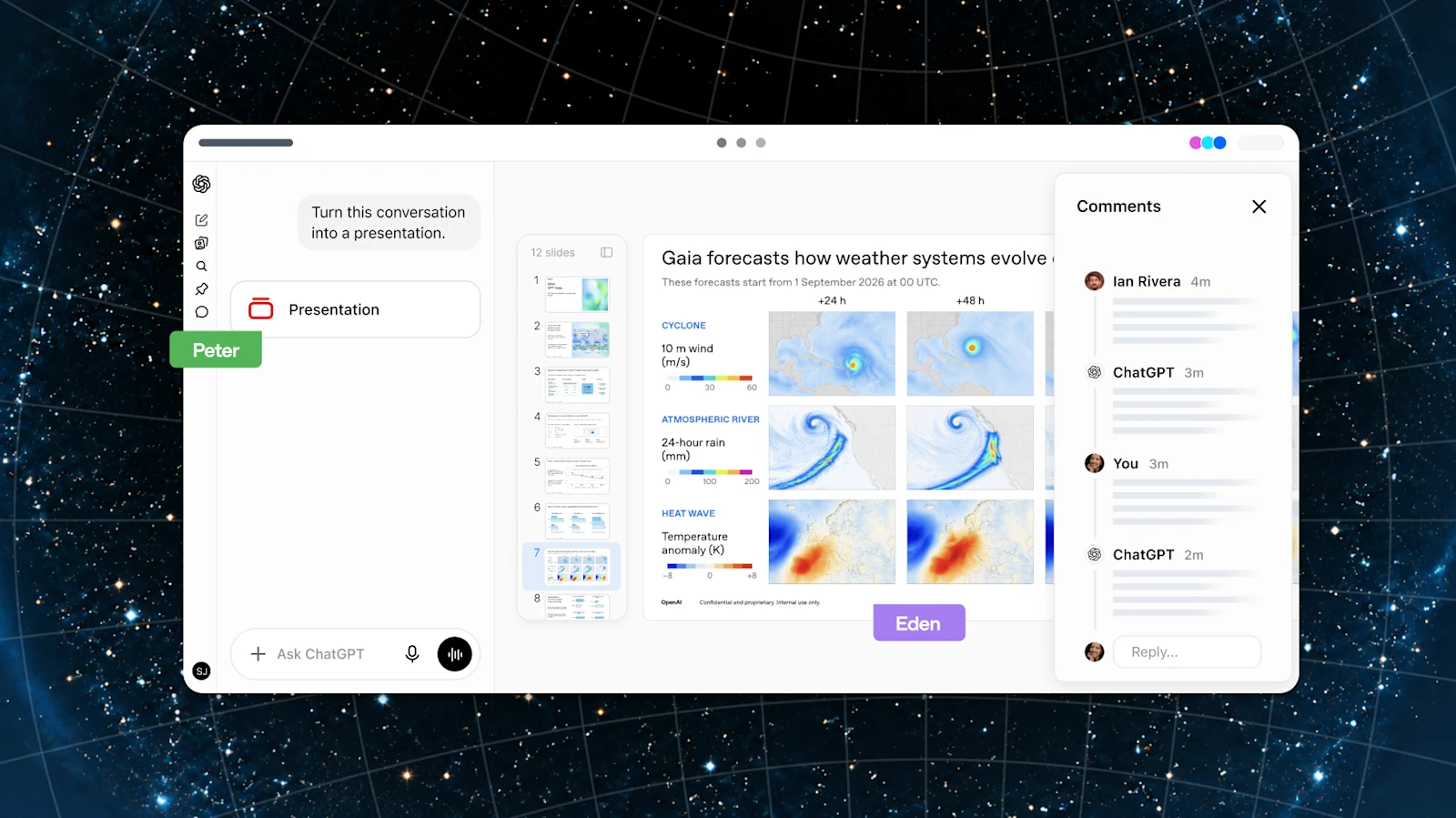
ChatGPT Slides is OpenAI's new presentation builder inside ChatGPT: it lets eligible Pro, Business, and Enterprise subscribers with access to the ChatGPT Space workspace create a full slide deck from a conversation, a set of files, or an outline, then keep editing it together with teammates in real time, all without leaving ChatGPT. OpenAI listed the feature in its ChatGPT release notes as rolling out from October 16, 2026, alongside a separate update that adds parallel, multi-step agents to GPT-6 Pro in chat.
- Launched: Rolling out from October 16, 2026, per OpenAI's ChatGPT release notes.
- Who gets it: Eligible ChatGPT Pro, Business, and Enterprise accounts that also have access to Space. Plus and Free are not on the eligibility list.
- Where it lives: Inside ChatGPT Space, on the web and in the desktop app.
- What it does: Builds an editable deck from a chat, files, or an outline; supports real-time co-editing, comments, and @mentions of ChatGPT or teammates.
- Export options: Present directly in ChatGPT, or export to PowerPoint (.pptx), PDF, or Google Slides on the web.
- Caveat: On Windows desktops without a required component, local editing falls back to plain .pptx files instead of collaborative Slides; Windows 10 isn't supported for that component at all.
What is ChatGPT Slides?
ChatGPT Slides is a native presentation surface built into ChatGPT Space, OpenAI's shared workspace for teams. According to OpenAI's help center article, "Creating and collaborating on slides in ChatGPT," the feature lets a user "create a presentation and keep working on it with ChatGPT and your teammates." Instead of generating slide text in a chat window and manually copying it into PowerPoint or Google Slides, Slides opens an actual deck canvas where text, images, shapes, tables, and charts live as editable objects, and where ChatGPT and human collaborators can both make changes directly.
The feature sits alongside two other new building blocks inside Space: Pages, for shared documents, and (coming soon, per OpenAI) Sheets, for spreadsheets. All three were part of the broader Space workspace that OpenAI introduced at its DevDay 2026 keynote on September 29, with Slides itself following as a dated release a little over two weeks later.
Who can use ChatGPT Slides? Plan and access requirements
Access is narrower than a lot of ChatGPT's other recent features. OpenAI's release notes and its dedicated Slides help article both state that the rollout covers "eligible Pro, Business, and Enterprise users with Space access," on the web and in the desktop app. Two things have to be true at once: your plan has to be one of Pro, Business, or Enterprise, and your account additionally needs Space access, which OpenAI is also still rolling out gradually and which it notes is not yet available to some Enterprise and Business workspaces that keep data residency in Canada or the United Arab Emirates.
That means Free and Plus subscribers are not on the eligibility list for ChatGPT Slides itself, even though both of those tiers can still use the separate ChatGPT for PowerPoint add-in described further down. Because the rollout is gradual, OpenAI's own help documentation cautions that some people on an eligible plan may simply not see the feature yet.
| Plan | Space access | ChatGPT Slides (native, in Space) | ChatGPT for PowerPoint add-in |
|---|---|---|---|
| Free | Not available | No | Yes, limited usage |
| Go | Not available | No | Yes, limited usage |
| Plus | Not available | No | Yes, subject to an agentic usage limit |
| Pro | Yes (rolling out) | Yes, where Space is enabled | Yes, subject to an agentic usage limit |
| Business | Yes (rolling out) | Yes, where Space is enabled | Yes, drawn from workspace credit pool |
| Enterprise | Yes (rolling out, some regions pending) | Yes, where Space is enabled | Yes, drawn from workspace credit pool |
This split is worth sitting with for a second: the much more widely available tool is the PowerPoint sidebar, not native Slides. If you're on Plus and you've been hearing about "ChatGPT Slides," the feature most of you can actually reach today is the PowerPoint add-in, not the collaborative Space version this article focuses on.
How ChatGPT Slides works
Under the hood, Slides is less like asking a chatbot for bullet points and more like opening a lightweight, AI-native Keynote or Google Slides that lives inside your ChatGPT workspace. OpenAI's help documentation describes three starting points: a conversation you've already had with ChatGPT, a set of uploaded files, or a plain-language outline. You can also share an existing deck as a style and layout reference, so a new presentation inherits fonts, colors, and structure from something your team has already approved, rather than starting from a generic template every time.
Teams that want more control can go further and build their own reusable templates using what OpenAI calls a "template-creator," then distribute those templates to colleagues through team plugins, so an entire organization can keep decks on-brand without redoing design work deck by deck.
Once a deck exists, editing happens two ways at once. You can click directly into a slide and change text, move or resize images and shapes, edit a table, or adjust a chart, exactly as you would in a conventional slide editor. Or you can select a specific element and choose "Request edits" to hand that one piece to ChatGPT, or use the general prompt bar to ask for changes across the whole deck — tightening the narrative, rewriting a section for a different audience, or restyling every title slide at once.
How to create a presentation in ChatGPT Slides
There are two documented entry points, per OpenAI's help articles on Slides and on ChatGPT Work:
- From a chat, using ChatGPT in Work. Ask ChatGPT to build a presentation and describe the topic, audience, and the content you want covered. You can point it at an existing conversation or attach source files (notes, a brief, data). ChatGPT drafts a deck and opens it in Space as an editable file, rather than dropping static slide text into the chat window.
- From inside Space directly. Open Space, select Create, then Slide. From there you can start from a blank deck or choose a template, including any custom templates your organization has published.
From either starting point, the deck that results is a live file in Space, not a one-off chat response. That distinction matters for everything that follows: because it's a persistent file, it can be shared, commented on, and co-edited the way a Google Slides or Google Doc file can, which a block of chat text never could.
Editing and collaborating in real time
The collaborative layer is arguably the headline feature, not the AI drafting itself. Once a deck is shared with teammates who have edit access, OpenAI says those people "can work on the same deck simultaneously" — multiple people editing different slides, or even the same slide, at the same time, similar to how multiplayer editing works in Google Slides or Microsoft 365 web apps.
Comments are built in alongside live editing. You can leave a comment on a specific slide or element to flag a change, and @mention a specific collaborator, ChatGPT itself, or your own "dot" (OpenAI's term for a personal AI agent tied to your account inside Space) to request an edit without leaving the comment thread. OpenAI's documentation is explicit that comment-only access — where someone can discuss a deck but not edit it — is "not available at launch," so for now, sharing a deck for feedback means sharing it with edit rights, comments, or nothing at all.
A couple of smaller details are worth knowing before you lean on a shared deck for something important. On the web, the font picker only shows fonts that are actually available in your browser, so a font you see in the desktop app might not appear identically on web; the desktop app, by contrast, can draw on fonts installed on your system. OpenAI's own guidance is to review text, figures, and layout in a finished deck before presenting or sharing it externally, the same caution it gives for other ChatGPT-generated documents.
Presenting and exporting your deck
You don't have to leave ChatGPT to show a deck. OpenAI's help article says you can present directly from ChatGPT once a deck is finished. When you do need the file in another format, options differ slightly by platform:
- On the web: export to PowerPoint (.pptx), PDF, or Google Slides.
- In the desktop app: open the deck directly in PowerPoint or Keynote if either application is installed locally, and on macOS you can also reveal the underlying file in Finder.
As with the editing experience, OpenAI recommends checking exported content and formatting before relying on it — a sensible habit any time an AI tool hands off a file to a different piece of software, since layout and fonts can shift slightly across formats.
How this differs from just asking ChatGPT for slide content
Before this release, the standard workaround for building a deck with ChatGPT was entirely manual: you'd ask the model to draft an outline or write bullet points for each slide in the chat window, then copy that text yourself into PowerPoint, Google Slides, or Keynote, format it, add any images, and repeat the whole loop every time you wanted a revision. That text output had no memory of layout, no persistent file, and no way for a second person to edit alongside you — every round trip meant leaving ChatGPT entirely.
ChatGPT Slides collapses that loop into one file. Three things specifically change:
- A real, editable deck instead of a wall of text. The output is a file with actual slides, images, shapes, tables, and charts, not a numbered list of talking points you have to transcribe.
- Multiplayer editing. Teammates with edit access can work on the same deck at the same time, something a chat transcript can never support since only one person is in that conversation.
- Edits in place. Asking for a change — "make slide 4 more concise" or "restyle the title slides" — happens on the actual file via "Request edits" or the prompt bar, rather than regenerating a block of text you then have to re-paste.
It's also worth separating Slides from OpenAI's other presentation tool, which arrived alongside GPT-6's rollout: ChatGPT for PowerPoint. That's a sidebar add-in that lives inside Microsoft PowerPoint itself, available far more broadly, on Free, Go, Plus, Pro, Business, Enterprise, ChatGPT Edu, and K-12 plans, installed from Microsoft's marketplace or deployed by an IT admin. It can draft a first version of a deck from notes or a spreadsheet, revise an existing PowerPoint file, and answer questions about a deck's structure — but it operates inside PowerPoint, not inside a shared ChatGPT workspace, and it doesn't provide the same real-time, multi-person co-editing that Slides in Space does. If your team is weighing ChatGPT's various AI tooling tiers, including how plans like Plus compare with Pro, this breakdown of ChatGPT Go, Plus, and Pro is a useful companion read, since plan tier is the deciding factor for whether you get native Slides at all.
The Windows desktop caveat
There's one access wrinkle specific to the desktop app that's easy to miss. OpenAI's help documentation notes that on Windows devices lacking a required component it refers to as "MXC," local AI slide creation and editing in the desktop app fall back to producing plain PowerPoint (.pptx) files rather than the full collaborative Slides experience. Windows 10 doesn't support that component at all, and some Windows 11 users may need either a system update or organizational enablement from an IT admin before it's available. OpenAI's guidance for anyone who hits this limit, or who just wants the full collaborative feature set, is straightforward: use cloud mode, or use ChatGPT on the web instead of the desktop app.
Related: GPT-6 Pro's new parallel-agents update
Slides wasn't the only change in that stretch of OpenAI's release notes. The same October 16, 2026 entry that introduced Slides also documented an update to GPT-6 Pro in ChatGPT, adding two things for eligible Pro users: faster responses, and the ability for multiple agents to work on different parts of a single task in parallel, rather than one continuous chain of reasoning handling everything in sequence. OpenAI's notes don't spell out numeric latency gains or an explicit cap on how many agents can run alongside each other, so treat "faster" as OpenAI's own framing rather than a measured benchmark. It's a separate change from Slides, but it shipped in the same release cycle and points in a similar direction: ChatGPT increasingly splitting work across multiple threads of execution at once, whether that's several people editing a deck together or several agents working a task in parallel. The day before, OpenAI's release notes also list a voice update, GPT-Live-1.1, adding new ChatGPT Voice options including French, German, Hindi, Japanese, Korean, and Mexican Spanish variants, plus an English voice OpenAI calls "Bubbie." If you've been tracking how GPT-6 has rolled out in stages, OpenAI's broader GPT-6 interactive UI changes are the backdrop this latest Pro update builds on.
What's next for ChatGPT Slides
A few open questions are worth watching as the rollout continues. First is simple availability: OpenAI has described Slides as a gradual rollout to "eligible" Pro, Business, and Enterprise accounts with Space access, which means plenty of people on those exact plans may not see the feature in their account yet, and OpenAI hasn't published a specific date for full availability. Second is Sheets, which OpenAI's own Space documentation already lists as "coming soon" alongside Slides, suggesting a spreadsheet counterpart built the same way — collaborative, AI-editable, and native to Space — is the next piece of this workspace to ship. Third is whether Plus ever gets native Slides access; nothing in OpenAI's current documentation suggests that's planned, and for now the PowerPoint add-in remains the option for anyone outside Pro, Business, or Enterprise.
For anyone evaluating whether to push a team onto Space now versus waiting, the practical takeaway is that the underlying capability — a shared, AI-assisted deck that multiple people can edit live — is real and shipping today for eligible accounts, even if exactly who can reach it, and on exactly which desktop configuration, is still filling in around the edges.
Frequently asked questions
What is ChatGPT Slides?
ChatGPT Slides is a presentation builder inside ChatGPT Space that lets you create a deck from a conversation, uploaded files, or an outline, then edit text, images, shapes, tables, and charts directly in the file and keep revising it with ChatGPT.
Who can use ChatGPT Slides?
OpenAI's release notes say Slides is rolling out to eligible ChatGPT Pro, Business, and Enterprise accounts that also have access to Space. Free and Plus are not on the eligibility list for the native Space version.
Is ChatGPT Slides free?
No. It requires a paid Pro, Business, or Enterprise plan plus Space access, which OpenAI is rolling out gradually. OpenAI has not published a separate price on top of those subscriptions.
How is ChatGPT Slides different from asking ChatGPT to write slide content?
Previously you'd ask ChatGPT for an outline or bullet points in chat and manually rebuild the deck in PowerPoint or Google Slides yourself. Slides instead creates an actual editable file with real slide elements, supports real-time co-editing with teammates, and lets you request edits to specific elements or the whole deck in place.
Can I export a ChatGPT Slides deck to PowerPoint?
Yes. On the web you can export to PowerPoint (.pptx), PDF, or Google Slides. In the desktop app, you can open the deck directly in PowerPoint or Keynote if either is installed.
Does ChatGPT Slides work on Windows?
It works on Windows, but OpenAI notes that devices missing a required component fall back to plain .pptx editing instead of full collaborative Slides, and Windows 10 does not support that component. OpenAI recommends using cloud mode or ChatGPT on the web for the full collaborative experience.
Sources
- OpenAI Help Center: Creating and collaborating on slides in ChatGPThelp.openai.com
- OpenAI Help Center: ChatGPT release noteshelp.openai.com
- OpenAI Help Center: Getting started with Space in ChatGPThelp.openai.com
- OpenAI Help Center: ChatGPT for PowerPointhelp.openai.com
- OpenAI Help Center: Creating and editing documents, spreadsheets, and presentations with ChatGPT Workhelp.openai.com
- OpenAI: DevDay 2026 recapopenai.com
Theo Park runs the AI desk at Pandromeda. He follows model launches from the frontier labs and the open-weight community, tracks the assistants and developer tools built on them, and explains what each release changes on pricing, capability and safety. His reporting leans on primary sources: model cards, technical reports, API documentation and the companies' own announcements.