Windows 11 Insider Builds for October 16: What's New
Microsoft's October 16 Windows 11 Insider Preview builds add a redesigned Gaming Task View navigation bar and a Windows Hello screen-brightness boost for dim rooms.
- New builds landed October 16, 2026 for Beta, Experimental and Release Preview Insiders.
- Beta channel: build 26220.9739 (version 25H2/26H2 branch) and build 28020.3262 (26H1 branch).
- Experimental channel: build 26340.9750 and build 28120.3272 (26H1 branch); no Experimental (Future Platforms) build went out this round.
- Release Preview channel: builds 26200.9807/26300.9807 (25H2/26H2) and build 28000.3351 (26H1).
- Headline additions: a refreshed Gaming Task View navigation bar in Xbox mode (Beta and Experimental), and a Windows Hello facial-recognition brightness boost (Experimental only).
What Microsoft shipped on October 16
Microsoft's Windows Insider Program team rolled out a fresh batch of Windows 11 preview builds on October 16, 2026, touching the Beta, Experimental and Release Preview channels at once. The release is a relatively quiet one by recent standards: there's no sweeping redesign, just two targeted changes for gamers and for Windows Hello users, delivered alongside the usual wave of reliability and bug fixes that Microsoft bundles into every flight.
The two features worth knowing about are a redesigned navigation bar for Gaming Task View in Xbox mode, now testing in both Beta and Experimental, and a Windows Hello tweak in the Experimental channel that temporarily brightens the screen to help facial recognition work in dim rooms. Microsoft published the builds in a Windows Insider Blog post on October 16, with the detailed per-build changelogs posted to Microsoft Learn's Flight Hub.
The build numbers, channel by channel
As usual, Microsoft is flighting two parallel branches in the Beta and Experimental channels: the current 25H2/26H2 branch, and a newer 26H1 branch that's further out from general release. Release Preview, which carries the most finished code heading toward a public cumulative update, got its own pair of builds.
| Channel | Build number | Branch |
|---|---|---|
| Beta | 26220.9739 | Version 25H2/26H2 |
| Beta | 28020.3262 | Version 26H1 |
| Experimental | 26340.9750 | Version 26H2 |
| Experimental | 28120.3272 | Version 26H1 |
| Experimental (Future Platforms) | No build this round | — |
| Release Preview | 26200.9807 / 26300.9807 | Version 25H2 / 26H2 |
| Release Preview | 28000.3351 | Version 26H1 |
Microsoft notes that the Beta channel build is delivered on top of Windows 11, version 25H2 through an enablement package, meaning PCs already on 25H2 simply switch on the new code rather than installing a full new OS image. The Experimental channel builds, by contrast, are based on version 26H2 and lean on Microsoft's Controlled Feature Rollout system, so not every Insider in that channel will see every feature the moment they update; Microsoft ramps features up gradually while it watches feedback. The Release Preview build 26200.9807/26300.9807 ships as KB5127936 and applies to devices on both 25H2 (build 26200) and 26H2 (build 26300), reflecting how those two version numbers now track the same underlying code.
If you're trying to decide which ring to join, Release Preview is the safest bet since its code is closest to what eventually reaches non-Insider PCs through Patch Tuesday updates, while Beta and Experimental trade some stability for earlier access to in-progress features like the two covered here.
Gaming Task View gets a cleaner navigation bar
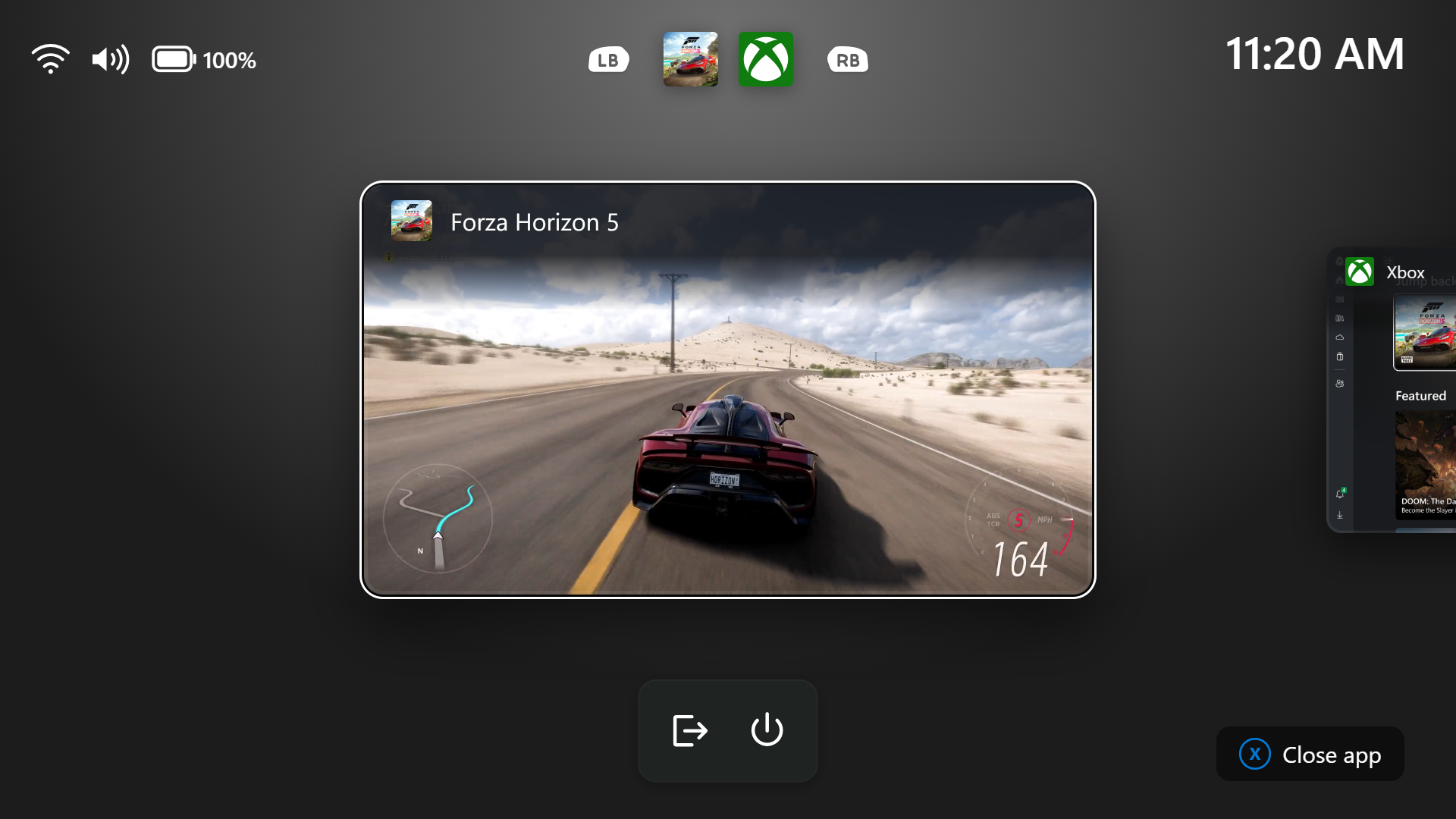
The more visible of the two changes lands in Beta and Experimental alike: a refreshed Gaming Task View experience in Xbox mode. Microsoft's release notes describe it as introducing "a new navigation bar that provides quick access to Exit to Desktop and Power Options," with the stated goal of making "key system actions easier to access while gaming."
Gaming Task View is the full-screen overlay that appears when a game puts the PC into Xbox mode, surfacing quick system controls without forcing players to minimize or alt-tab out of their game. Previously, actions like leaving Xbox mode or shutting down the PC required digging through menus; the new navigation bar puts Exit to Desktop and Power Options front and center, so switching contexts or powering down mid-session takes fewer steps. Microsoft's own screenshot shows the updated bar sitting across the Gaming Task View screen with both options visible at a glance.
Because the feature is rolling out in both the Beta and Experimental channels, Insiders running either the 25H2/26H2 branch or the newer 26H1 branch should see it, though Microsoft's standard caveat applies: availability can vary by market and by rollout wave, so not everyone will get it on day one even after installing the new build.
Windows Hello can now brighten your screen to see you in the dark
The second notable addition is scoped to the Experimental channel only, and it addresses a familiar annoyance for anyone who has tried to unlock a laptop in a dim room: facial recognition sign-in struggling to get a clear look at your face. According to Microsoft's release notes, "Windows Hello facial recognition can temporarily brighten your screen to help you sign in when you're in a dark or dimly lit room."
The feature is opt-in. To try it, Insiders in the Experimental channel need to go to Settings, then Accounts, then Sign-in options, then Facial recognition (Windows Hello), and turn on "Automatically adjust screen brightness during face recognition." Once enabled, the display will briefly boost its brightness during the recognition step to give the camera and sign-in algorithm more light to work with, then presumably return to normal brightness once sign-in completes, though Microsoft's notes don't detail the exact brightness curve or how long the boost lasts. Full configuration guidance for facial recognition sign-in, including hardware requirements, is covered in Microsoft's Windows Hello support documentation.
Because this one is Experimental-only and tied to Controlled Feature Rollout, it may take some time to reach every eligible Insider device even within that channel, and it naturally only matters for PCs with the IR or RGB camera hardware that Windows Hello facial recognition requires.
What else is in these builds
Beyond the gaming and Windows Hello headliners, Microsoft's per-build release notes on Learn list a grab-bag of smaller refinements that differ depending on which build you're running. The Beta channel build 26220.9739, for instance, also includes a reworked File Explorer search results layout that lines up file name, location and date consistently, an expansion of the Device Info Card on the Settings Home page to more markets, improved messaging when Family Safety blocks an age-restricted app, and a fix aimed at reducing shutdown hangs.
The Experimental build 26340.9750 carries its own separate set of changes alongside the Windows Hello update: web sign-in with passwordless credentials now works on Microsoft Entra hybrid-joined devices (previously limited to fully Entra-joined machines), File Explorer folder views respond more reliably when files are added or renamed, and Microsoft says it has fixed the underlying cause of search appearing to stop working after a previous update. Insiders testing the newer Run dialog also get several small fixes, including corrected window positioning for Arabic and Hebrew display languages and a fix for text that could vanish if you started typing immediately after opening Run.
The Release Preview build is the heaviest of the bunch, since it's where features that already proved themselves in Beta and Dev graduate on their way to a general cumulative update. Its "gradual rollout" section includes a reworked File Explorer context menu that Microsoft says opens faster and can be customized, per-monitor zoom and viewport locking in Magnifier, a new Cloud rebuild recovery option that reinstalls Windows using files downloaded from Windows Update, and the same Gaming Task View navigation bar described above. A separate "normal rollout" section lists fixes for Remote Desktop connection failures on devices with Administrator protection enabled, improved BitLocker PIN-retry handling, and a fix for Smart App Control sometimes refusing to turn back on in the Windows Security app. Readers who want the full rundown on what's shipped across the 26H2 wave more broadly can check Pandromeda's ongoing coverage of the 26H2 rollout for the bigger picture.
Known issues
Microsoft's October 16 announcement and the individual build pages for 26220.9739, 26340.9750 and the two Release Preview builds don't list any new known issues specific to this flight. That doesn't mean the builds are issue-free, since Insider releases routinely carry over unresolved problems from prior flights; Insiders who run into trouble should check the relevant build's page on Microsoft Learn's release notes hub and Flight Hub, and file reports through Feedback Hub. Readers tracking ongoing 26H2 rollout problems can also check Pandromeda's running list of confirmed Windows 11 26H2 known issues for anything Microsoft has acknowledged separately from this specific release.
As a standard reminder for anyone flighting experimental code, Microsoft reiterates that features in these builds "might never get released," may change, be removed, or be replaced before they ever reach a stable Windows release, and that some features may not be fully localized yet as Insiders see them.
New RTX Spark-powered Windows 11 devices, briefly
The same Windows Insider Blog post also marked the launch of a new range of Windows 11 devices built around the NVIDIA RTX Spark chip, framing it as a reason for more people to join the Insider Program as new hardware comes online. Pandromeda's hardware desk has already covered the RTX Spark launch in depth elsewhere, so this piece focuses on the software side of the October 16 update rather than the new silicon itself.
How to get these builds
These updates only reach PCs enrolled in the Windows Insider Program and set to the matching channel. Anyone wanting early access to the Gaming Task View navigation bar needs to be on Beta or Experimental; the Windows Hello brightness toggle requires Experimental specifically. Enrollment and channel selection happen under Settings, then Windows Update, then Windows Insider Program, where you can join the program or switch channels using a Microsoft account. Microsoft's own guidance on choosing a channel, including the tradeoffs between Beta, Dev (Experimental) and Release Preview, is laid out on the Windows Insider Program getting-started page. Insiders already enrolled simply check for updates from that same Settings page to pick up whichever build matches their current channel and branch. Readers who joined during an earlier wave of builds can compare notes with Pandromeda's recap of the September Insider builds to see how quickly these features have been moving.
What's next
Both the Gaming Task View navigation bar and the Windows Hello brightness toggle are still mid-flight, meaning Microsoft could adjust, expand or even pull either feature before it reaches a stable release, per the company's standard Insider disclaimers. Expect the gaming navigation bar to be the one to watch for graduation first, since it's already testing in two channels simultaneously rather than one. The Windows Hello brightness feature, still confined to Experimental and gated behind Controlled Feature Rollout, likely has a longer runway before it's broadly available, if it ships at all in its current form. Insiders should keep an eye on future Windows Insider Blog posts and the Flight Hub for word on when either feature moves to Release Preview, which is typically the clearest signal that a feature is nearing general availability through a future cumulative update.
Frequently asked questions
What are the new Windows 11 Insider build numbers released on October 16?
Beta channel got builds 26220.9739 (version 25H2/26H2) and 28020.3262 (26H1 branch). Experimental channel got builds 26340.9750 and 28120.3272 (26H1 branch); there was no Experimental (Future Platforms) build this round. Release Preview channel got builds 26200.9807/26300.9807 (25H2/26H2) and 28000.3351 (26H1).
What is the new Gaming Task View navigation bar?
It's a redesigned navigation bar in Gaming Task View while a PC is in Xbox mode, giving quick access to Exit to Desktop and Power Options. Microsoft says it makes key system actions easier to reach while gaming, and it's rolling out in both the Beta and Experimental channels.
How do I turn on the Windows Hello screen brightness feature?
In the Experimental channel, go to Settings, then Accounts, then Sign-in options, then Facial recognition (Windows Hello), and turn on 'Automatically adjust screen brightness during face recognition.' It temporarily brightens the screen to help facial recognition work in dark or dimly lit rooms.
Which Insider channel do I need to join to get these features?
The Gaming Task View navigation bar is testing in both the Beta and Experimental channels. The Windows Hello brightness toggle is currently limited to the Experimental channel only.
Are there any known issues with these builds?
Microsoft's October 16 post and the individual build release notes don't list any new known issues specific to this flight. Insiders can check Microsoft Learn's release notes and Flight Hub pages for each build, and report problems through Feedback Hub.
What is the NVIDIA RTX Spark mention about?
The same Windows Insider Blog post noted the launch of a new range of Windows 11 devices powered by the NVIDIA RTX Spark chip, inviting new Insiders and devices into the program. It was a brief mention alongside the build announcement, not the focus of the post.
Sources
- Windows Insider Blog: Announcing new builds for October 16, 2026blogs.windows.com
- Microsoft Learn: Windows 11 Insider Beta Preview Build 26220.9739 release noteslearn.microsoft.com
- Microsoft Learn: Windows 11 Insider Experimental Preview Build 26340.9750 release noteslearn.microsoft.com
- Microsoft Learn: Release Preview Build 26200.9807/26300.9807 release noteslearn.microsoft.com
- Microsoft Learn: Windows Insider Program Flight Hublearn.microsoft.com
- Microsoft Support: Configure Windows Hellosupport.microsoft.com
Felix Moreau writes Pandromeda's software coverage and how-to guides. He covers Windows, macOS and Linux updates, the apps people rely on, emulators and developer tools, and turns official documentation into clear, numbered steps that work on the current version.