Windows 11 26H2 Features: Everything New Explained
Everything new in Windows 11 26H2: the Agent in Settings, Task Manager NPU monitoring, a movable taskbar, Voice Access upgrades, tighter security, and how to get it today.
Windows 11, version 26H2 — Microsoft’s 2026 Update — became generally available on September 29, 2026 as a small enablement package for PCs already running version 24H2 or 25H2. It doesn’t introduce one headline feature so much as switch on a year’s worth of AI, personalization, accessibility, and security work that Microsoft had already been shipping quietly through monthly updates: an Agent inside Settings that understands plain-language requests, NPU and AI-workload monitoring in Task Manager, a taskbar you can finally move to any edge of the screen, a redesigned Start menu, new Voice Access languages, and a meaningful shift in how Windows trusts third-party drivers. Below is what actually changed, who gets it, and how to install it today.
- Released: September 29, 2026 (General Availability Channel), build 26300
- Delivery: Enablement package (eKB) for devices on 24H2 or 25H2 — one restart, not a full reinstall
- Support ends: October 10, 2028 (Home, Pro, Pro Education, Pro for Workstations) / October 9, 2029 (Enterprise, Education, IoT Enterprise)
- Not eligible: Devices already on Windows 11 26H1 (a separate track scoped to new PCs sold from early 2026)
- Headline additions: Agent in Settings, Task Manager NPU monitoring, movable/resizable taskbar, redesigned Start menu, Voice Access language expansion + Voice Isolation, Administrator Protection, built-in Sysmon
What is Windows 11 26H2, exactly?
Per Microsoft’s own “what’s new” documentation, Windows 11 26H2, 25H2, and 24H2 all share the same underlying servicing branch, so most of what shows up in 26H2 was already sitting dormant on PCs that installed their monthly cumulative updates over the past year. The feature update itself is an enablement package: a tiny installer that flips a set of feature flags from off to on, rather than a full in-place upgrade. Microsoft describes this as giving organizations and consumers a predictable, low-disruption way to move to the latest annual release without re-validating an entirely new operating system image.
That also means two PCs running 26H2 can look different depending on which monthly updates they’d already received before the enablement package landed — some features described below may already be familiar if you’ve been keeping current on Patch Tuesday updates throughout 2026.
The Agent in Settings: type what you want, skip the menus
The most AI-forward change in 26H2 is the Agent built into the Settings app. Instead of hunting through menus, you can type a plain-language request — something like “reduce background battery use” or “turn off notifications while presenting” — into the Settings search box, and the Agent surfaces the specific toggles involved and, with explicit permission, can change them for you. Every change can be undone afterward.
Under the hood it runs on a small, on-device language model Microsoft calls Settings Mu, fine-tuned specifically on Settings data rather than a general-purpose chatbot. If the model can’t confidently match a query to an actual setting, Windows falls back to ordinary indexed and semantic search results instead of guessing. The Agent only suggests; it never silently changes anything without the user asking it to.
It isn’t available everywhere yet. Per Microsoft’s own configuration documentation, it requires a Copilot+ PC, ships in English, French, German, Hindi, Italian, Japanese, Korean, Portuguese, Spanish, and Simplified Chinese, and is withheld in mainland China. IT administrators can turn it off entirely through Intune, a CSP policy, or Group Policy if they’d rather keep Settings search purely static.
Task Manager now watches your NPU and AI workloads
With AI PCs now carrying dedicated neural processing units, Task Manager finally has a way to show what they’re doing. On a PC with an NPU, 26H2 adds optional NPU and NPU Engine columns to the Processes, Users, and Details tabs, plus NPU Dedicated Memory and NPU Shared Memory columns on the Details tab. If a GPU includes its own neural engine, that shows up on the Performance page too. A separate optional Isolation column on Processes and Details indicates which apps are running inside an AppContainer sandbox.
None of this is a new “agentic” layer bolted onto Task Manager — it’s visibility, not automation. Microsoft’s own Windows IT Pro Blog post on the feature frames it as giving admins and end users a way to actually see what’s pegging the NPU, rather than guessing. For anyone trying to understand why a Copilot+ feature is spiking NPU use, or just curious how much AI inferencing is happening locally versus in the cloud, it’s the first built-in way to see it without third-party tools.
Start menu and taskbar: more ways to make it yours
As Microsoft detailed on the Windows Insider Blog, the taskbar can now sit on any edge of the screen — top, bottom, left, or right — not just the bottom, with icons that can be top-aligned or centered depending on orientation. A new smaller taskbar option shrinks both icon size and taskbar height without requiring a sign-out, and app-specific actions are available directly from taskbar icons for commercial devices. Auto-hide and the touch-optimized layout aren’t yet supported in the alternate positions, and per-monitor placement is still being evaluated, so this is clearly a staged rollout rather than a finished feature.
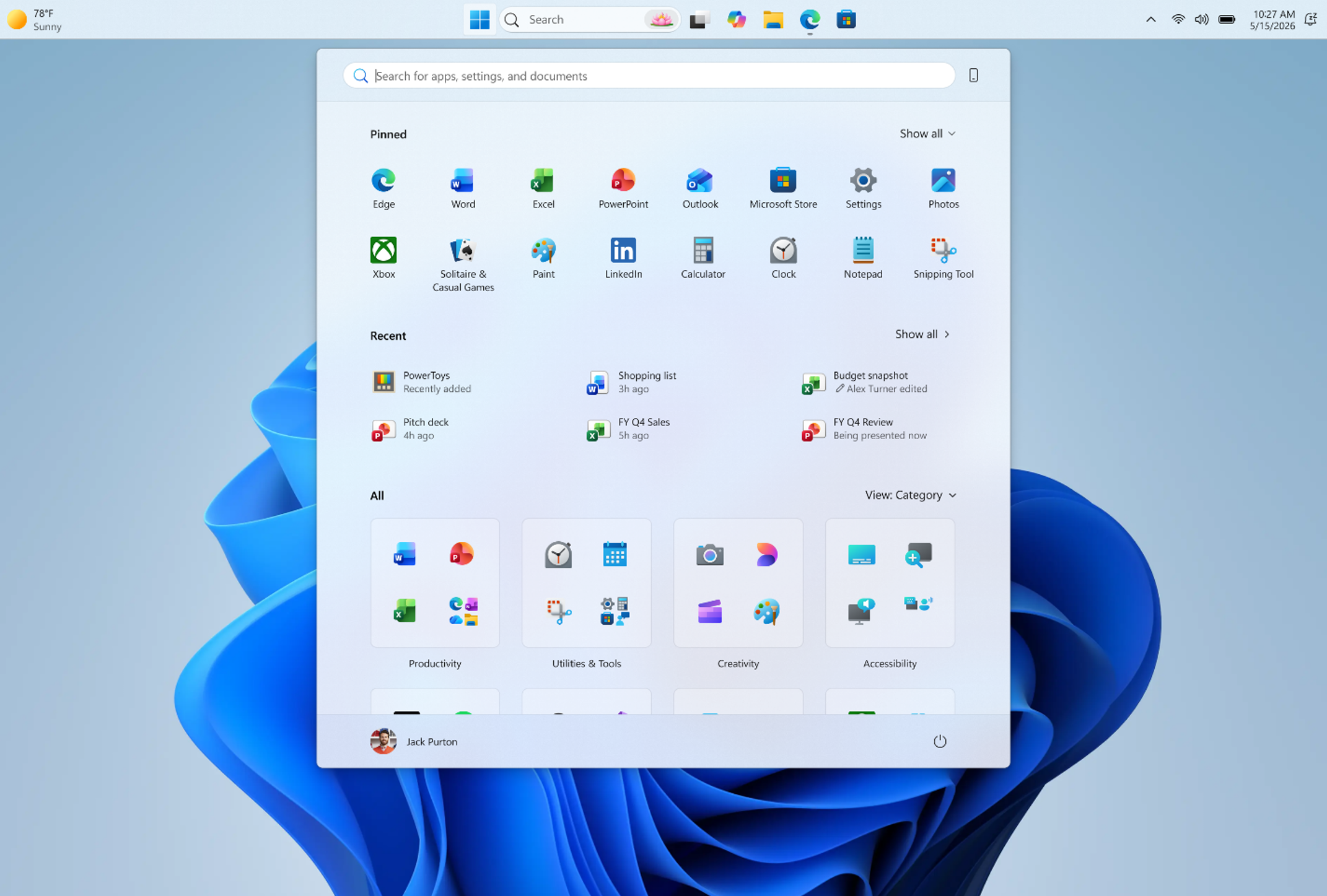
The Start menu has been reworked around three independently togglable sections — Pinned, Recent (renamed from “Recommended”), and All — plus a scrollable All view with category and grid layouts that adapt to your display size. You can pick a Small or Large Start menu size, and there’s now a privacy option to hide your name and profile picture, useful if you’re screen-sharing or streaming. Turn off Recent and All entirely and you get a minimalist, pins-only Start menu; leave everything on for the fullest view Windows 11 has offered.
Commercial devices also get Windows settings backup and File Explorer navigation improvements turned on by default in 26H2 — these previously required a temporary enterprise policy to enable, a holdover mechanism Microsoft uses to stage features before they become the default experience for everyone.
Voice Access: more languages, clearer recognition
Voice Access — Windows’ hands-free dictation and control feature — adds French, German, Spanish, and Korean to its language list in 26H2, on top of the English dialects it already supported. On supported Copilot+ PCs, Voice Access also understands more natural phrasing: filler words and rough synonyms work instead of requiring the exact predefined command syntax.
The other accessibility addition worth knowing about is Voice Isolation, a speech recognition mode that filters out other speakers and background noise so Voice Access can follow your voice more reliably in noisy environments. Setup takes under a minute: you read a short passage aloud so the feature can learn your voice, and Microsoft says that voice data never leaves the device.
Narrator and Magnifier also picked up smaller but genuinely useful upgrades this cycle — Narrator adds a Braille Viewer that mirrors on-screen text to a refreshable Braille display plus better Word navigation, and Magnifier adds precise zoom-percentage entry and a full-screen color tint for reduced eye strain.
File Explorer and Windows Search get smarter
File Explorer’s changes are mostly about speed and friction. Home launches faster, remembers whether you last expanded or collapsed its sections, and keeps your chosen view and sort order when an app opens straight to a folder like Downloads. New archive formats — including uu, cpio, xar, and NuGet’s nupkg — are natively supported, you can rename files with voice typing, and signed-in work or school accounts get quick-hover actions like Open file location and Ask Copilot. AI actions can edit supported images or summarize a document directly from File Explorer, though the Copilot summarize action needs an active Microsoft 365 subscription with a Copilot license to work.
Windows Search picked up its own set of fixes: you can preview a result without opening it, app search tolerates typos and partial names better, and results now label themselves more clearly as an app, a setting, a file, a web result, or a Store suggestion so you’re not guessing what you’re about to click. Windows can also automatically index folders you use often, a setting you can manage under Settings > Privacy & security > Search.
Security and sign-in: Administrator Protection, Sysmon, and driver trust
The security list in 26H2 is longer than any single feature update has carried in a while:
- Administrator Protection replaces always-on admin rights with just-in-time elevation and account profile separation, narrowing the window attackers have to exploit a local admin account. It ships off by default and is turned on through Intune or Group Policy.
- Sysmon is now built into Windows for the first time, rather than requiring a separate Sysinternals download. It logs detailed system events to the Windows Event Log for security tooling to consume, supports custom filtering configs, and — like Administrator Protection — is off until an admin turns it on.
- Smart App Control can now be switched on or off without a clean install, removing what used to be the single biggest reason people avoided trying it.
- Driver trust has fundamentally changed. Windows no longer automatically trusts cross-signed third-party drivers by default — only drivers certified under the Windows Hardware Compatibility Program, plus an explicit allow-list of legacy drivers, load without extra scrutiny. Windows audits compatibility for at least 100 hours and three restarts before enforcing this, giving incompatible setups a buffer before anything breaks.
- Post-quantum cryptography support arrives via API-level support for NIST’s ML-KEM and ML-DSA algorithms (FIPS 203 and 204), usable through CNG and .NET for key exchange, signing, and decryption.
- Windows Hello Enhanced Sign-in Security now works with compatible external fingerprint sensors, not just the built-in sensors on Copilot+ laptops, and passkeys gain support for third-party plugin credential managers.
If you’re weighing whether to finally retire an old Windows 10 machine rather than fight with driver compatibility on 26H2, our guide to Windows 10 ESU pricing and enrollment covers how much longer you can realistically stay on Windows 10 before it stops making sense.
Networking, Bluetooth, and fewer restarts
Bluetooth reliability gets a round of fixes: LE Audio and shared-audio stability, a volume flyout that appears when you adjust a Bluetooth Classic accessory mid-call, more accurate connection-status reporting, and a fix for the radio toggle showing the wrong state. USB improvements target displays connected through USB4 docks and hubs, particularly after resuming from standby — a longstanding annoyance for anyone docking a laptop.
Windows Update itself got a quieter but arguably more impactful change: eligible updates now install together with the monthly security update where possible, cutting the number of restarts needed to stay current. If you manually put a device to sleep, it now returns to sleep after an update finishes installing, even if automatic sleep is set to Never — a small fix for a long-running complaint from laptop owners who woke up to a warm, drained battery.
Windows 11 26H2 vs. 25H2: what’s actually new
Because 26H2 shares a codebase with 25H2, the real question for most people isn’t “should I upgrade” — it’s “what do I get that I don’t already have.” Here’s the practical breakdown:
| Area | Windows 11 25H2 | Windows 11 26H2 |
|---|---|---|
| Support window (Home/Pro) | Ends October 12, 2027 | Ends October 10, 2028 |
| Support window (Enterprise/Education) | Ends October 10, 2028 | Ends October 9, 2029 |
| Taskbar position | Bottom only | Top, bottom, left, or right |
| Start menu | Fixed Pinned/Recommended layout | Independently toggled Pinned/Recent/All, Small/Large sizing |
| Agent in Settings | Introduced via KB5062660 on 24H2/25H2 Copilot+ PCs | Carried forward, same requirements |
| Task Manager NPU columns | Not present | Added (Processes, Users, Details, Performance) |
| Administrator Protection / built-in Sysmon | Not present | Added, off by default |
| Voice Access languages | English dialects + Korean | Adds French, German, Spanish |
| Driver trust model | Cross-signed drivers trusted by default | Cross-signed trust removed; WHCP + allow-list only |
Which PCs and editions get Windows 11 26H2, and how to install it now
Windows 11 26H2 is available to eligible devices running version 24H2 or 25H2 through the General Availability Channel, covering Home, Pro, Pro Education, Pro for Workstations, Enterprise, Education, and IoT Enterprise editions, plus Enterprise and IoT Enterprise LTSC editions. Windows 11 version 23H2 is no longer being offered a direct enablement path — those devices are past end of updates on the Home/Pro side already.
One nuance worth knowing: Windows 11, version 26H1, a separate release scoped specifically to new devices that started shipping from OEMs in early 2026, is not eligible for this in-place update. If a PC came preinstalled with 26H1, it stays on its own track rather than moving to 26H2 this cycle. A handful of the Copilot+ AI features, including the Agent in Settings, remain limited to Copilot+ certified hardware with an NPU regardless of which servicing branch you’re on.
As with every annual update, Microsoft can apply a safeguard hold on individual devices where it detects a known compatibility issue, delaying the update for that machine until the issue is resolved — standard practice for a phased rollout, not a sign anything is broadly wrong.
Most eligible PCs will see the update appear on their own schedule through Windows Update, but you don’t have to wait:
- Windows Update (recommended): Go to Settings > Windows Update, turn on “Get the latest updates as soon as they’re available,” then select Check for updates.
- Installation Assistant: Microsoft’s guided upgrade tool for PCs already on a supported Windows 11 version, available directly from Microsoft’s own Windows 11 download page.
- Media Creation Tool or ISO: For a clean install, a reinstall, or setting up a new PC, the same download page provides both a tool for building bootable USB installation media and a direct multi-edition disk image for x64 devices, with a separate Arm64 image for Arm-based PCs.
Before forcing an early install on a device you depend on, it’s worth a quick glance at Microsoft’s own release health dashboard for 26H2, which tracks known issues and any active safeguard holds — a sensible check for any feature update, not a sign this one is unusually risky.
How long is Windows 11 26H2 supported?
Installing 26H2 resets your support clock, per Microsoft’s Windows 11 release information page. Home, Pro, Pro Education, and Pro for Workstations editions get 24 months of updates, running through October 10, 2028. Enterprise, Education, and IoT Enterprise editions get the longer 36-month window, through October 9, 2029. Those dates only apply once a device has actually moved to 26H2 — staying on 25H2 keeps you on its shorter, earlier support deadline instead.
What’s next
Windows 11 26H2 is best understood as a checkpoint rather than a leap: it formalizes a year of monthly-update features into one supported baseline and resets the clock for the next two to three years, depending on edition. Expect the Agent in Settings and Voice Access’s natural-language support to keep expanding to more languages and more Copilot+ hardware through 2027, and expect the taskbar repositioning options — currently missing auto-hide and per-monitor placement — to keep maturing in monthly updates on top of 26H2 rather than waiting for the next annual release. If you’re deciding whether to move now or wait, the practical answer for most Home and Pro users is that there’s little reason to delay: it’s a one-restart enablement package, not a disruptive in-place upgrade, and it’s already what Windows Update will eventually push to your PC regardless.
Frequently asked questions
When did Windows 11 26H2 release?
Windows 11, version 26H2 became generally available on September 29, 2026, delivered as a small enablement package to eligible devices already running version 24H2 or 25H2.
What is the biggest new feature in Windows 11 26H2?
The most visible addition is the Agent in Settings, an on-device AI feature that lets you find and change settings using plain-language requests on Copilot+ PCs. Task Manager's new NPU monitoring and the ability to move the taskbar to any edge of the screen are close behind.
How long will Windows 11 26H2 be supported?
Home, Pro, Pro Education, and Pro for Workstations editions are supported through October 10, 2028 (24 months). Enterprise, Education, and IoT Enterprise editions are supported through October 9, 2029 (36 months).
Can I install Windows 11 26H2 if I'm on Windows 11 26H1?
No. Version 26H1 is a separate release track scoped to new devices that began shipping in early 2026, and it is not eligible for the 26H2 in-place update this cycle.
Do I need a Copilot+ PC to use the new AI features?
Some of them, yes. The Agent in Settings and the natural-language mode in Voice Access both require a Copilot+ PC. Task Manager's NPU monitoring works on any PC with an NPU, not only Copilot+ certified hardware.
How do I get Windows 11 26H2 right now?
Go to Settings > Windows Update, turn on "Get the latest updates as soon as they're available," and select Check for updates. You can also use the Installation Assistant, Media Creation Tool, or a direct ISO from Microsoft's Windows 11 download page for a clean install.
Sources
- Microsoft Learn — What's new in Windows 11, version 26H2learn.microsoft.com
- Microsoft Learn — Windows 11 release informationlearn.microsoft.com
- Microsoft Learn — Configure the agent in Windows Settingslearn.microsoft.com
- Windows Insider Blog — Making taskbar and Start more personalblogs.windows.com
- Microsoft Support — Get started with Voice Accesssupport.microsoft.com
- Microsoft — Download Windows 11microsoft.com
Felix Moreau writes Pandromeda's software coverage and how-to guides. He covers Windows, macOS and Linux updates, the apps people rely on, emulators and developer tools, and turns official documentation into clear, numbered steps that work on the current version.