How to Set Up Passkeys on iPhone, Android and Windows
Replace passwords with your face, fingerprint or PIN. Step-by-step passkey setup for iPhone, Android, Windows, Google and Microsoft accounts, straight from each company’s own instructions.

Setting up a passkey takes about a minute. You open the security settings of an account that supports passkeys (Google, Microsoft, Apple and a growing list of websites and apps do), choose “Create a passkey”, and confirm with your fingerprint, face or device PIN. After that you sign in by unlocking your phone or computer instead of typing a password. This guide walks through the exact steps on iPhone, Android, Windows and for your Google and Microsoft accounts, using each company’s own instructions as of September 2026.
Key facts
- What you need: a device with a screen lock. Google and Microsoft list Windows 10, macOS Ventura, iOS 16, Android 9 and ChromeOS 109 or later.
- Browsers: Chrome 109, Safari 16, Edge 109 or later; Google also lists Firefox 122 or later.
- iPhone: iCloud Keychain and two-factor authentication must be on. Passkeys are saved in the Passwords app.
- Google account: create one at myaccount.google.com/signinoptions/passkeys.
- Microsoft account: add one at account.live.com/proofs/manage. Microsoft is phasing out SMS codes for personal accounts in favor of passkeys.
What is a passkey?
A passkey is a sign-in credential that replaces your password with the lock you already use on your phone or computer. Microsoft’s explainer on what passkeys are and why they matter describes the mechanics. When you create a passkey, your device generates a pair of keys. The private key stays on your device or in your password manager, and the public key is registered with the website. To sign in, your device proves it holds the private key by signing a challenge from the site, after you unlock it with your face, fingerprint or PIN.
Three properties make passkeys safer than passwords:
- They resist phishing. A passkey is tied to the domain it was created for. Microsoft uses the example that a passkey created for netflix.com can only be used on netflix.com. If you land on a look-alike site, your device won’t offer the passkey.
- Nothing reusable leaks. The website only stores a public key, so a breach of the site doesn’t expose anything an attacker can sign in with.
- They count as multi-factor. You need the device that holds the passkey (something you have) plus your biometric or PIN (something you are or know). Microsoft says your biometric data stays on your device and is never shared with it.
The FIDO Alliance, the industry group behind the standard, maintains the specifications that Apple, Google and Microsoft all implement. That is why a passkey you make on an iPhone can sign you in on a Windows PC.
What do you need before you start?
Google and Microsoft publish almost identical requirement lists:
| Requirement | Minimum version | Notes |
|---|---|---|
| Windows | Windows 10 | Microsoft says Windows 11 is needed for the latest passkey features |
| macOS | macOS Ventura | iCloud Keychain must be on |
| iPhone and iPad | iOS 16 | Passkeys in Microsoft Authenticator need iOS 17 |
| Android | Android 9 | Passkeys in Microsoft Authenticator need Android 14 |
| ChromeOS | ChromeOS 109 | |
| Browsers | Chrome 109, Safari 16, Edge 109 | Google also lists Firefox 122 |
| Security keys | FIDO2 hardware keys | Optional; a way to store passkeys offline |
You also need a screen lock (PIN, pattern, password or biometrics) on the device. To use a phone to sign in on a nearby computer, you need Bluetooth turned on for the proximity check.
How to set up passkeys on iPhone
On iPhone, passkeys live in iCloud Keychain and appear in the Passwords app. Apple’s iPhone User Guide section on using passkeys notes that iCloud Keychain and two-factor authentication must be turned on first. Apple says passkeys are encrypted in iCloud Keychain and aren’t visible to anyone, including Apple.
Step 1: Turn on iCloud Keychain
Open Settings, tap your name, then iCloud, and check that password syncing (iCloud Keychain) is turned on. Two-factor authentication for your Apple Account must also be on.
Step 2: Go to the sign-in or account screen
Open a website or app that supports passkeys. For a new account, tap the sign-up option and follow the instructions. For an existing account, sign in with your password as usual, then go to the account settings or security screen.
Step 3: Save the passkey
When you see the option to save a passkey, tap Continue. The passkey is saved to your iPhone and appears in the Passwords app, under the same account entry as any saved password for that site. Apple notes that websites and apps can also create passkeys for you automatically when you sign in. If you don’t see a passkey option, the site doesn’t support passkeys yet.
Step 4: Sign in with the passkey
Next time, tap the account name field on the sign-in screen, pick the suggested account at the bottom of the screen or above the keyboard, and confirm with Face ID or Touch ID (or your passcode). The passkey completes the sign-in.
Apple also lets you save a passkey to a hardware security key. When prompted, choose “Other options” or “Save on another device” and follow the instructions.
How to create a passkey for your Google account
Google’s help article “Sign in with a passkey instead of a password” gives the steps:
- Go to myaccount.google.com/signinoptions/passkeys and sign in.
- Select Create a passkey.
- Unlock your device when prompted, using your fingerprint, face or screen lock.
- To store the passkey on a FIDO2 hardware security key instead, choose Use another device and follow the instructions.
You can create passkeys on several devices, and it’s a good idea to do so. Google warns that you may need to wait seven days before a newly created passkey is available at sign-in.
To sign in, enter your username on the Google sign-in page and unlock your device when asked. On a computer, you can instead scan a QR code with your phone and confirm on the phone. Google says that after the first time, the same computer and phone pair will get a phone notification automatically.
If you’d rather keep using your password, Google lets you turn off Skip password when possible under Security & sign-in in your Google Account.
How to set up passkeys on Android
On Android, passkeys are saved and synced by your password manager. Google’s Android help page on passkeys names Google Password Manager as the default, and lists third-party providers such as Samsung Pass, Keeper and 1Password as supported alternatives.
- Pick your provider. Open Settings, go to Passwords, passkeys & accounts, and choose the password manager you want to save passkeys to.
- Sign in to the app or website you want to protect, using your existing password.
- Choose “Create a passkey” in the account’s security settings or at the prompt, review the account details shown, and confirm with your screen lock.
- Sign in with it next time by selecting your account and unlocking your phone.
Because your password manager syncs passkeys, a passkey made on one Android phone will also be on your other devices that use the same password manager account.
How to add a passkey to your Microsoft account and Windows
Microsoft’s guide to creating and saving a passkey covers personal Microsoft accounts (Outlook.com, Xbox, OneDrive and Microsoft 365 Personal) and work or school accounts.
Personal Microsoft account
- On the device where you want the passkey, go to account.live.com/proofs/manage (Advanced Security Options) and sign in.
- Choose Add a new way to sign in or verify.
- Select Face, Fingerprint, PIN, or Security Key.
- Follow the prompts, then choose Continue or Create to save in the suggested location, or Change / Save another way to pick somewhere else.
Microsoft lists four places to save the passkey: a password manager (Microsoft Password Manager, Google Password Manager, iCloud Keychain or another synced manager), an iPhone, iPad or Android device (scan a QR code, which may need Bluetooth pairing), a physical security key, or the Windows device itself through Windows Hello.
Work or school account
Go to mysignins.microsoft.com/security-info, choose Add sign-in method, then select Passkey or Passkey in Microsoft Authenticator. Your organization has to allow passkeys, and it may limit where you can save them.
Why Microsoft users should do this now
Microsoft has said it will phase out SMS as a way to sign in and recover personal Microsoft accounts. Its support notice on stopping SMS codes calls SMS-based authentication a leading source of fraud, vulnerable to phishing and SIM-swap attacks. It says users will be guided to add a verified email and set up a passkey. If you still rely on text-message codes for Outlook.com or Xbox, add a passkey before you are prompted.
How to use a passkey on a computer that isn’t yours
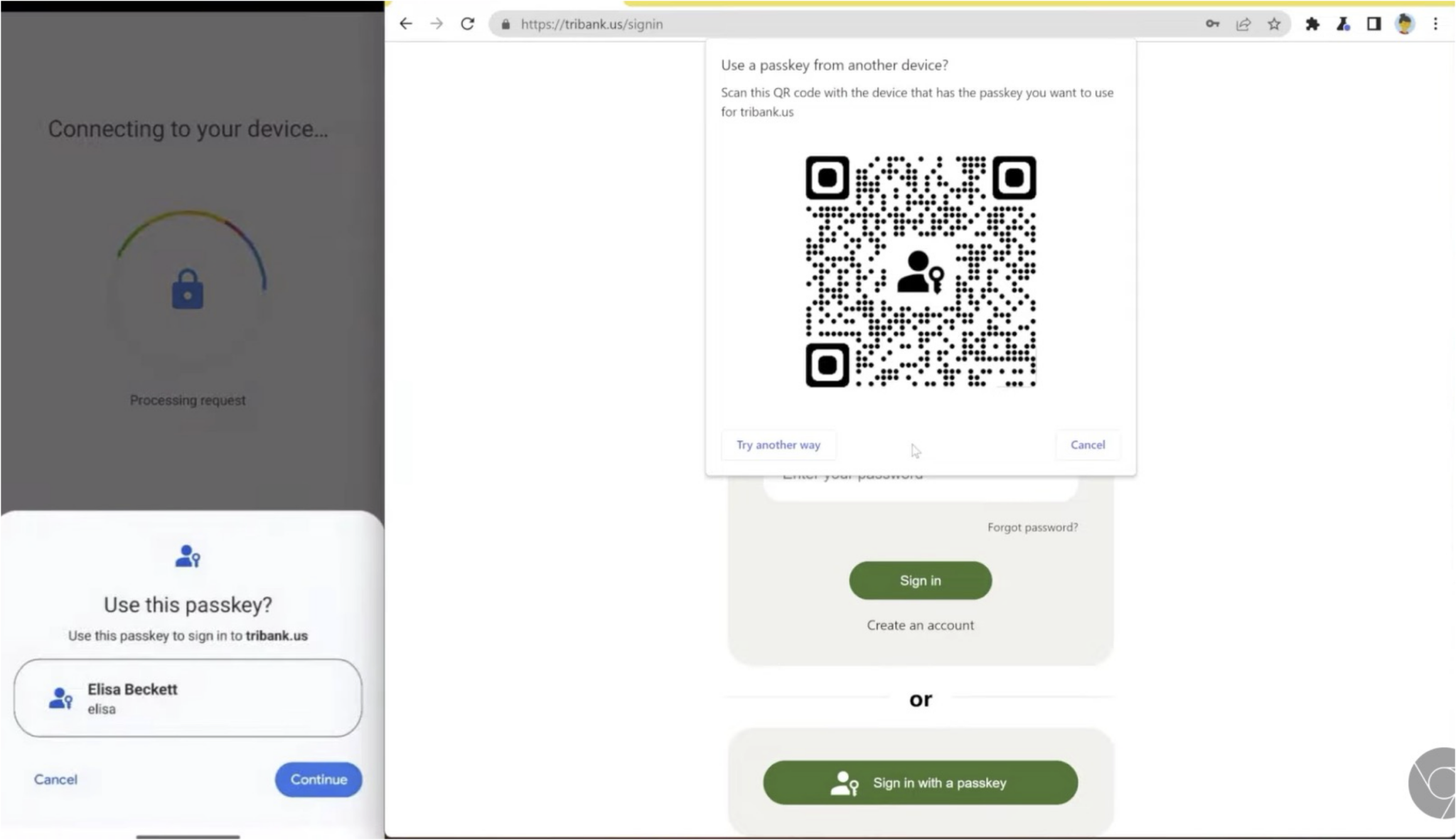
Passkeys work on a library PC or a friend’s laptop without copying anything to that machine. Apple describes the flow like this. On the other device, enter your username, choose “Other options” or “Passkey from nearby device”, and a QR code appears. Scan it with your phone’s camera, approve with Face ID, a fingerprint or your PIN, and you are signed in.
Microsoft notes that this cross-device sign-in includes a proximity check, so your phone has to be physically near the computer. That is why Bluetooth needs to be on. It also means a remote attacker can’t use the QR code trick to reach your passkey from far away.
You can also create a passkey from a device that isn’t yours. Choose “Save on another device” or “Save a passkey on a device with a camera”, scan the QR code with your phone, and the passkey is stored on your phone rather than on the borrowed computer.
Synced vs device-bound passkeys: which should you use?
Microsoft draws a useful distinction:
- Synced passkeys are stored in a credential manager such as iCloud Keychain, Google Password Manager, Microsoft Password Manager or a third-party password manager. They sync across your devices through that service, so you can sign in anywhere the manager is installed.
- Device-bound passkeys are stored only on the device or security key where they were created, for example through Windows Hello when the passkey is saved to the PC itself. If you lose that device, you lose the passkey unless you have a backup.
Microsoft’s advice is to save passkeys to a synced credential manager whenever possible. If you keep a passkey on one device, create more passkeys on your other devices to act as a “digital spare key”. For most people, synced passkeys in the password manager you already use are the right choice. Device-bound passkeys on hardware security keys make sense for high-value accounts where you want the credential never to leave a physical key.
How to find, rename and delete passkeys
| Where the passkey lives | How to manage it |
|---|---|
| iPhone (iCloud Keychain) | Passwords app > Passkeys > select the account > Edit > Delete > Delete Passkey |
| Google Account | myaccount.google.com > Security & sign-in > Passkeys and security keys > select the passkey > Remove |
| Android (Google Password Manager) | Managed through your device settings and chosen password manager |
| Windows (saved on the PC) | Settings > Accounts > Passkeys > select … > Delete passkey |
| Microsoft personal account | account.live.com/proofs/manage: view where each passkey is saved and when it was last used, rename or remove it |
| Microsoft work or school account | mysignins.microsoft.com/security-info |
Microsoft’s page on managing saved passkeys adds a warning. If you remove every piece of security information from a Microsoft account, the account is put into a restricted state for 30 days, and security or billing changes aren’t accepted during that time. Add a new sign-in method before you remove an old one. In Windows, Settings > Accounts > Passkeys > Advanced options also lets you choose which passkey providers are active, including third-party managers, and whether passkeys can be saved to the Windows device itself.
Passkey not working? Common fixes
- No “Create a passkey” option. Apple and Microsoft both say this means the site or app doesn’t support passkeys yet.
- A new Google passkey isn’t offered at sign-in. Google says it can take up to seven days to become available.
- The QR code flow fails. Turn on Bluetooth on both the phone and the computer, and keep them close together.
- Windows is missing passkey options. Microsoft says the latest features need Windows 11, an up-to-date install, and a device not restricted by a work or school policy. Check Settings > System > About and Windows Update.
- Work account won’t let you add a passkey. Your organization has to enable it. Contact your IT admin.
- iPhone won’t save passkeys. Make sure iCloud Keychain and two-factor authentication for your Apple Account are both on.
Which accounts should get a passkey first?
Start with the accounts that can unlock everything else:
- Your main email account (Google, Microsoft or Apple), because it resets every other password.
- Your password manager, if it supports passkey sign-in.
- Banking, payment and shopping accounts that offer passkeys.
- Social media and work accounts, which attackers target for scams and further access.
Keep at least two ways into each important account: a synced passkey plus a second passkey on another device or a hardware key, and an up-to-date recovery email. Passkeys remove the risk of phishing and password reuse, but only a backup method protects you from losing a phone.
Bottom line
Passkeys now work on every major platform. Setting one up for your Google, Microsoft or Apple account takes a minute and shuts out phishing and password reuse for that account. Create a passkey for your main email account today, save it in a synced password manager, add a spare on a second device, and accept the “Create a passkey?” prompt the next time a website offers one.
Frequently asked questions
Is a passkey safer than a password?
Yes. A passkey is tied to the website it was created for, so it cannot be phished on a look-alike site, and the website only stores a public key, so a data breach does not leak anything reusable. Microsoft also counts passkeys as multi-factor authentication.
Where are passkeys stored on iPhone?
Passkeys on iPhone are stored in iCloud Keychain and appear in the Passwords app. iCloud Keychain and two-factor authentication must be turned on to use them.
What happens if I lose my phone with my passkeys?
Synced passkeys saved in iCloud Keychain, Google Password Manager or another synced password manager are still available on your other devices. A device-bound passkey is lost with the device, so keep a second passkey or another recovery method.
Can I use a passkey on someone else’s computer?
Yes. Choose the option to use a passkey from a nearby device, scan the QR code with your phone and approve with your face, fingerprint or PIN. Bluetooth must be on for the proximity check, and nothing is saved on the other computer.
Why can’t I use my new Google passkey?
Google says it can take up to seven days before a newly created passkey is available at sign-in. Also check that your device has a screen lock and meets the minimum version requirements.
Is Microsoft getting rid of SMS codes?
Microsoft says it is phasing out SMS as a method of authentication and account recovery for personal Microsoft accounts, and will guide users to add a verified email and a passkey instead.
Sources
- Apple: Use passkeys to sign in to websites and apps on iPhonesupport.apple.com
- Google Account Help: Sign in with a passkey instead of a passwordsupport.google.com
- Microsoft Support: Create and save a passkeysupport.microsoft.com
- Microsoft Support: What are passkeys and why they mattersupport.microsoft.com
- Microsoft Support: Microsoft to stop sending SMS codes for personal accountssupport.microsoft.com
- FIDO Alliance: Passkeysfidoalliance.org
Sana Qureshi runs the security and privacy desk. She reports on actively exploited vulnerabilities, vendor patches and data breaches, and covers the password managers, VPNs and authentication tools readers use to protect themselves. Her alerts cite vendor advisories, CISA and the CVE record directly.