What Is Tap to Pay? How NFC Payments Work on iPhone and Android
Tap to Pay turns your iPhone or Android phone into a contactless card. Here is how NFC payments actually work, how secure they are, and what to do when a tap won't go through.
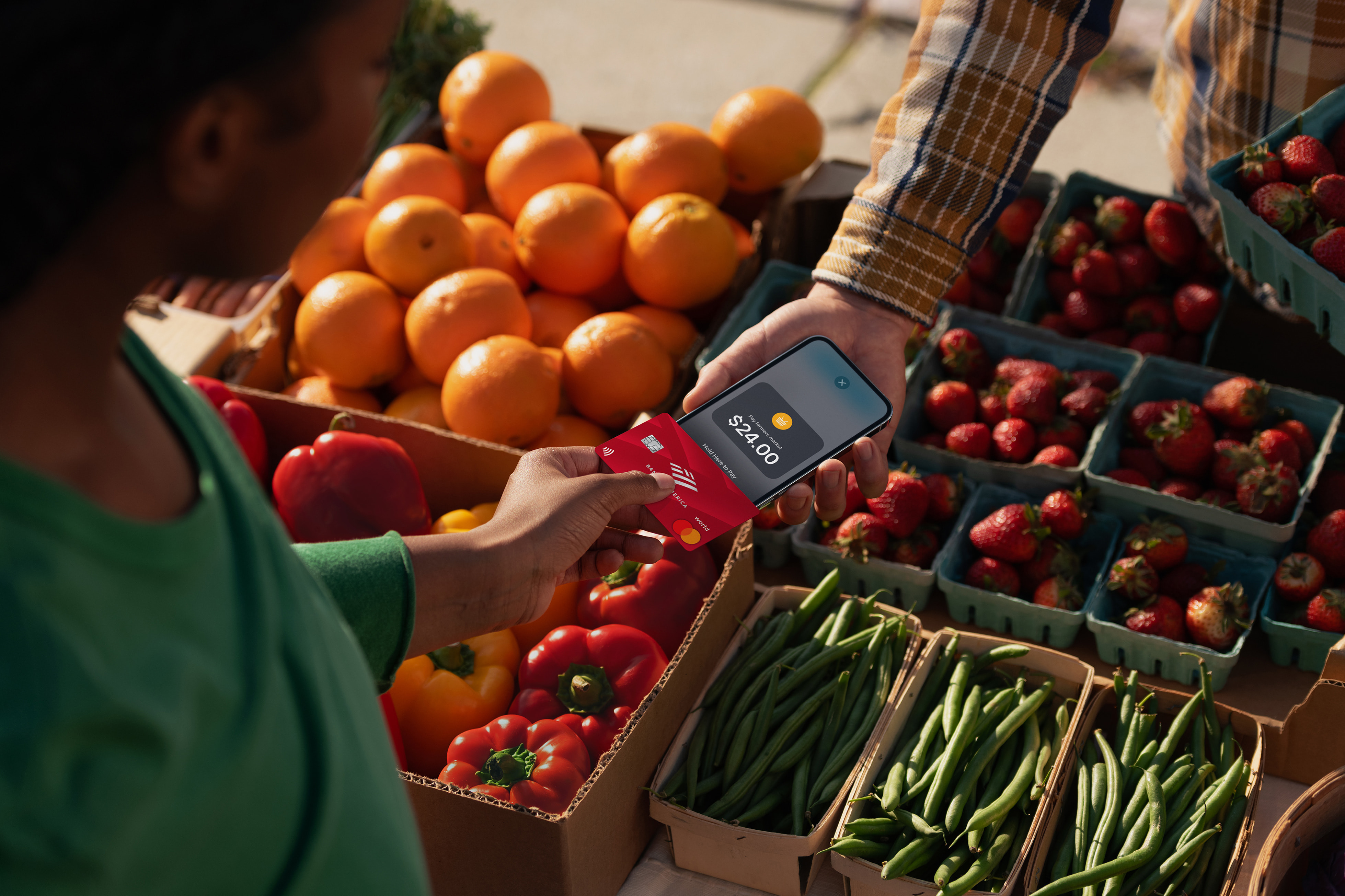
Tap to Pay is the general name for paying at a store by holding your phone near a card reader instead of swiping or inserting a card. Your iPhone or Android phone uses a short-range radio called NFC (Near Field Communication) to send a one-time, encrypted payment token to the terminal — through Apple Pay, Google Wallet or Samsung Wallet. No card ever comes out of your pocket, and the merchant never sees your real card number.
Quick answer: Tap to Pay uses NFC to exchange a secure, tokenized version of your card — not the real card number — between your phone and a payment terminal. It works through Apple Pay (iPhone), Google Wallet (Android) or Samsung Wallet (Galaxy), needs NFC turned on and a screen lock set up, and takes a few taps to configure the first time.
What Is Tap to Pay?
"Tap to pay" and "NFC payments" describe the same consumer action: holding an NFC-enabled phone (or card, or watch) close to a contactless reader to complete a purchase. On iPhone that function is handled by Apple Pay; on Android phones it is handled by Google Wallet; on Samsung's Galaxy line it can also run through Samsung Wallet. All three wrap the same underlying NFC hardware and the same card-network tokenization standards — the same radio technology that also powers an eSIM handshake or a Find Hub tag — so the experience at the register looks almost identical no matter which phone you are carrying.
Apple first brought a related but distinct capability, Tap to Pay on iPhone, to merchants in 2022, letting a business accept contactless cards and phones directly on an iPhone with no extra card reader. That is the "accepting payments" side of the same NFC technology; this guide is about the far more common "paying" side — using your own phone at someone else's register.
How NFC Payments Actually Work
NFC is a short-range wireless standard that only works at a distance of a few centimeters, which is why you have to hold the phone close to the reader rather than wave it from across the counter. When you hold an unlocked, authenticated phone near a compatible terminal, three things happen in roughly a second:
- Your phone's wallet app (Apple Pay, Google Wallet or Samsung Wallet) wakes up and identifies which card is active.
- Instead of sending your actual 16-digit card number, the phone sends a device-specific token — a substitute number tied to that one device.
- The terminal and your card issuer approve the transaction using that token, the same way they would a physical contactless card.
Apple's own security documentation explains that this substitute identifier, which it calls the Device Account Number, is stored in a secure chip on the device, is never stored on Apple's servers, and is never backed up to iCloud — Apple itself cannot decrypt it. Because the number issued to your phone is different from your real card number, your bank can also block that specific device token without canceling your physical card if your phone is ever lost.
Tap to Pay on iPhone (Apple Pay)
On an iPhone, tap to pay runs through Apple Pay. Add a debit or credit card in the Wallet app — including a card tied to a newer handset like the iPhone Duo — then authorize each purchase with Face ID, Touch ID or your passcode before holding the top of the iPhone near the reader. Apple's payment security overview confirms that for in-app and online purchases, Apple re-encrypts the transaction with a key specific to that app or website, so only the merchant you are actually buying from can read the payment details — not Apple, and not an unrelated site.
Apple has supported contactless Apple Pay purchases since the iPhone 6, and current iPhones all ship with the NFC chip Apple Pay requires. If your iPhone is locked, Apple Pay will not transmit a payment — you always have to authenticate first, which is also why a lost or stolen iPhone can't simply be tapped to pay by someone else.
Tap to Pay on iPhone for Merchants
There is a second, separate meaning of "Tap to Pay on iPhone" worth knowing, because it uses the same two words for the opposite side of the transaction. Since 2022, Apple has let businesses accept contactless cards, Apple Pay and other digital wallets directly on an iPhone, with no separate card reader or dongle required. Apple's own Business User Guide describes the setup: a merchant installs a supported payment app from the App Store, accepts Apple's Tap to Pay on iPhone terms, and the app links that iPhone to the merchant's own payment-service-provider account, merchant ID and category code. Every payment taken this way is processed and deposited by the merchant's payment provider, not by Apple — and Apple's support documentation is explicit that if something goes wrong before the tap screen appears, or after a tap has already gone through, the first call should be to the payment app developer or provider rather than Apple itself.
In short: if you are a shopper reading this to pay with your own phone, the sections above on Apple Pay, Google Wallet and Samsung Wallet are what apply to you. If you are a small business owner looking to accept payments without buying a card reader, "Tap to Pay on iPhone" the merchant feature is the one to search for instead.
Tap to Pay on Android (Google Wallet)
On Android, the default app for tap to pay is Google Wallet. According to Google's own support documentation, three things need to be true before your phone can pay at a register: NFC has to be turned on in your phone's settings, Google Wallet has to be set as your default payment app, and your phone needs a screen lock (PIN, pattern, password or biometric) enabled. Once those are set, Google's instructions are simple: open Google Wallet, tap your profile icon, choose "Tap to pay setup," and follow whatever steps remain for your specific card issuer.
After setup, you do not need to open the app at checkout. Unlock the phone, hold it to the reader, and follow any on-screen PIN or signature prompt the terminal asks for — the wallet app recognizes the reader and completes the tap automatically.
Tap to Pay With Samsung Wallet
Galaxy phones running recent versions of One UI use Samsung Wallet (the successor to Samsung Pay) for the same job. Samsung's own support instructions describe four steps: swipe up from the bottom of the screen to open Samsung Wallet, swipe left or right to pick the card you want to use, authenticate with a fingerprint, iris scan or PIN to enter payment mode, then hold the back of the phone against the terminal. Samsung notes the window to complete the tap after authenticating is time-limited — commonly around 30 seconds depending on region — so if the terminal doesn't register it in time, you simply authenticate again and retap.
Apple Pay vs. Google Wallet vs. Samsung Wallet: Tap to Pay Compared
| Feature | Apple Pay (iPhone) | Google Wallet (Android) | Samsung Wallet (Galaxy) |
|---|---|---|---|
| Underlying tech | NFC + Secure Element | NFC (host card emulation or secure element) | NFC + Secure Element |
| Authentication | Face ID, Touch ID or passcode | Device screen lock / biometrics | Fingerprint, iris or PIN |
| Setup requirement | Card added in Wallet app | NFC on, Wallet set as default payment app, screen lock set | Card added in Samsung Wallet app |
| Where it also works | Apple Watch, in supported apps/websites | Supported Wear OS watches, in supported apps | Galaxy Watch (Samsung Pay–era devices) |
| Real card number shared with merchant | No — Device Account Number only | No — tokenized number only | No — tokenized number only |
Is Tap to Pay Safe?
Yes, by design tap to pay is generally considered more secure than a physical card swipe or chip insert, for two reasons documented by Apple and Google. First, none of the three systems send your actual card number to the terminal — they send a token or device-specific substitute number that is useless to a merchant's payment system in any other context. Second, every tap requires the phone to be unlocked and, in Apple's and Samsung's case, biometrically or PIN-authenticated at the moment of payment, so a phone left on a table cannot be tapped to pay by someone else without also having your face, fingerprint or passcode.
The one thing tap to pay doesn't protect against is a merchant's own card reader being compromised or a scam where someone asks to "test" a tap-to-pay feature on an unfamiliar device — treat requests like that the same way you would someone asking to swipe your physical card.
How to Set Up Tap to Pay
On iPhone: open Wallet, tap the plus icon, and follow the prompts to add a debit or credit card, verifying with your bank if asked. Once added, the card is ready to use at any contactless reader.
On Android with Google Wallet: turn on NFC in Settings, set Google Wallet as your default payment app, make sure a screen lock is enabled, then open Google Wallet, tap your profile picture, choose "Tap to pay setup," and add a card.
On Galaxy with Samsung Wallet: open the Samsung Wallet app, add a supported debit or credit card, and verify it with your card issuer — Samsung's support documentation notes this verification step can take five to ten minutes and requires an internet connection.
Where Tap to Pay Works
Tap to pay works anywhere a merchant's card terminal displays the contactless symbol — four curved lines that look like a sideways Wi-Fi icon — which by now covers the large majority of point-of-sale terminals at grocery stores, pharmacies, restaurants and big-box retailers. Many transit systems also accept a direct phone tap at the fare gate as an alternative to a transit card, using the same NFC and tokenization approach described above, though fare-gate support varies by city and transit agency rather than being universal. Vending machines and parking meters have been slower to add contactless readers than full retail terminals, so it is still worth carrying a physical card as a backup in places you don't visit often.
One thing tap to pay does not require is an internet connection at the exact moment of payment: the authorization and token exchange happen locally between the phone and the terminal, with the network connection to your bank handled by the terminal itself, the same way it is for a physical contactless card. Your phone does need network access at some point to originally add and verify a card, and Samsung in particular calls out that adding a card to Samsung Wallet requires an active internet connection to complete.
Tap to Pay Not Working? Common Fixes
- Check NFC is on. On Android this is a toggle in Settings that can get switched off; on iPhone, Apple Pay's NFC radio is on by default and doesn't have a separate user toggle.
- Make sure the right app has priority. On Android, only your default payment app will respond to a tap — if you have two wallet apps installed, switch the default in settings.
- Unlock the phone first. None of the three systems will transmit a payment from a locked screen.
- Remove a thick case. Very thick or metal-backed cases can weaken the NFC signal enough that the reader doesn't pick it up — try the tap with the case off.
- Re-tap within the time window. Samsung Wallet times out after about 30 seconds of inactivity post-authentication; Google Wallet and Apple Pay also expect the tap shortly after you unlock, so re-authenticate and try again if the first attempt lapses.
- Confirm the card itself is verified. A newly added card that still shows as "not set up" in the wallet app needs you to finish bank verification before it will work at a terminal.
What's Next
Tap to pay is now standard on practically every iPhone and recent Android phone, and support is expanding to smartwatches and even peer-to-peer transfers, such as Samsung's "Tap to Transfer." If a tap still won't go through after trying the fixes above, the fastest path is usually your card issuer's app or support line — Apple, Google and Samsung all point problems that happen before or after a successful-looking tap back to the bank or payment provider, since they ultimately process the transaction.
Frequently asked questions
What is tap to pay?
Tap to pay is paying at a store by holding an NFC-enabled phone near a card reader. It works through Apple Pay, Google Wallet or Samsung Wallet, which send an encrypted, tokenized stand-in for your card instead of your real card number.
Is tap to pay the same as NFC payments?
Yes. NFC (Near Field Communication) is the short-range wireless technology that makes tap to pay possible. Tap to pay is simply the everyday name for using that technology to complete a purchase.
Does tap to pay share my real card number with the store?
No. Apple Pay, Google Wallet and Samsung Wallet all send a tokenized, device-specific number instead of your actual card number, according to each company's own security documentation.
Why is my tap to pay not working on iPhone?
Common causes are a locked screen, a card still pending bank verification, or a thick case weakening the NFC signal. Apple Pay requires Face ID, Touch ID or your passcode before it will transmit a payment.
Why is tap to pay not working on Android?
Check that NFC is turned on in Settings, that Google Wallet is set as your default payment app, and that a screen lock is enabled — Google's support documentation lists all three as requirements.
Can I use tap to pay without an internet connection?
The tap itself works locally between your phone and the terminal without your phone needing an active connection at that moment, though you do need network access to add and verify a card in the first place.
Sources
- Apple Newsroom: Apple Unveils Contactless Payments via Tap to Pay on iPhoneapple.com
- Apple Support: Apple Pay Security and Privacy Overviewsupport.apple.com
- Apple Support: Tap to Pay on iPhone (Business User Guide)support.apple.com
- Google Wallet Help: Set Up Tap to Pay on Your Phonesupport.google.com
- Samsung Support: How to Use Samsung Wallet to Make a Paymentsamsung.com
Nadia Osei covers mobile and consumer gadgets for Pandromeda: smartphones, tablets, smartwatches, earbuds and smart-home devices. She tracks launches, software updates and pricing across Apple, Google, Samsung and the rest, and builds comparisons from the manufacturers' published specifications.