How to Set Up Google Pixel Tag: Pairing, Find Hub and Lost Mode
A step-by-step guide to setting up your Google Pixel Tag, from Fast Pair and Find Hub to Lost Mode.
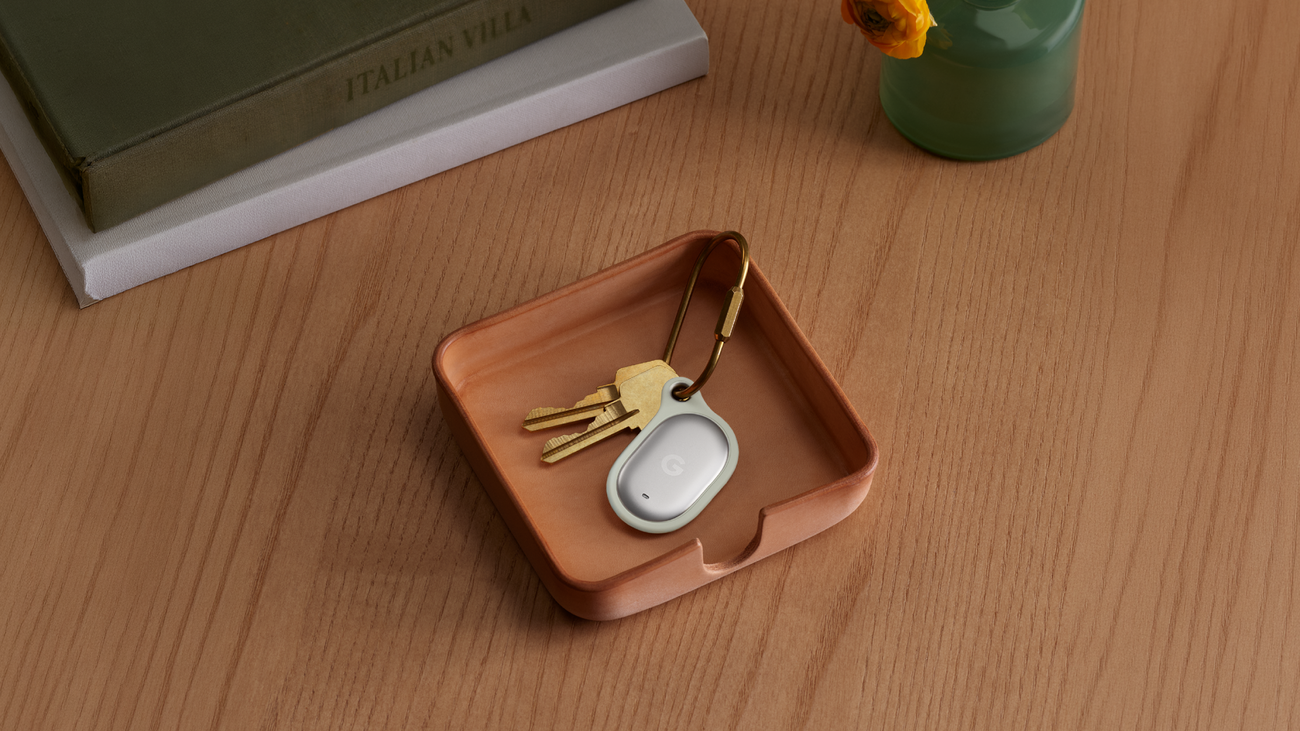
Setting up a Google Pixel Tag takes about two minutes: pull the plastic tab to wake the battery, hold the tag near an Android phone, tap through the Fast Pair pop-up, then name it and turn on alerts inside the Find Hub app. From there, Find Hub handles everything else — ringing the tag, sharing it with family, and recovering it if it goes missing. Here's the full setup and usage flow, step by step.
Pixel Tag at a glance
- On sale since November 11, 2026: $29 for one, $99 for a 4-pack
- Stainless steel body, IP67 rated for water and dust resistance
- Pairs over Fast Pair with any Android 9+ phone running current Google Play services
- Works on Google's Find Hub network of more than 1 billion Android devices
- Battery lasts up to a year and is user-replaceable
- Can be rung or located from a Pixel Watch, or by asking Gemini through Pixel Buds
What You Need Before You Start
Pixel Tag doesn't require a Pixel phone. Google built it to pair with any Android device running Android 9 or later with Bluetooth 6.0 or newer and current Google Play services installed, the same baseline the official Pixel Tag announcement lists for setup. You'll also want to be signed into a Google Account on that phone, since the tag's location history, sharing, and alerts all live inside Find Hub, Google's app for tracking phones, tablets, and accessories.
If you want the most precise "getting warmer" style finding — distance and direction readouts instead of just a rough map pin — you'll need a phone with Ultra-Wideband (UWB) hardware, since Pixel Tag's precision-finding feature relies on UWB paired with Bluetooth Channel Sounding.
Nothing about setup changes based on which tag you bought. A single tag and a 4-pack pair the same way, one at a time, so if you're setting up a 4-pack for the whole family's keys and bags, plan on repeating the Fast Pair steps below four separate times rather than looking for a bulk-pairing shortcut.
Price, Availability and What's in the Box
Pixel Tag went on sale November 11, 2026, the same week as the Pixel 11 lineup. Google's own listing puts it at $29 for a single tag or $99 for a 4-pack, sold through the Google Store in a single color Google calls Fog.
Each tag ships with its battery already inside but disconnected, so there's no separate battery to install before the activation step below. The body is stainless steel rather than plastic, which is part of why Google markets it as resistant to bending and cracking compared with a typical cheap tracker.
| Spec | Pixel Tag |
|---|---|
| Price | $29 single / $99 for a 4-pack |
| On sale since | November 11, 2026 |
| Material | Stainless steel body |
| Water/dust resistance | IP67 |
| Battery life | Up to 1 year, user-replaceable |
| Tracking network | Google Find Hub (1 billion+ Android devices) |
| Pairing requirement | Android 9+, Bluetooth 6.0+ |
| Precision finding | UWB + Bluetooth Channel Sounding (needs a UWB phone) |
Activate the Tag
Out of the box, Pixel Tag ships with its battery disconnected to keep it from draining on a shelf. Pull the small plastic tab sticking out of the tag's body to make the connection. There's no power button to hold down and no app to install first — pulling the tab is the entire "turn it on" step.
Pair It With Fast Pair
With the tab pulled, bring the tag close to your Android phone. Within a few seconds, a Fast Pair notification should pop up on screen — the same kind of prompt you'd see pairing a set of Pixel Buds. Tap it, and your phone hands you off into a Find Hub setup screen to finish the process.
If you own more than one tag, pair and name them one at a time. Pairing a second tag while the first is still physically close to your phone can sometimes bring up the wrong Fast Pair card, so keep newly unboxed tags separated until each one is paired.
Fast Pair is the same Bluetooth proximity-detection system Google already uses to pair Pixel Buds and other accessories, which is why the pop-up looks familiar if you've set up Google earbuds before. It's also why the Bluetooth 6.0 requirement matters: older phones that only support earlier Bluetooth versions may not trigger the pop-up at all, even if they otherwise run a current version of Android.
Finish Setup in Find Hub
Once Fast Pair hands off to Find Hub, you'll be walked through naming and categorizing the tag. You can pick a label from a list of common-use categories — keys, backpack, luggage, and similar presets — or type a custom name so it's easy to tell apart from other tags on your account. This is also where you'll see toggles for alert and ring behavior for that specific tag, which are worth reviewing before you clip it onto anything.
Once setup finishes, the tag shows up inside the Find Hub app alongside any phones, tablets, or other trackers already tied to your Google Account, each with its own entry on the map view.
Take the category and name step seriously if you're pairing a 4-pack. Four tags all labeled "Pixel Tag" by default are hard to tell apart later when you're trying to find one from a list, so it's worth giving each a specific name — "Work bag," "House keys," "Carry-on" — right away instead of going back to rename them after the fact.
Ring and Locate Your Tag
Open Find Hub, select the tag from your device list, and you'll see its last known location on a map along with a battery-level indicator (OK, Low, or Very Low). If the tag is within Bluetooth range, a "Ring" style action makes it play a sound so you can find it by ear. On a UWB-capable phone, Find Hub can instead switch into a precision-finding view that shows distance and direction, similar to how Apple's Find My handles AirTag — our AirTag comparison has more on how the two approaches differ.
The tag also has a physical button on its own body that rings your connected phone — handy for the far more common problem of losing your phone somewhere in the house rather than losing the tag.
Keep an eye on that battery indicator rather than waiting for a dead-tag surprise. Find Hub flags a tag as Low once it's worth planning a swap, and Very Low once you should treat finding it as urgent, since a tag that runs out of charge entirely stops reporting its location until the battery is replaced. Because the battery is user-replaceable, swapping it doesn't require sending the tag anywhere — it's a quick fix you can do yourself at home.
Turn On Left-Behind Alerts
Inside the tag's settings in Find Hub, you can enable a "notify when left behind" style alert so your phone warns you if it moves away from the tag without you — useful for a tag clipped to a bag or jacket. How quickly that alert fires depends on connectivity and your notification settings, so it isn't instantaneous in every case. Separately, Android will also alert you if it detects an unfamiliar tag traveling with you, as an anti-stalking safeguard. We covered the broader rollout of this feature in our look at Find Hub's left-behind alerts ahead of Pixel Tag's launch.
Share a Tag With Up to 10 People
A tag doesn't have to stay tied to one person's account. Open Find Hub, select the accessory, and tap "Share ownership," then send the invite by text, email, or Quick Share — Google's official Find Hub help page walks through the full flow. The person you invite has 24 hours to accept, and needs the Find Hub app installed on an Android device to do it. Once they accept, a 4-digit PIN appears under the shared device's listing, which the primary owner can use for extra verification, and you can confirm the share from Settings in the app.
You can share a single tag with as many as 10 people, which makes sense for something like a shared set of house keys or a family suitcase. Either side can end the arrangement later: the primary owner stops sharing from Settings by tapping "More" next to that person's name, while someone who was added as a secondary owner can simply tap "Leave sharing" on their own device.
What to Do When a Tag Is Actually Lost
If a tagged item is nowhere near any phone on the Find Hub network and you need help from someone outside your shared group — an airline lost-and-found desk, for example — Find Hub lets you generate a one-off web link for that specific item. Select the item, tap "Share item location," and copy the link to send however you like. Anyone who opens it can see the item's location (and your contact details, if the item is marked as lost) until the link expires after seven days; you'll get a notification when that happens, and you can cancel the link manually at any point before then.
That link-sharing feature is really the Pixel Tag equivalent of "lost mode" for an accessory: rather than locking a screen like a stolen phone, it opens a temporary, revocable window onto the item's location for exactly the people you choose. Because Find Hub leans on a crowdsourced network of over a billion Android devices with end-to-end encrypted location reporting, a lost tag can keep reporting its position even far from home, as long as some nearby Android phone passes within range.
To use any of this, Google's own requirements are simple: a Find Hub-compatible tag, an Android device signed into your Google Account that's connected to it, and the Google Account itself. There's no separate "lost item" subscription or paid tier involved — it's part of the same free Find Hub app that handles pairing, sharing, and alerts.
Updated locations on a shared link also depend on some device being online. If a tag has been offline for a while — say, it's been sitting in a storage unit with no Android phones passing nearby — the location shown may be stale rather than live, and will catch up only once a device gets back in Bluetooth range.
Removing or Wiping a Tag
Giving a tag away, or retiring one that's cracked or worn out, calls for two separate steps. First, remove it from your account: open Find Hub, select the accessory, go to its settings, and tap "Remove from Find Hub," then confirm with "Remove device." The tag needs to be nearby and connected over Bluetooth for this to work — try it while the tag's out of range and you'll just get a "Couldn't remove device" error. Removing it this way deletes the data tied to it, including the paired device record and the email address associated with the share.
Second, if you're handing the physical tag to someone else, factory reset it so none of your pairing data lingers on the hardware itself. The exact reset steps are in the manufacturer instructions that came with the tag, and Google's Find Hub accessory help page covers both the account-side removal and the factory-reset step in more detail.
It's worth doing both steps in that order rather than just resetting the hardware first. A factory reset by itself doesn't necessarily clear your account's record of having owned the tag, which is why Google's own instructions treat "remove from Find Hub" and "factory reset the tag" as two distinct actions rather than one.
Using a Pixel Watch or Pixel Buds
You're not limited to your phone for day-to-day use. Google says you can locate and ring a Pixel Tag directly from a Pixel Watch, or from the Find Hub app on the web if your phone isn't handy. If you're wearing a set of Pixel Buds, you can also just ask Gemini out loud to ring the tag — useful when your hands (or your phone) are the thing that's actually missing, not the tagged item.
None of these extra entry points require separate setup beyond pairing the tag itself to your phone once. Because the tag, your watch, and your buds are all tied to the same Google Account, Find Hub treats a ring or locate request from any of them the same way it treats one from the phone app, per Google's own Pixel Tag announcement.
What's Next
With setup done, the main thing worth revisiting over time is which alerts you've turned on per tag — left-behind notifications are easy to forget about until a bag goes quiet for a weekend. If you're still deciding whether a Pixel Tag is worth adding to your keys or luggage in the first place, our explainer on how Pixel Tag works and what it costs covers the broader launch details, and Google's Pixel Tag listing has current stock and color availability if you're ready to buy a pack.
Frequently asked questions
What phones work with a Google Pixel Tag?
Any Android phone running Android 9 or later with Bluetooth 6.0 or newer and current Google Play services, per Google's official Pixel Tag announcement.
How much does Pixel Tag cost?
Google sells a single Pixel Tag for $29, or a 4-pack for $99, through the Google Store. Sales started November 11, 2026.
How do I pair a Pixel Tag with my phone?
Pull the tag's battery tab, hold it near your Android phone, tap the Fast Pair pop-up that appears, then finish naming and setup in the Find Hub app.
Can I share a Pixel Tag with my family?
Yes. Find Hub lets you share one tag with up to 10 people by selecting the tag and tapping 'Share ownership' to send an invite.
What happens when a Pixel Tag item is marked lost?
You can generate a one-time link from Find Hub's 'Share item location' option that shows the item's location, and your contact details if it's marked lost, to anyone you send it to, until the link expires after 7 days.
How do I remove or wipe a Pixel Tag before giving it away?
Remove it from your account in Find Hub (select the tag, Settings, 'Remove from Find Hub,' then 'Remove device'), then factory reset the tag itself to clear your pairing data from the hardware.
Sources
- Google: Introducing Google Pixel Tagblog.google
- Google Store: Pixel Tag product pagestore.google.com
- Google Support: Share & manage devices with Find Hubsupport.google.com
Nadia Osei covers mobile and consumer gadgets for Pandromeda: smartphones, tablets, smartwatches, earbuds and smart-home devices. She tracks launches, software updates and pricing across Apple, Google, Samsung and the rest, and builds comparisons from the manufacturers' published specifications.