OLED Burn-In Explained: Causes, Prevention and Fixes
OLED burn-in is permanent organic-pixel wear from static, bright content left on screen too long; here's how it differs from retention, how to prevent it, test for it and fix it.
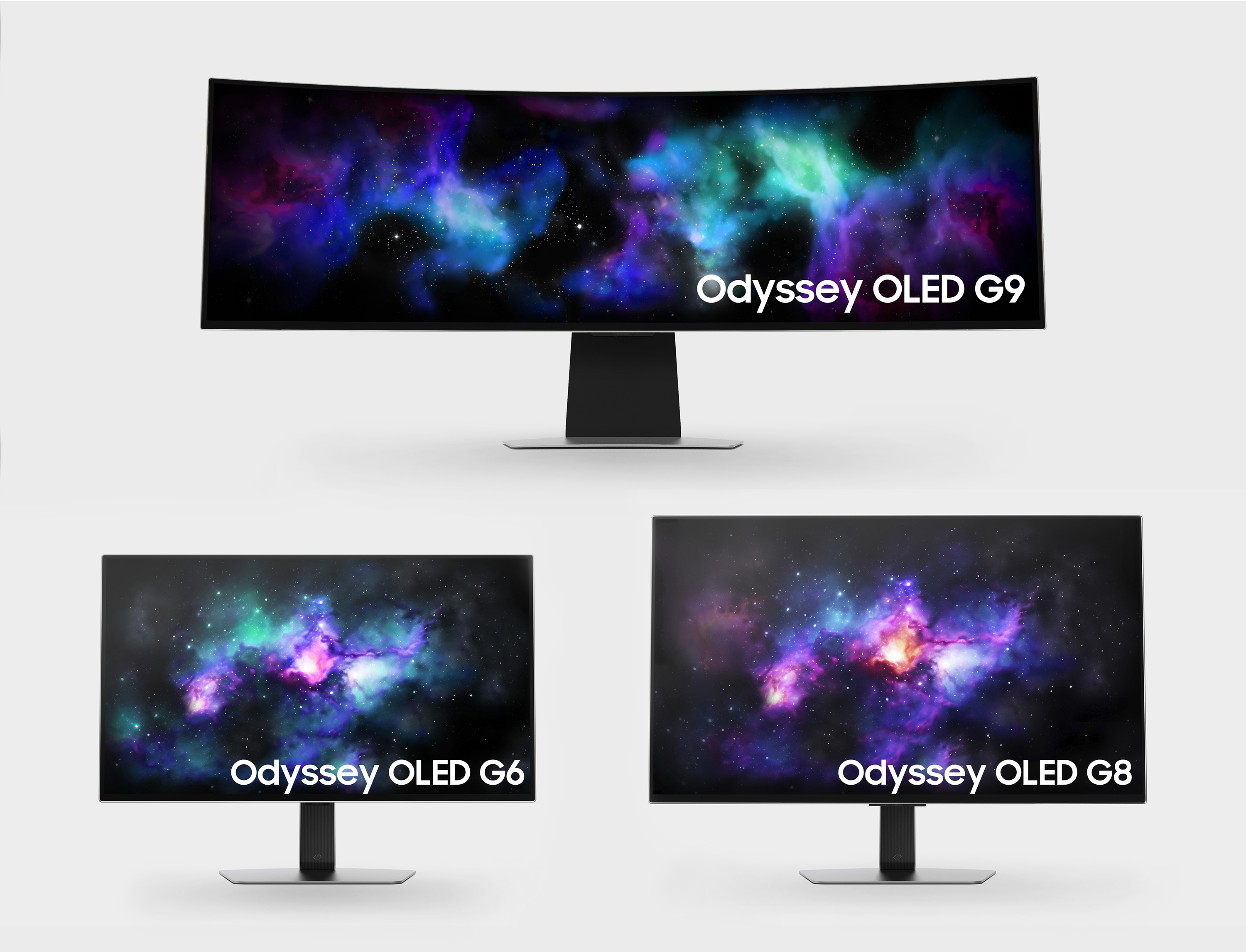
OLED burn-in is permanent, uneven wear in an OLED panel's organic pixels caused by displaying the same bright, static content — a channel logo, a game HUD, a taskbar — in the same spot for long stretches, and it does not go away on its own. It is different from temporary "image retention," a short-lived ghost image that clears within minutes to hours. Every major OLED maker, from LG and Samsung to Sony and ASUS, builds automatic pixel-shifting and panel-refresh tools into its TVs and monitors specifically to slow this wear, and a growing number of gaming-monitor brands now back their panels with burn-in-specific warranty coverage.
- Burn-in is permanent; image retention is temporary and usually fades within minutes to a few hours.
- Static, high-contrast content at high brightness for long, repeated sessions is the main driver — logos, HUDs, scoreboards, taskbars, letterbox bars.
- Every OLED maker ships mitigation tools: LG's Pixel Refresher/Pixel Cleaning, Samsung's Screen Optimization and Pixel Refresh, Sony's Pixel Shift and Panel Refresh, ASUS's OLED Care.
- Some gaming monitors now carry burn-in-specific warranties, such as ASUS's three-year OLED Premium Care coverage on its ROG Swift OLED PG32UCDM.
What OLED burn-in actually is
In an OLED panel, each pixel is its own tiny organic light-emitting diode, and like any light-emitting material it loses brightness as it ages. Pixels that spend more time lit, and lit brighter, wear faster than pixels that spend more time dark or dim. When part of the screen is repeatedly fed the same bright shapes — a news ticker, a persistent HUD, a paused video frame — those specific pixels age faster than the pixels around them. The result is a faint but permanent "shadow" of that content that remains visible even after the screen moves on to something else. Manufacturer support material generally avoids the word "burn-in" for mild, early cases and instead talks about "image retention" or "afterimage," reserving the stronger term for the point where the unevenness becomes fixed rather than fading. Wikipedia's overview of screen burn-in traces the phenomenon back through plasma and CRT displays, where uneven phosphor wear produced the same kind of ghosted, permanent image long before OLED existed.
This applies across the OLED family regardless of which underlying panel technology is used. Traditional WOLED (white OLED with a color filter, LG Display's approach) and the newer QD-OLED (a blue OLED emitter paired with a quantum-dot color layer, used by Samsung Display and licensed to monitor brands including ASUS, Dell's Alienware and MSI) both rely on organic emissive material that ages with use, so both are susceptible to the same basic wear mechanism, even though the two technologies differ in color method and brightness characteristics. Neither is immune, which is why every brand building on either panel type ships some form of the mitigation software described below.
Burn-in vs. temporary image retention
These two terms get used interchangeably online, but manufacturers draw a real distinction between them:
- Temporary image retention is a short-term afterimage left by recently displayed content. It typically clears on its own within a few minutes to a few hours of normal, varied use, and manufacturer support pages generally describe it as expected behavior rather than a defect.
- Permanent burn-in is the same basic mechanism taken to its endpoint: the affected pixels have aged enough, relative to their neighbors, that the difference no longer fades. It is a gradual wear outcome, not a sudden failure, and it builds up from repeated instances of retention rather than appearing after a single session.
Sony's support documentation for its OLED TVs is explicit that routine image retention from static content "is not a malfunction," and LG's OLED reliability materials likewise frame retention as something that "does not occur under most normal viewing conditions" rather than an inevitability.
What causes OLED burn-in
The pattern behind nearly every documented case is the same: bright, high-contrast, unchanging content, displayed repeatedly, at high brightness, over a long cumulative period. Common culprits that manufacturer guidance and panel-care features specifically target include:
- Channel and network logos that sit in a screen corner for hours of broadcast TV viewing.
- Game HUDs — health bars, ammo counters, minimaps, killfeeds — especially in long sessions of competitive or grindy titles. A marathon session in a demanding, HUD-heavy modern shooter, the kind detailed in our rundown of Modern Warfare 4's PC requirements, is exactly the scenario pixel-shift features are designed to offset.
- Desktop taskbars, docks and browser tabs left on screen during long, static productivity or monitoring sessions.
- Letterbox bars and aspect-ratio pillars from content that doesn't fill the panel.
- Static dashboards and stock tickers run unattended for extended periods.
Brightness compounds all of the above: the same static logo left up for the same number of hours ages the panel faster at maximum brightness than it does at a moderate setting, which is why several of the fixes below focus on dimming detected static elements rather than removing them outright.
Which devices are at risk
Any OLED or QD-OLED display can burn in given enough of the conditions above, but risk varies by use case and panel size:
| Device type | Typical risk driver | Built-in mitigation |
|---|---|---|
| OLED / QD-OLED TVs | Cable news logos, 24/7 broadcast, paused content | Pixel shift, logo-luminance adjustment, scheduled panel refresh |
| OLED / QD-OLED gaming monitors | Static HUDs, long esports/MMO sessions at high brightness | Pixel shift, logo-brightness limiting, manual pixel refresh, some burn-in warranties |
| Laptop OLED screens | Fixed taskbar/dock, same app full-screen for hours | OS-level pixel shift (where supported), auto-dimming |
| Phone OLED screens | Status bar, nav bar, always-on display clock | Status/nav bar pixel shifting, adaptive brightness |
High-refresh gaming monitors are a particular focus right now because competitive players push brightness up and often run the same UI elements for hours at a stretch; it's also why so many of the newest 240Hz-plus OLED monitors are built around high-bandwidth DisplayPort 2.1 connections to drive full resolution and refresh rate simultaneously, rather than compromising on either.
Laptops and phones carry a different, lower-grade version of the same risk. A laptop's fixed taskbar, dock or menu bar sits in the same place every single session, often for years, and the same is true of a phone's status bar and navigation bar. Manufacturers address this mostly at the operating-system level, by subtly shifting those elements by a few pixels over time, and by capping how bright always-on-display clocks and lock-screen elements are allowed to get. Because these elements are small relative to the whole screen and usually dimmer than full-brightness video, the practical risk is lower than on a TV or gaming monitor showing a bright, high-contrast HUD for hours at a stretch — but it is not zero, and years-old OLED phones occasionally show faint status-bar shadowing as a result.
How to prevent OLED burn-in
None of this requires avoiding OLED altogether — it requires avoiding the specific combination of static, bright, repeated content. Manufacturer guidance converges on a short list of habits:
- Leave the built-in pixel-shift feature on. Sony's support guidance on Pixel Shift says to "keep this option enabled" under normal use; LG's Screen Shift and Samsung's Pixel Shift equivalents are also on by default on most models.
- Turn the display off, don't just leave it paused, during long breaks. Sony recommends powering the TV off for more than four cumulative hours a day to give the panel recovery time.
- Use a screen saver or auto-sleep on static workloads. Dashboards, monitoring consoles and digital signage should blank, dim, or switch content on a timer rather than displaying one fixed layout indefinitely.
- Keep brightness reasonable for the content. A dim, letterboxed or logo-heavy image is far less risky than the same content blasted at maximum brightness.
- Let automatic logo-dimming run. LG's Logo Luminance Adjustment detects on-screen logos and reduces luminance specifically in those regions; Samsung's monitor support guidance recommends setting logo brightness to its highest protective level.
- Don't disable scheduled maintenance routines. Samsung's Screen Optimization and LG's Pixel Refresher both run automatically after several hours of cumulative use and are designed to be left alone rather than skipped.
How to test for OLED burn-in
Manufacturer support pages don't publish a standalone "burn-in checker" tool; instead, the same panel-care menus used to fix early wear double as the way to spot it. A practical approach drawn from that guidance:
- Display a full-screen, uniform mid-grey or white image (a plain browser tab or a solid-color video works) and look for faint shapes, bands or discoloration that don't match any content currently on screen.
- Check for the specific trouble signs manufacturer pages call out: faded or ghosted logos, HUD outlines, taskbar shapes or letterbox-bar edges visible on unrelated content.
- Run the set's built-in panel-care routine (see the fixes below). If a mark disappears after a refresh cycle, it was likely still in the temporary-retention stage; if it persists afterward, it's more likely true burn-in.
- If the mark remains after running the manufacturer's refresh tool, LG's and Samsung's support pages both point to contacting their respective service channels for further diagnosis.
It's worth separating this from ordinary dead or stuck pixels, which are a single fixed point of color rather than a shape that echoes recently displayed content, and from dust or panel damage, which won't respond to any pixel-refresh routine at all. If a refresh cycle changes the mark even slightly, that's a reasonable sign it's retention-related rather than a hardware fault unrelated to usage.
How to fix or reduce burn-in if it happens
Once wear has set in, manufacturer tools can often reduce its visibility, though none claim to fully reverse established burn-in. The documented options by brand:
- LG: Pixel Refresher (branded Pixel Cleaning on newer webOS versions) scans the panel and compensates for pixel-level deterioration. It runs automatically after set amounts of cumulative use and can also be triggered manually from the Settings menu under OLED Care > OLED Panel Care on current TVs. LG's support documentation notes the automatic routine can run for roughly an hour after 2,000 cumulative hours of use, and that seeing faint vertical lines during that process is expected, not a fault.
- Samsung: Pixel Refresh, run from Settings > General & Privacy > Panel Care on its OLED monitors, targets visible marks directly. Screen Optimization runs automatically after about four cumulative hours of use (or when the display is turned off without being unplugged) and takes roughly ten minutes. Samsung's support guidance says to contact a Samsung Service Center if marks persist after running these tools.
- Sony: Panel Refresh is a manual, on-demand routine (Settings > Display & Sound > Expert panel settings > Panel refresh) that Sony's own help guide says to use only when retention is particularly noticeable — and to avoid running more than about once a year, since it can affect the panel's usable life.
- ASUS: Its OLED Care software suite, bundled with ROG OLED monitors, includes options aimed at the usual causes of burn-in, such as dimming unnecessarily bright logos and limiting static display elements, on top of the panel-level refresh routines common to the category.
In every case, running a refresh tool more than the manufacturer recommends is discouraged rather than encouraged — these routines themselves add wear, so they're positioned as maintenance, not a free fix to lean on constantly.
Manufacturer warranty policies on burn-in
Coverage for burn-in specifically — as opposed to general panel defects — varies by brand and product line, and buyers should always confirm current terms for their exact model before purchase. The clearest documented example is ASUS's OLED Premium Care program: the company's own announcement for the ROG Swift OLED PG32UCDM describes a three-year warranty with explicit coverage for burn-in, paired with a Rapid Replacement service in the US and Canada that ships a replacement unit while the original is sent in for evaluation. That kind of dedicated burn-in clause is a relatively recent addition to the gaming-monitor market rather than a universal standard, so it's worth checking whether a specific monitor or TV's warranty mentions burn-in by name, or only covers "manufacturing defects" more generally, before assuming either way. Several other OLED gaming-monitor brands have introduced similar burn-in-specific coverage on their own QD-OLED lines in the past two years, reflecting how competitive the category has become on this exact worry, but terms, duration and regional availability differ enough from model to model that the manufacturer's own product and warranty pages for that specific SKU are the only reliable place to confirm them.
What's next
Pixel-shift and panel-refresh software are not new, but the terms of the conversation are shifting as OLED spreads from TVs into gaming monitors, laptops and more always-on productivity setups where static content is the norm rather than the exception. Expect panel makers to keep pushing automatic mitigation further into the background (so it runs without a settings-menu trip) and expect more monitor brands to follow ASUS's lead in spelling out burn-in coverage explicitly in their warranty terms, rather than leaving buyers to guess whether a faded HUD counts as a "defect." For anyone assembling a new high-refresh OLED gaming setup, that warranty language is worth reading as closely as the specs sheet — alongside, of course, the CPU you're pairing with it.
Frequently asked questions
What is the difference between OLED burn-in and image retention?
Image retention is a temporary ghost image left by recently displayed content that usually fades within minutes to a few hours of normal use. Burn-in is the permanent version of the same wear: the affected pixels have aged enough relative to their neighbors that the mark no longer fades, even after the screen moves on to new content.
Which OLED devices are most at risk of burn-in?
OLED and QD-OLED TVs, gaming monitors, laptop screens and phone screens can all burn in. Risk is highest wherever bright, static content is shown for long, repeated sessions at high brightness, such as TV channel logos, game HUDs in long sessions, or a fixed laptop taskbar.
How do I prevent burn-in on an OLED TV or gaming monitor?
Leave built-in pixel-shift features (LG Screen Shift, Samsung Pixel Shift, Sony Pixel Shift) turned on, let scheduled maintenance routines like Samsung's Screen Optimization and LG's Pixel Refresher run rather than skipping them, keep brightness reasonable for static content, and use a screen saver or auto-sleep for dashboards and other unchanging displays.
Can OLED burn-in be fixed once it happens?
Manufacturer tools such as LG's Pixel Refresher/Pixel Cleaning, Samsung's Pixel Refresh and Sony's Panel Refresh can often reduce the visibility of early wear by compensating for pixel-level deterioration, but none of them claim to fully reverse established burn-in. If a mark persists after running these tools, manufacturers direct users to their support or service channels.
Do any OLED monitors come with a burn-in warranty?
Some do. ASUS's OLED Premium Care program, for example, backs its ROG Swift OLED PG32UCDM with a three-year warranty that explicitly covers burn-in, plus a Rapid Replacement service in the US and Canada. Coverage and terms vary by brand and model, so it's worth checking the warranty page for the specific product before buying.
How can I test my OLED screen for burn-in?
Display a full-screen, uniform grey or white image and look for faint shapes, bands or discoloration that don't match anything currently on screen, such as a ghosted logo or HUD outline. Then run the manufacturer's built-in panel-care or pixel-refresh routine; if the mark fades afterward it was likely temporary retention, and if it persists it's more likely permanent burn-in.
Sources
- LG - OLED TV Reliability (Screen Shift, Logo Luminance Adjustment, Pixel Refresher)lg.com
- Samsung Canada Support - How to Troubleshoot Burn-In or Image Retention on a Samsung OLED Monitorsamsung.com
- Sony Help Guide - Pixel Shift and Panel Refresh Settingshelpguide.sony.net
- ASUS ROG - OLED Premium Care Protects the ROG Swift OLED PG32UCDM Against Burn-Inrog.asus.com
- Wikipedia - Screen Burn-Inen.wikipedia.org
Mara Lindqvist edits the hardware desk. She covers graphics cards, processors, memory and storage, the foundries and chip designers behind them, and what the numbers on a spec sheet mean for people choosing a PC. Specifications in her stories come from manufacturer spec pages and datasheets.