Xbox Full Screen Experience: What It Is and How to Get It
A plain-English guide to Microsoft's controller-first Xbox mode for Windows handhelds: what it is, which devices support it, and how it compares to SteamOS.
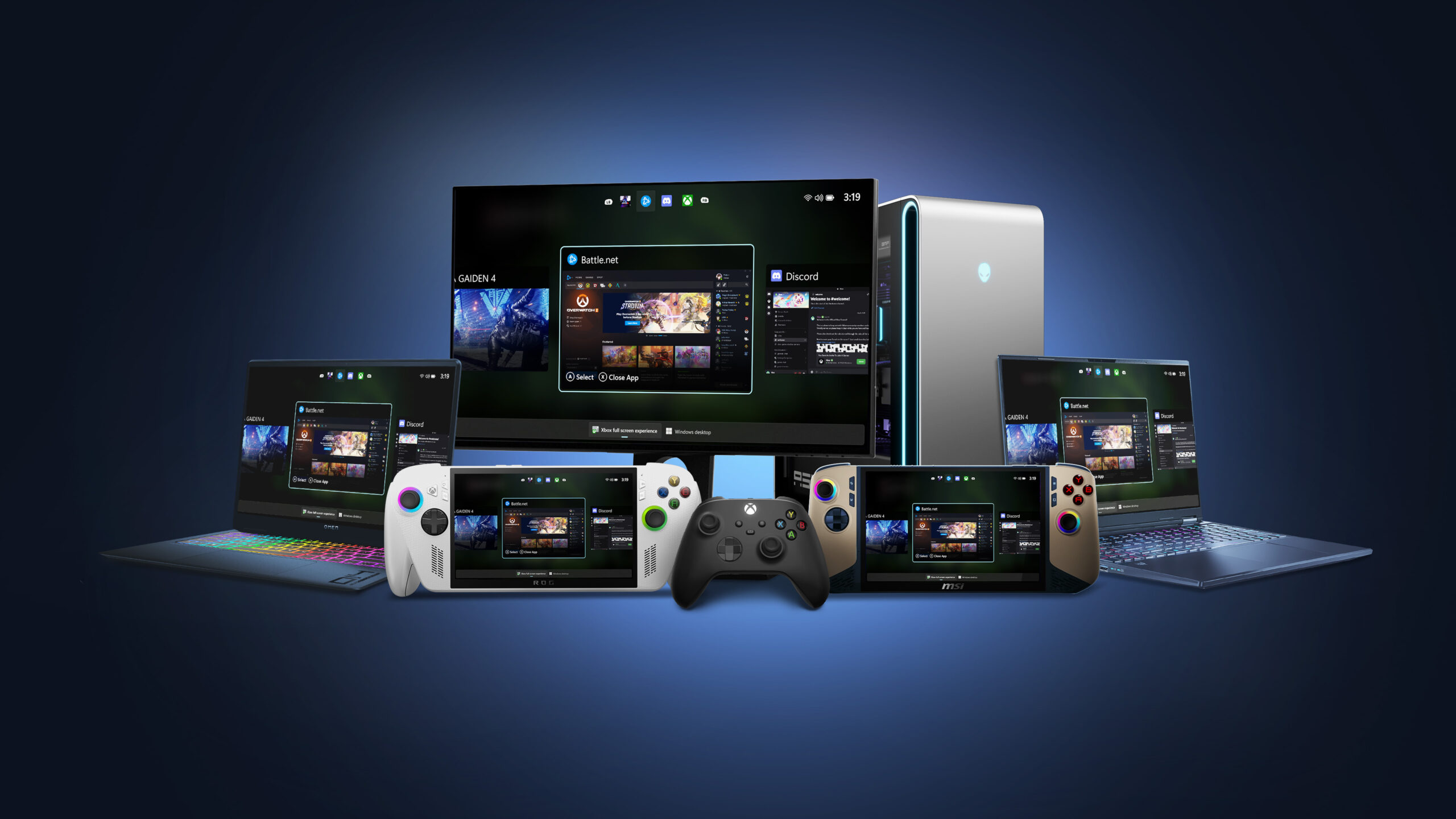
The Xbox full screen experience is Microsoft's controller-first replacement for the Windows desktop on handheld gaming PCs: instead of booting to a taskbar, Start menu and mouse-sized icons, the handheld boots straight into a console-style Xbox home screen that lists every installed game, from every store, in one grid you can navigate entirely with a thumbstick and buttons. It ships by default on the ROG Xbox Ally and ROG Xbox Ally X, and Microsoft has since rolled it out as a free update to other Windows 11 handhelds, including the original ASUS ROG Ally, MSI's Claw lineup, and additional devices as they qualify.
Xbox full screen experience, in short:
- A console-style, controller-navigable shell that replaces the Windows desktop as the default screen on supported handhelds.
- Ships by default on the ROG Xbox Ally and ROG Xbox Ally X; available as a free update on the original ROG Ally and the full MSI Claw lineup.
- Rolled out to "all Windows 11 gaming handhelds currently in market" on November 21, 2025, and is now in preview for laptops, desktops and tablets too.
- Requires Windows 11 version 24H2 or later and the Xbox app; toggled from Settings > Gaming > Xbox mode (called "Full screen experience" on some builds).
- You can always swipe up to Task View and jump back to the ordinary Windows desktop, then jump back into the full screen shell from the Xbox app.
What is the Xbox full screen experience?
Microsoft's own support documentation describes it plainly: "Xbox mode is a console inspired, dedicated gaming experience that gives players a controller-optimized way to navigate and play on Windows." When it's active, Windows launches your chosen "gaming home app" — on most handhelds, the Xbox app — as a full-screen launcher, games open full screen instead of in a resizable window, and the traditional desktop, taskbar and overlapping windows are hidden from view. Microsoft's own description is more specific about the engineering goal: only one window is shown at a time, apps display full screen when possible, and several desktop-only keyboard shortcuts are disabled because there's no desktop to apply them to.
This is Microsoft's answer to the fact that Windows was never built to be driven by a gamepad. Every ROG Ally, Legion Go or MSI Claw owner who has tried to tap a tiny "X" button with a thumbstick cursor, or watched a driver-update pop-up appear mid-game, has felt the problem this solves.
The problem it actually solves
Handheld gaming PCs run full Windows 11 under the hood, which is their biggest selling point (you get Steam, Battle.net, Epic, GOG and every other PC store) and their biggest usability problem. Windows' desktop, taskbar, notification toasts and background services are designed around a mouse and keyboard at a desk, not a 7-inch touchscreen held in two hands. Before the full screen experience existed, using a handheld meant living with two separate interfaces bolted together: the OEM's own "quick access" overlay (Armoury Crate SE on ROG Ally, Legion Space on Legion Go) for game launching and performance settings, sitting awkwardly on top of the ordinary Windows desktop for everything else.
The full screen experience removes that seam. According to Microsoft's Windows Insider blog, on gaming handhelds with the "Enter Xbox mode on startup" option turned on, "Windows limits background processes to improve performance while gaming," and desktop apps only start once you actually switch over to the desktop, rather than loading at every boot. The result Microsoft is describing is a handheld that behaves like a console first and a PC second, without giving up any of the PC part.
Which handhelds support it right now
Microsoft's Windows Insider and Windows Experience blogs confirmed general availability on November 21, 2025, stating the rollout covers "Windows 11 gaming handhelds currently in market," with expansion to laptops, desktops and tablets arriving in preview through the Xbox Insider and Windows Insider programs. Individual OEMs have since confirmed support for their own lineups directly:
- ASUS ROG Xbox Ally and ROG Xbox Ally X — ship with the full screen experience as the default, out-of-the-box interface, per ASUS's own ROG Xbox Ally product page.
- ASUS ROG Ally and ROG Ally X (original, non-Xbox-branded models) — gained the experience through a software update after launching without it.
- MSI Claw lineup — MSI's own newsroom confirmed that the entire Claw family now supports the Xbox full screen experience, consolidating game libraries from Xbox, Steam, Battle.net, Epic Games and other launchers into one screen.
- Other Windows 11 handhelds — Microsoft's blanket "all Windows handhelds currently in market" language covers additional devices from other manufacturers as their own software updates land; check your device maker's support site for the current status on any specific model.
If you're shopping rather than updating, it's also worth comparing how the newest hardware stacks up: our ROG Xbox Ally X20 vs. Ally X vs. Steam Deck OLED spec comparison covers the hardware side of that decision.
How to check if you already have it
Three quick ways to tell, straight from Microsoft's support documentation:
- Press Windows key + F11. If your handheld has the feature, this toggles straight into the full screen experience.
- Press Windows key + Tab to open Task View, then look for an "Xbox full screen experience" or "Xbox mode" tile alongside your open windows.
- Go to Settings > Gaming. If you see an "Xbox mode" or "Full screen experience" entry with a "Choose home app" option, it's installed — you just may not have turned it on yet.
If none of those appear, your handheld either hasn't received the update yet or isn't Microsoft's current supported hardware.
How to turn it on, or update to get it
Per Microsoft's support page, the setup differs slightly by device type:
| Device type | Where to enable it | Notes |
|---|---|---|
| Gaming handhelds | Settings > Gaming > Xbox mode > Choose home app | Optional "Enter Xbox mode on startup" toggle boots straight into it after sign-in; selecting "None" turns Xbox mode off. |
| Other Windows 11 PCs (laptop/desktop/tablet) | Settings > Gaming > Xbox mode > Enable Xbox mode | Currently a preview feature; can add an entry point in Task View. |
| Not showing up at all | Windows Update, then Microsoft Store update for the Xbox app | Requires Windows 11 version 24H2 or later and is limited to supported markets. |
If your handheld shows no "Xbox mode" entry after a full Windows Update pass, check your OEM's own update tool (Armoury Crate, Legion Space, MSI Center) — several manufacturers bundle the underlying Xbox app and driver updates that unlock it through their own patches rather than through Windows Update alone.
What's actually different: boot, Game Bar and quick settings
Three concrete behavior changes stand out once the full screen experience is on:
- Boot behavior. With startup mode enabled, the handheld skips loading the desktop shell and goes straight to the Xbox home screen. ASUS describes this on the ROG Xbox Ally as "power on and play" — you land on your library, not a loading desktop.
- Game Bar integration. The Xbox button (or Win+G) still opens Game Bar for system stats, screen capture and Xbox friends/chat, but on supported handhelds it now also opens a Command Center-style panel for performance profiles, display settings and other quick toggles — ASUS calls this its Command Center, reachable from the same Xbox-button press.
- Task switching. A dedicated Task Switcher lets you jump between running games and apps without dropping to the desktop at all, and long-pressing the Xbox button is the shortcut Microsoft built specifically for that switch.
The unified game library
The headline feature for most owners is the library itself: one scrollable, controller-navigable grid that pulls in installed titles from Xbox, Xbox Game Pass, Xbox Play Anywhere, Steam, Battle.net, Epic Games Store and other PC launchers, rather than forcing you to open each storefront separately to find what you own. If you're weighing which Game Pass tier makes sense for a handheld that lives in this unified library, our breakdown of Xbox Game Pass tiers, prices and cloud limits covers what each plan actually includes.
Switching back to the Windows desktop
The full screen experience doesn't remove Windows — it hides it. ASUS's own support guide for the ROG Xbox Ally spells out the process: swipe up from the bottom of the screen to open the Task Switcher, then select the "Windows Desktop" tile to get the taskbar, Start menu and File Explorer back, exactly as on any other Windows 11 PC. To return, open the Xbox app and select the "Xbox Full Screen" button in its upper-right corner, or use the same Win+F11 shortcut. Nothing about the underlying install changes — you're still running full Windows 11, and any desktop app, browser or productivity tool is one swipe away.
Xbox full screen experience vs. SteamOS
Conceptually, Microsoft built this to answer the same problem Valve solved years earlier with SteamOS's Big Picture/Gaming Mode on Steam Deck: hide the desktop, put a controller-first shell in front of it, and let the underlying PC operating system do the heavy lifting underneath. The execution differs because the operating systems underneath differ.
| Aspect | Xbox full screen experience (Windows 11) | SteamOS Gaming Mode (Steam Deck) |
|---|---|---|
| Base operating system | Windows 11, version 24H2 or later | SteamOS 3.x, an Arch Linux-based OS (per Wikipedia) |
| Console-style shell | Xbox app in full screen, as the default "gaming home app" | Steam's Big Picture UI, rendered through the Gamescope compositor |
| Returning to a full desktop | Swipe up / Task View to the ordinary Windows desktop, any time | Switch to Desktop Mode, which runs a full KDE Plasma desktop |
| Native store integration | Xbox, Game Pass and Xbox Play Anywhere are native; Steam, Battle.net, Epic, GOG and others run as native Windows apps inside the same library | Steam is native; non-Steam Windows games run through the Proton compatibility layer or are added manually as non-Steam games |
| Where it ships | Default on ROG Xbox Ally/Ally X; update on ROG Ally, MSI Claw and other Windows 11 handhelds | Default on Steam Deck; officially extended to select third-party handhelds, including Lenovo's Legion Go S |
The practical upshot: Xbox's full screen experience is a shell layered on top of everything Windows already runs, so compatibility and driver support are identical to any Windows 11 gaming PC. SteamOS's Gaming Mode is a leaner, Linux-native session built around Steam and Proton, which trades some Windows-specific compatibility for a lighter footprint on Valve's own hardware. Anyone cross-shopping the hardware itself — not just the software shell — can see how the current ROG Xbox Ally lineup measures up against Steam Deck OLED in our full specs and pricing comparison.
Coming to more Windows 11 PCs, not just handhelds
Microsoft has been explicit that this isn't a handheld-only feature long term. The Windows Insider Program blog post announcing the November 21, 2025 rollout described the expansion to "more Windows 11 PC form factors," specifically laptops, desktops and tablets, available first to Windows Insiders on the Dev and Beta channels through Windows Insider Preview Build 26220.7271 and the Xbox Insider Hub's "PC Gaming preview." That preview requires a controller to be genuinely useful, since the shell is built around gamepad navigation, but it signals Microsoft's intent to make this a general Windows gaming mode rather than a handheld-only mode.
What's next: bottom line
If you own a ROG Xbox Ally, ROG Xbox Ally X, the original ROG Ally, or an MSI Claw, the Xbox full screen experience is either already your default screen or a Windows/Xbox app update away — check Settings > Gaming > Xbox mode first. If you own a different Windows 11 handheld and don't see it yet, keep your OEM's own utility and the Xbox app updated, since Microsoft's stated rollout target is every current Windows 11 handheld, with laptops, desktops and tablets following through the Insider preview track. It won't replace Windows underneath — you can always swipe back to the ordinary desktop — but it does finally give Windows handhelds the single-screen, controller-first startup experience that Steam Deck owners have had for years, built around the much larger and more varied PC game library Windows already supports.
Frequently asked questions
What is the Xbox full screen experience?
It is Microsoft's console-style, controller-first interface for Windows 11 that replaces the desktop with a full-screen Xbox home screen listing your installed games from Xbox, Steam and other PC stores.
Which handhelds support the Xbox full screen experience?
It ships by default on the ASUS ROG Xbox Ally and ROG Xbox Ally X, and is available as an update on the original ASUS ROG Ally and ROG Ally X and the full MSI Claw lineup. Microsoft says the rollout covers all Windows 11 gaming handhelds currently in market, with other OEM devices following via their own updates.
How do I turn on Xbox mode on my handheld?
Go to Settings > Gaming > Xbox mode and choose a supported gaming home app, such as the Xbox app. You can also enable 'Enter Xbox mode on startup' to boot straight into it, or press Windows key + F11 to toggle it.
How do I get back to the normal Windows desktop?
Swipe up from the bottom of the screen (or press Windows key + Tab) to open Task View, then select the Windows Desktop tile. To return to the full screen experience, open the Xbox app and select 'Xbox Full Screen,' or press Windows key + F11 again.
Is the Xbox full screen experience the same as SteamOS?
No. It is a controller-first shell running on top of standard Windows 11, while SteamOS is a separate Arch Linux-based operating system that powers Steam Deck's Big Picture Gaming Mode. Both hide the desktop behind a console-style UI, but the operating systems underneath are different.
Does the Xbox full screen experience work on Windows laptops and desktops?
It is expanding there in preview. Microsoft began previewing it on laptops, desktops and tablets for Windows Insiders on the Dev and Beta channels in November 2025, alongside general availability on handhelds.
Sources
- Microsoft Support: Windows Gaming - Full screen experiencesupport.microsoft.com
- Windows Blog: Xbox full screen gaming experience now available for Windows 11 handheldsblogs.windows.com
- Windows Insider Blog: Full screen experience expands to more Windows 11 PC form factorsblogs.windows.com
- Xbox Wire: The full screen experience is available for Xbox Insiders starting todaynews.xbox.com
- ASUS: ROG Xbox Ally product pagerog.asus.com
- MSI: All MSI Claws Now Support Microsoft Xbox Full Screen Experiencemsi.com
- Wikipedia: SteamOSen.wikipedia.org
Jonah Reyes leads Pandromeda's gaming coverage: console and handheld hardware, release dates, pricing changes, patch notes and the business moves behind the biggest franchises. He sources every date and price from the platform holders and publishers themselves, and says plainly when something is still only a rumour.