What Is a Security Key? How Hardware 2FA Works
A plain-English guide to what a hardware security key is, how FIDO2/U2F public-key cryptography makes it phishing-resistant, and how to set one up on Google, Apple and Microsoft accounts.
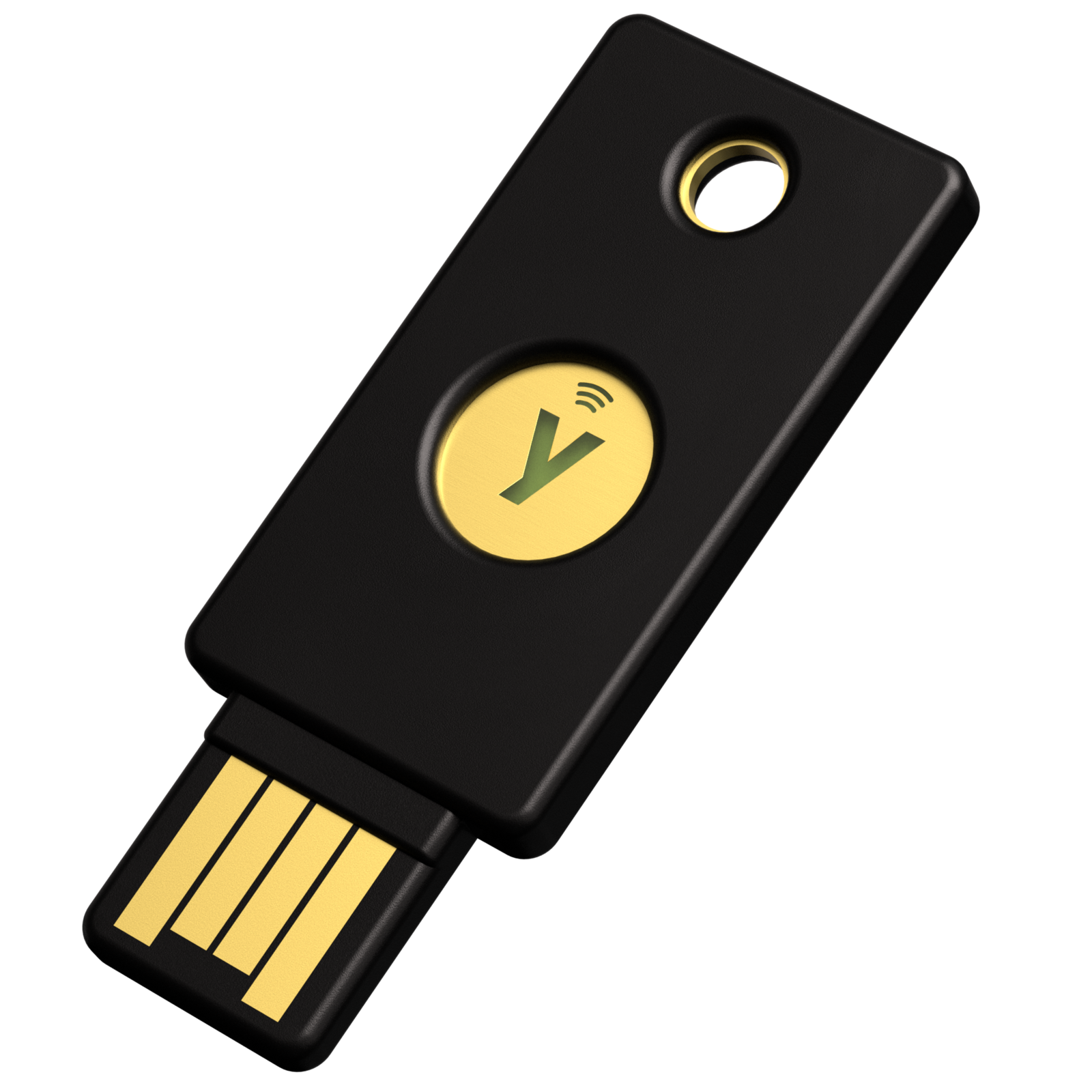
A security key is a small physical device — usually a USB stick or NFC fob — that proves it's really you signing in by using public-key cryptography instead of a password or a text-message code. You register the key with an account once, and from then on you unlock that account by plugging it in or tapping it, rather than typing anything a phishing site could capture. Because the cryptographic proof is tied to the exact website you're logging into, a fake copy of that site simply cannot get a valid answer from your key — which is the core reason security keys are considered the strongest widely available form of two-factor authentication.
- Security keys use the FIDO2/WebAuthn and FIDO U2F standards, built by the FIDO Alliance and the W3C.
- They generate a unique public/private key pair for every site you register them with; the private key never leaves the device.
- Because each credential is bound to the real site's domain, a phishing clone of that site cannot trick the key into responding.
- Popular models include the Yubico YubiKey series and Google's Titan Security Key; Apple, Google and Microsoft accounts all support them natively.
- A basic FIDO2 security key typically costs $25-$55 and needs no app, battery or cellular signal to work.
What Is a Security Key, Exactly?
A security key (sometimes called a hardware token or FIDO key) is a small piece of dedicated hardware — most look like a stubby USB drive, sometimes with an NFC antenna for tapping against a phone — whose only job is to prove your identity to a website or app. Instead of memorizing or typing anything, you insert the key into a USB port, tap it against your phone over NFC, or connect it over Bluetooth, and then touch a metal contact or button on the key when prompted.
Under the hood, the key is running the authentication protocols defined by the FIDO Alliance, an industry body whose members include Google, Apple, Microsoft and most major browser and device makers. This is the same family of standards behind passkeys — in fact, as our explainer on how passkeys work covers, a passkey is really a FIDO credential that can also live on a phone or computer instead of a separate physical key.
How a Security Key Works: Public-Key Cryptography in Plain English
Security keys rely on a well-established cryptographic trick called a public/private key pair. When you register your key with a new account, the key generates two mathematically linked numbers, unique to that account:
- A private key that is created inside the security key's own secure chip, never transmitted anywhere, and (on most keys) cannot be extracted even by the manufacturer.
- A public key that gets sent to the website and stored on its servers, tied to your account.
From then on, when you try to sign in, the website sends a random "challenge." Your security key signs that challenge with its private key and sends the signed result back. The website checks the signature against the public key it already has on file. If the signature checks out, the website knows you are holding the one physical device that owns the matching private key — without that private key, or any secret you typed, ever crossing the network. According to the FIDO Alliance, this is standard public-key cryptography, and the credentials involved are what the industry now calls passkeys when they support the newer, passwordless FIDO2 flow.
Crucially, a brand-new key pair is generated for every single site or service you register the key with. Your Google key pair is mathematically unrelated to your GitHub key pair, so even if one service were somehow compromised, it would reveal nothing useful about your credentials anywhere else.
FIDO2, U2F and WebAuthn: What the Acronyms Actually Mean
You'll see a handful of overlapping terms on packaging and support pages, and they describe a layered set of specifications rather than competing products:
- U2F (Universal 2nd Factor), the original 2014-era standard, is now formally called CTAP1. It's strictly a second factor — you still type a username and password first, then touch the key to confirm.
- FIDO2 is the newer, broader standard. It's made up of two parts: the WebAuthn specification, which is a W3C web standard built into every major browser, and CTAP2, the FIDO Alliance's protocol that lets an external device like a security key talk to that browser over USB, NFC or Bluetooth.
- FIDO2 is what makes passwordless sign-in possible — the key (often combined with a PIN or fingerprint on the key itself) can replace the password entirely, not just back it up.
Most current security keys, including Yubico's Security Key series and Google's Titan Security Key, support both CTAP1/U2F and CTAP2/FIDO2, so the same key can act as a simple second factor on an older site and a full passwordless passkey on a newer one.
Why Security Keys Resist Phishing (and SMS Codes Don't)
Phishing works by tricking you into typing a password, or a one-time code, into a fake website that looks real. A six-digit code sent by SMS or generated by an authenticator app has no idea which website it's being typed into — if you're fooled into pasting it into a look-alike domain in real time, the attacker can relay it straight to the real site and log in as you. That exact style of real-time code relay against hardware token users goes back at least to a documented 2006 phishing campaign, and it still works against one-time-code-based two-factor authentication today.
A FIDO security key closes that gap because the cryptographic challenge it signs is bound to the website's actual origin (its domain name), not just entered by hand. If you land on go0gle-security.example instead of the real site, your key's browser-level FIDO prompt simply will not produce a valid signature for the real domain, because it checks the origin itself rather than trusting whatever page asked. There's nothing for you to misjudge, because the browser and operating system verify the match before your key ever signs anything. This origin-binding is the specific property the FIDO Alliance and browser makers point to when they describe passkeys and security keys as phishing-resistant, as opposed to merely "more secure than a password alone."
SMS codes have an additional, unrelated weakness: they depend on your phone number, which can be hijacked through a SIM swap or intercepted through flaws in the SS7 phone network, with no phishing required at all. A security key has no phone number to steal.
Security Key vs Authenticator App vs SMS Codes
| Method | Resists phishing? | Resists SIM swap? | Needs network/signal? | Typical cost |
|---|---|---|---|---|
| Hardware security key (FIDO2/U2F) | Yes — origin-bound signature | Yes — no phone number involved | No | ~$25-$55 one-time |
| Authenticator app (TOTP codes) | No — codes can be relayed by a fake site | Yes — tied to the device, not the SIM | No (codes generate offline) | Free |
| SMS text message codes | No — codes can be relayed by a fake site | No — vulnerable to SIM swapping | Yes — needs cell signal | Free (carrier dependent) |
All three methods beat using a password alone, but they aren't equally strong. If you want to know whether you still need a vault on top of any of them, see our explainer on whether a password manager is worth running alongside a key. Background on the relay attack this table references is covered in Wikipedia's overview of security tokens.
Types of Security Keys: YubiKey, Titan and Others
Security keys come from several manufacturers, but two brands dominate consumer awareness:
- Yubico YubiKey. Yubico, a FIDO Alliance board member, sells several lines. Its entry-level Security Key series supports FIDO2/WebAuthn and FIDO U2F only, which is all most people need. The pricier YubiKey 5 series adds extra protocols like OTP, PIV smart-card login and OpenPGP, aimed more at IT professionals and developers.
- Google Titan Security Key. Google's own Titan Security Key ships in USB-C-plus-NFC and USB-A-plus-NFC versions and is designed to work with Google's 2-Step Verification as well as any other site that supports FIDO standards.
- Other FIDO Certified keys from manufacturers like Feitian and Thetis work the same way and are accepted anywhere the standards are supported, including for Apple Account security keys.
If you're trying to choose between the two best-known options for your own setup, our dedicated YubiKey vs Google Titan Security Key comparison breaks down price, connector options and which to buy for different devices. The short version for this explainer: functionally, a basic YubiKey Security Key and a Titan Security Key do the same cryptographic job, since both simply implement the same open FIDO standards.
Setting Up a Security Key for a Google Account
Google lets you add one or more security keys as a step in 2-Step Verification. According to Google's support documentation:
- Get a FIDO1 or FIDO2 compatible key (any current YubiKey or Titan Security Key qualifies).
- Open a supported, up-to-date browser and go to your Google Account's 2-Step Verification settings, then choose to add a security key.
- Insert the key via USB and tap the gold disc or button, or hold it to your phone over NFC, and follow the on-screen prompts.
- Add a backup method too — Google notes that a newly added key can take up to seven days before it's available at sign-in, as a protection against someone adding a rogue key to a hijacked account.
Google also recommends keeping a second verification method active in case the key is ever lost, and you can view, rename or remove registered keys from the same 2-Step Verification settings page at any time.
Setting Up a Security Key for an Apple Account
Apple supports security keys for Apple Account as an optional, stricter upgrade to the two-factor authentication every Apple Account already uses. Per Apple's support documentation, you'll need two-factor authentication already turned on, at least two FIDO Certified security keys, and every device signed in to your Apple Account updated to iOS/iPadOS 16.3, macOS Ventura 13.2, or later.
- On iPhone or iPad: open Settings, tap your name, then Sign-in & Security > Two-Factor Authentication > Security Keys > Add Security Keys, and follow the prompts.
- On a Mac: open System Settings, click your name, then Sign-in & Security > Two-Factor Authentication, and click Set Up next to Security Keys.
Apple requires at least two keys on file (it allows up to six) specifically so a lost key doesn't lock you out, and connector compatibility varies by device: NFC keys only tap against an iPhone, USB-C keys work with iPhone 15 and later plus most current Macs, and Lightning keys cover iPhone 14 and earlier models. Once security keys are enabled, Apple warns that the key (or a trusted device) becomes the only way to sign in — there's no separate code-based fallback — so losing every key and trusted device can mean a lengthy account-recovery process.
Setting Up a Security Key for a Microsoft or Windows Account
Microsoft treats FIDO2 security keys as a passwordless sign-in method for both personal Microsoft accounts and work or school (Entra ID) accounts, describing them in its support documentation as a physical device that can replace your username and password because it requires both the key itself and a PIN only you know. Typical setup looks like this:
- Sign in to your Microsoft account's security settings and choose to add a security key as a sign-in method.
- Select USB or NFC depending on your key, then insert or tap it when prompted.
- Create a PIN for the key itself in the Windows security prompt (this PIN unlocks the key locally; it's never sent to Microsoft).
- Give the key a recognizable name so you can tell multiple registered keys apart.
To actually sign in with it afterward on a Windows PC, go to Settings > Accounts > Sign-in options, choose the security key option, and follow the prompts. Microsoft lets you register multiple keys, and a lost or decommissioned key can be erased back to factory defaults from the same Sign-in options menu, which wipes any credentials stored on it.
What Happens If You Lose Your Security Key
This is the single biggest practical catch with security keys: because the private key never leaves the device and was never sent anywhere to be backed up, a lost key cannot be "restored" the way a forgotten password can be reset. That's exactly why every major platform builds in redundancy requirements rather than leaving you with one key and no plan B:
- Apple requires at least two registered keys from the start, so losing one still leaves a working key.
- Google recommends an additional 2-Step Verification method (like a passkey or backup codes) alongside any security key.
- Microsoft requires you to already have another verification method registered before you can add a security key in the first place.
The practical takeaway: buy at least two keys, register both, and keep the spare somewhere other than your main bag or desk — a home safe, a drawer at a family member's house, or a safe-deposit box. Treat it the way you'd treat a spare house key, not a USB drive you can recreate.
Do You Need a Security Key? How to Get Started
You don't strictly need a dedicated hardware security key to be reasonably safe online — an authenticator app or a synced passkey on your phone already beats SMS codes for most people. A physical key earns its cost and extra step for a narrower group:
- Anyone who has been personally targeted by phishing before, or expects to be — journalists, activists, IT administrators, executives, and people handling sensitive financial or legal accounts.
- Anyone who wants the strongest available protection on a small number of high-value accounts (primary email, password manager, cloud storage, cryptocurrency exchanges) even if they don't use one everywhere.
- Organizations rolling out company-wide phishing-resistant sign-in, since FIDO2 keys work identically across Google Workspace, Microsoft 365 and most enterprise identity providers.
If that describes you, getting started is straightforward and inexpensive: buy at least two FIDO2-compatible keys from an authorized retailer (not a secondhand marketplace, since a tampered key is a real risk), register both on your most important accounts first — primary email and password manager above all — using the platform steps above, and store the spare somewhere safe. From there, you can extend the same keys to any other site or service that supports FIDO2/WebAuthn or U2F sign-in, since one key is not locked to a single website or brand.
Frequently asked questions
What is a security key in simple terms?
A security key is a small physical device, usually plugged into a USB port or tapped via NFC, that proves your identity to a website using public-key cryptography instead of a password or text code. You register it once with an account, then use it to sign in by touching or inserting it.
Is a security key the same as a passkey?
They use the same underlying FIDO2/WebAuthn technology, but a passkey is a credential that can live on a phone, computer or in the cloud, while a security key is a dedicated piece of hardware that holds that credential itself. A security key is essentially a passkey you carry on a keychain.
Why are security keys considered phishing-resistant?
Each credential a security key creates is cryptographically bound to the real website's domain. If you land on a fake copy of that site, the key cannot produce a valid signed response for it, so there is nothing for a phisher to steal or relay, unlike a password or SMS code.
Can I use one security key for multiple accounts?
Yes. A single FIDO2 security key generates a separate, unrelated key pair for every account you register it with, so you can use the same physical key across Google, Apple, Microsoft, GitHub and any other site that supports FIDO2/WebAuthn or U2F sign-in.
What happens if I lose my security key?
Because the private key never leaves the device, a lost key cannot be recovered or backed up. This is why Apple requires at least two registered keys, and Google and Microsoft both recommend or require a second verification method, so losing one key does not lock you out.
Do I still need a password manager if I have a security key?
Usually yes. A security key protects your sign-in to accounts that support it, but most accounts still have an underlying password, and many sites, apps and forms outside the FIDO ecosystem still rely on passwords a manager can generate and store securely.
Sources
- FIDO Alliance: User Authentication Specifications Overviewfidoalliance.org
- W3C: Web Authentication (WebAuthn) Level 3w3.org
- Yubico: Security Key Seriesyubico.com
- Google Support: Use 2-Step Verification with a security keysupport.google.com
- Apple Support: About security keys for Apple Accountsupport.apple.com
- Microsoft Support: Sign in with a security keysupport.microsoft.com
Sana Qureshi runs the security and privacy desk. She reports on actively exploited vulnerabilities, vendor patches and data breaches, and covers the password managers, VPNs and authentication tools readers use to protect themselves. Her alerts cite vendor advisories, CISA and the CVE record directly.


