Google Authenticator vs Microsoft Authenticator vs Authy: Compared
All three major authenticator apps are free, but they back up, sync across devices, and handle push approval differently enough to change which one you should install.
Google Authenticator, Microsoft Authenticator, and Authy are all free two-factor authentication (2FA) apps, and all three generate working time-based codes offline, so the honest answer is that none of them is strictly "better" — they split along cloud backup, multi-device sync, and whether you get push-based approval instead of typing in a six-digit code. Google Authenticator is the simplest and most minimal, with optional Google Account sync added in 2023. Microsoft Authenticator is the most capable if you're inside the Microsoft ecosystem, with passwordless sign-in and push approval built in. Authy has the most mature multi-device and encrypted-backup system of the three, but Twilio shut down its desktop apps in 2024, pushing everyone back to mobile-only. There's no premium tier to compare — all three are free with no paid upgrade — so the real decision comes down to which backup and sync model fits how you actually use your phone.
- Pick Google Authenticator if you want the simplest app and are fine with Google-Account-only sync.
- Pick Microsoft Authenticator if you're a Microsoft 365, Entra ID, or Xbox/Microsoft-account user who wants passwordless push sign-in.
- Pick Authy if you want the most flexible encrypted backup and the option to run codes on more than one phone or tablet at once.
- All three are free. None of them has a paid tier.
What these apps actually do
All three apps are implementations of the same open standard: TOTP, or time-based one-time passwords, the same algorithm behind the six-digit codes that refresh every 30 seconds. If you've ever set up two-factor authentication on an account by scanning a QR code into an app, you've used this standard, regardless of which app did the scanning. For a broader primer on why this layer of security matters, Pandromeda's guide on how to set up an authenticator app for two-factor authentication walks through the setup flow that's common to all of them.
Where the three diverge is everything around that core code generator: whether your codes survive a lost phone, whether you can read them on more than one device, and whether some accounts let you tap "Approve" instead of typing digits at all.
Google Authenticator: the minimalist
Google Authenticator is the oldest of the three and, for most of its life, was the most basic — codes lived only on the device that generated them, with no built-in backup. That changed in April 2023, when Google's own security blog announced that the app now supports syncing one-time codes to your Google Account, so they carry over automatically to any device where you're signed in. Google's support documentation confirms the sync is optional: codes synced to your account are encrypted in transit and at rest, but if you skip signing in, codes remain device-only and must be moved manually to a new phone by exporting a QR code from the old device and scanning it with the new one.
Google's help page also notes a privacy feature called Privacy Screen, which requires a device PIN, pattern, or biometric check before the app will open, and that deleting a synced code removes it from every device signed into that account. The app itself has no push-approval mode — it's strictly a TOTP code generator, with no "tap to approve" option for any account, Google's own included (Google's push-based sign-in confirmations live in a separate part of the Google app, not in Authenticator). Platform-wise, Google Authenticator ships for Android and iOS only; there is no official desktop client.
Microsoft Authenticator: the ecosystem play
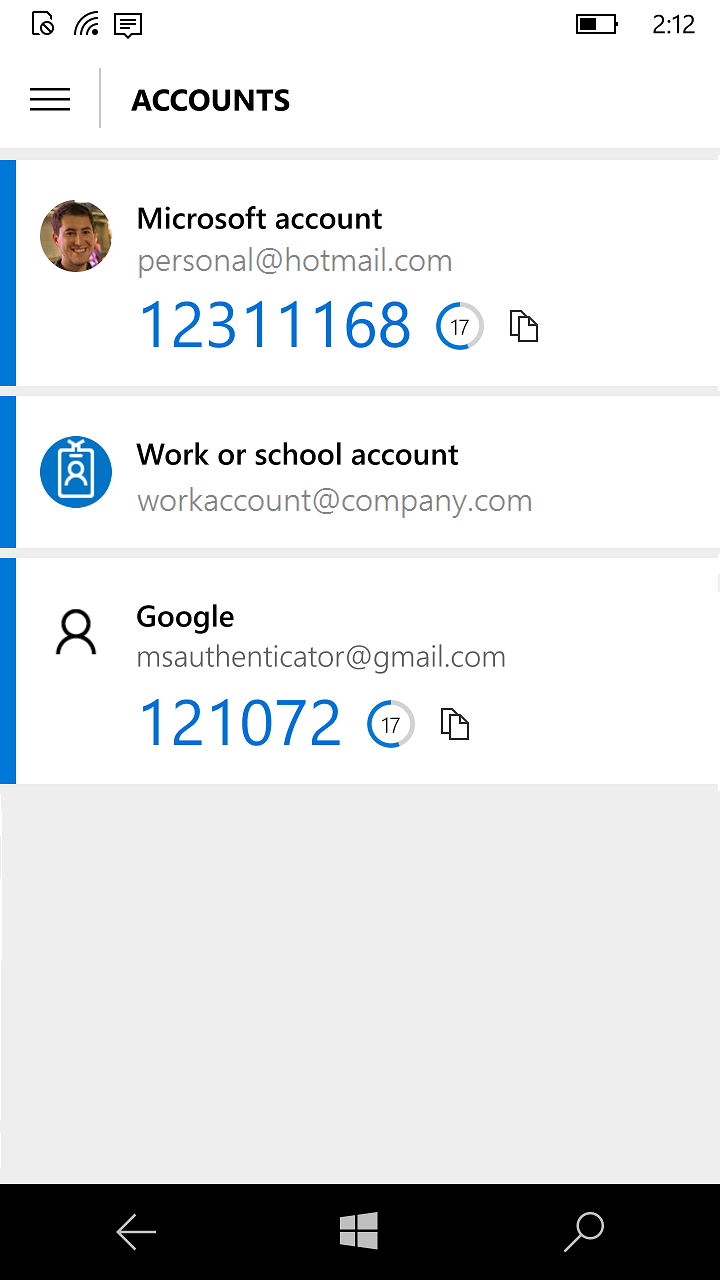
Microsoft Authenticator does everything Google Authenticator does — it generates standard TOTP codes for any site that supports an authenticator app — but adds two things on top. First is passwordless, push-based sign-in: Microsoft's own support documentation describes three modes the app can work in, including using it as the only sign-in method, approving a prompt on your phone with a fingerprint, face scan, or PIN instead of a password at all. Second is tighter integration with Microsoft, work, and school accounts, including number-matching prompts designed to blunt "push bombing" attacks where someone spams approval requests hoping you'll tap the wrong one by mistake.
On backup, Microsoft's support article on how to back up account credentials in Microsoft Authenticator is specific about the limits: backups require a personal Microsoft account to act as the recovery account, restore only within the same platform (an iOS backup can't restore to Android), and only fully restore third-party TOTP accounts — Microsoft personal, work, and school accounts back up the account name only, and you'll need to sign back in after a restore. The same article notes that, starting in January 2027, Android backup storage moves from a Microsoft personal account over to Google One. Like the other two apps, Microsoft Authenticator is mobile-only, available for Android and iOS, with no desktop app of its own.
Authy: the multi-device specialist
Authy, owned by Twilio, built its reputation on two features neither competitor matches as directly: true multi-device sync and user-controlled encrypted backups. Twilio's own explainer on how Authy's multi-device feature works describes it as letting you run the same set of 2FA tokens on more than one trusted device — a second phone, a tablet — at once, rather than restoring a backup after the fact, though Twilio also warns that leaving multi-device switched on indefinitely widens your attack surface and recommends turning it off again once a second device is set up.
Authy's backup system is also the most transparent about its cryptography. According to Twilio's post on how Authy's two-factor backups work, backups are opt-in, encrypted entirely on-device with AES-256 before anything is uploaded, and protected by a user-set password that is run through PBKDF2 with 100,000 rounds and never transmitted to Twilio's servers — meaning Twilio says it cannot decrypt your tokens, and a forgotten backup password cannot be recovered. Authy's own feature page confirms the app can also be locked locally with Touch ID, a PIN, or a password, per its features overview.
The catch: Authy used to be the one app in this comparison with real desktop clients for Windows, macOS, and Linux, which made it popular with people who wanted 2FA codes on their computer, not just their phone. That's gone. Twilio's own changelog confirms the Authy Desktop apps reached end-of-life on March 19, 2024, with Windows, macOS, and Linux clients all discontinued and existing installations removed from users' accounts. Twilio's guidance since then points users to the mobile apps only, plus third-party desktop alternatives for anyone who specifically needs a non-phone option. Authy also does not offer push-based approval in the way Microsoft Authenticator does for Microsoft accounts; new-device setup instead relies on SMS/voice verification or approval from an already-trusted device.
Feature comparison
| Feature | Google Authenticator | Microsoft Authenticator | Authy |
|---|---|---|---|
| Price | Free, no paid tier | Free, no paid tier | Free, no paid tier |
| Code type | TOTP only | TOTP + push-based passwordless approval | TOTP; approval from trusted device for new-device setup |
| Cloud backup | Optional, via Google Account sign-in | Optional, via Microsoft personal account (iCloud required on iOS) | Optional, user-password-encrypted (AES-256, on-device) |
| Multi-device / sync | Syncs across devices once signed into the same Google Account | Backup + restore to a new device; same-platform only (iOS↔iOS, Android↔Android) | True simultaneous multi-device, plus restore to new devices |
| Local lock | Privacy Screen (PIN/pattern/biometric) | Fingerprint, face, or PIN | Touch ID, PIN, or password |
| Platforms | Android, iOS | Android, iOS | Android, iOS (desktop apps discontinued March 19, 2024) |
| Best for | Simplicity, minimal footprint | Microsoft/Entra/work accounts, passwordless sign-in | Flexible backup control, running codes on more than one device |
Backup and recovery: the real differentiator
If you've used any of these apps for more than a year, you already know the moment that matters most isn't day-to-day code-checking — it's the day you drop your phone in a lake. Google Authenticator's sync, once turned on, solves this by quietly keeping your codes tied to your Google Account; Google says that data is encrypted in transit and at rest, though security researchers have pointed out that, unlike Authy's backups, it isn't end-to-end encrypted with a password only you hold — meaning Google itself can technically access synced codes, since it holds the keys. Microsoft's backup is more conditional: it works well for third-party TOTP accounts but intentionally leaves Microsoft, work, and school logins as name-only placeholders you re-authenticate manually, and it won't cross from an iPhone backup to an Android restore. Authy's model puts the encryption key entirely in the user's hands via a self-chosen backup password, which is more secure in principle but has a real downside Twilio is upfront about: lose that password, and nobody — including Twilio — can get your tokens back.
None of these backup systems is a substitute for the backup codes most services generate when you first turn on two-factor authentication. Keeping those in a safe, separate place remains good practice regardless of which app you use, since some services tie their 2FA setup to a specific device in ways that don't transfer cleanly even through an official backup.
Push approval vs. typing codes
Of the three, only Microsoft Authenticator offers genuine push-based approval for its own ecosystem — tap a notification, confirm a fingerprint or PIN, and you're in, no typing required. Microsoft has also rolled out number matching, where the sign-in screen shows a number you must enter into the app, specifically to stop attackers from spamming approval requests until someone accidentally taps "yes." Google Authenticator and Authy are, for the actual 2FA step, TOTP-only: you type in a six-digit code every time. Authy's "push" moments are limited to approving a brand-new device into your account, not everyday sign-ins.
This matters mostly if you're deep in the Microsoft 365/Entra ID/Xbox ecosystem, where push approval genuinely speeds up daily sign-ins. If most of your accounts are a mix of unrelated services — banking, email, social media, shopping — none of which supports Microsoft's push flow anyway, the push-vs-TOTP distinction mostly disappears and the backup/sync model becomes the deciding factor instead.
Which one should you actually install?
If you only need one authenticator app and don't want to think about it further, Google Authenticator is the lowest-friction choice, especially if you're already signed into a Google Account on every device you own — sync just works, and there's nothing extra to configure. If a meaningful share of your logins are Microsoft work, school, or personal accounts, Microsoft Authenticator is worth installing specifically for the passwordless push sign-in, even if you keep a second app for everything else. And if you want the most control over your own backup encryption, or you genuinely need codes available on two devices at once (say, a phone and a tablet), Authy remains the strongest option for that — just budget for the fact that there's no desktop client anymore, following Twilio's 2024 shutdown of the Windows, macOS, and Linux apps.
It's also worth remembering that an authenticator app is one layer in a broader account-security setup. If you haven't already, pairing 2FA with a password manager closes off the weakest link (reused passwords) that 2FA alone doesn't fix, and for anyone who wants hardware-level protection beyond an app, Pandromeda's look at YubiKey vs. Google Titan security keys covers the physical-key alternative to all three apps in this comparison.
Bottom line
There's no wrong pick among these three on price — they're all free, with no premium tier to upsell you on. The actual differences are backup philosophy (Google's account-tied sync vs. Microsoft's conditional restore vs. Authy's user-encrypted backup), whether you get push approval (only Microsoft, and only for its own accounts), and whether you need more than one device running codes simultaneously (only Authy does this cleanly). Match the app to how you actually use your phone and which ecosystem you live in, rather than picking based on brand name alone.
Frequently asked questions
Are Google Authenticator, Microsoft Authenticator, and Authy all free?
Yes. All three are free apps with no premium tier or paid upgrade. Google Authenticator and Microsoft Authenticator are free downloads from their respective vendors, and Authy describes itself on its own site as a free app with no cost to use.
Which authenticator app has the best backup and recovery?
It depends on what you value. Authy's backup is encrypted end-to-end with a password only the user holds, per Twilio's own description of how Authy's backups work, but that means a forgotten password can't be recovered. Google Authenticator's sync to a Google Account is simpler but, per outside security analysis, isn't end-to-end encrypted the same way. Microsoft Authenticator's backup, per Microsoft's own support page, only restores within the same platform (iOS to iOS, Android to Android) and treats Microsoft accounts differently from third-party ones.
Does Microsoft Authenticator support push notifications for non-Microsoft accounts?
No. Microsoft's push-based, passwordless approval flow is built for Microsoft personal, work, and school accounts. For other services (banking, social media, etc.), Microsoft Authenticator generates standard TOTP codes just like Google Authenticator and Authy.
Can I use Authy on my computer instead of my phone?
Not anymore. Twilio's own changelog confirms the Authy Desktop apps for Windows, macOS, and Linux reached end-of-life on March 19, 2024, and existing desktop installations were removed from users' accounts. Twilio now directs users to the mobile apps for Android and iOS.
What happens if I lose my phone with one of these apps installed?
If you had cloud backup or sync enabled (Google Account sync for Google Authenticator, Cloud Backup for Microsoft Authenticator, or an encrypted backup for Authy), you can generally restore your codes to a new device after signing back in or entering your backup password. Without backup enabled on any of the three, codes are gone with the device, and you'll need to use each service's own account-recovery process, which is why security guidance also recommends saving the backup codes most sites offer when you first set up 2FA.
Do any of these apps support more than one device running codes at the same time?
Authy is the only one of the three built for this. Twilio's own explainer on Authy's multi-device feature describes running the same 2FA tokens on more than one trusted device simultaneously, such as a phone and a tablet. Google Authenticator and Microsoft Authenticator are designed around sync-then-restore to a single active device rather than true simultaneous multi-device use.
Sources
- Get verification codes with Google Authenticator - Google Account Helpsupport.google.com
- Google Authenticator now supports Google Account synchronization - Google Security Blogsecurity.googleblog.com
- About Microsoft Authenticator - Microsoft Supportsupport.microsoft.com
- Back up your accounts in Microsoft Authenticator - Microsoft Supportsupport.microsoft.com
- How Authy 2FA Backups Work - Twilio Blogtwilio.com
- End of Life (EOL) of Twilio Authy Desktop Apps - Twilio Changelogtwilio.com
Sana Qureshi runs the security and privacy desk. She reports on actively exploited vulnerabilities, vendor patches and data breaches, and covers the password managers, VPNs and authentication tools readers use to protect themselves. Her alerts cite vendor advisories, CISA and the CVE record directly.